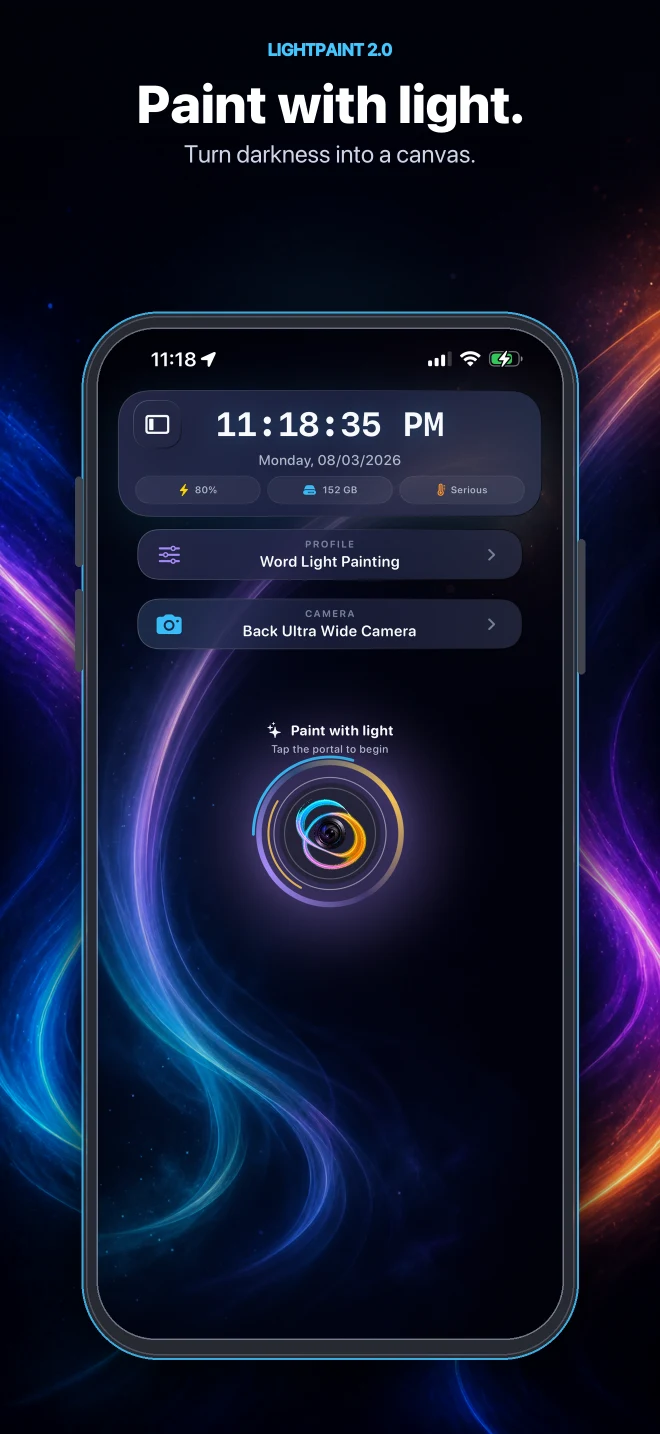
About LightPaint
What LightPaint does, the capture modes, and what you need to start.
Field note 01
What LightPaint does
LightPaint turns your iPhone into a long-exposure camera. Point it at something dark, move a light in front of it, and the trail stays on screen as you draw.
You see the painting build up live. There is no shutter to guess at and no frame to develop — what the preview shows is what you save.
The same engine also records timelapses and single frames, so one app covers the whole night.
Field note 02
Capture modes
Each mode is a starting point: camera settings, trail behaviour and colour, already tuned. Pick one, then change anything you like.
- Auto — no specialised look. An ordinary, correctly exposed frame, for most daytime and indoor scenes.
- Light Painting — a moving light source draws strokes into the frame. The signature mode.
- Steel Wool — spinning sparks, with a blend built for hot, fast-moving debris.
- Star Trails — stars arc across a fixed frame over minutes. Point it up and come back later.
- Vehicle Lights — headlights and tail lights pulled into long ribbons.
- Celestial Timelapse — the night sky in motion, as a timelapse rather than an accumulation.
- Rocket Launch (Day) — daylight launch photography. Freeze the vehicle, watch the highlights.
- Rocket Launch (Night) — a night launch, where the flame is the only thing correctly exposed.
- Rocket Trail — the whole ascent drawn as one continuous arc, minutes long.
Beyond the modes there is a library of saved profiles grouped by situation — Day, Night, Light Painting, Effects, Hyperlapse and more — plus any profile you save yourself.
Field note 03
What you control
Nothing is hidden behind an automatic mode. ISO, shutter, white balance, exposure, focus and zoom are all yours, with an Auto button on each one for when you would rather not think about it.
On top of that sit trail length, blend mode, bloom, and a full colour grade — brightness, contrast, saturation, temperature, tint, highlights, shadows and more.
Everything can be driven by voice. Siri can open the camera, switch profiles and set individual values, which matters when both your hands are holding lights.
Field note 04
Beyond the camera
- Camera profiles you can save, clone and reuse, so a setup that worked once is one tap away.
- AI scene analysis — point the camera at a scene and get a suggested profile for it, clamped to what your device can actually do.
- A community feed where you can publish a shot, browse what other people made, and react or comment.
- LightPaint Music — a library of tracks, made in-house, that you are free to use in anything you publish.
- In-app support — write to a person from inside the app, with your app version and device details attached automatically.
- An account, via Sign in with Apple or Google, which is what carries profiles and community identity across devices.
Some of these are part of a paid subscription. The app tells you which, and what your current plan includes, before anything asks you to pay.
Field note 05
What you need
- An iPhone 11 or newer, running iOS 16 or later.
- Camera access. LightPaint cannot do anything without it.
- Somewhere dark. This matters more than any setting.
- A light. A phone torch works to learn on; coloured torches, LED wands and RGB strips are where it gets interesting.
- Something to hold the phone still. A long exposure records camera shake as faithfully as it records your light.
Photos access is needed only when you export, and Siri access only if you want voice control. Both are optional and can be granted later.
Field note 06
Getting started
Read Getting Started for a first light painting in five steps, then Light Painting Basics for the movements that make a good one.