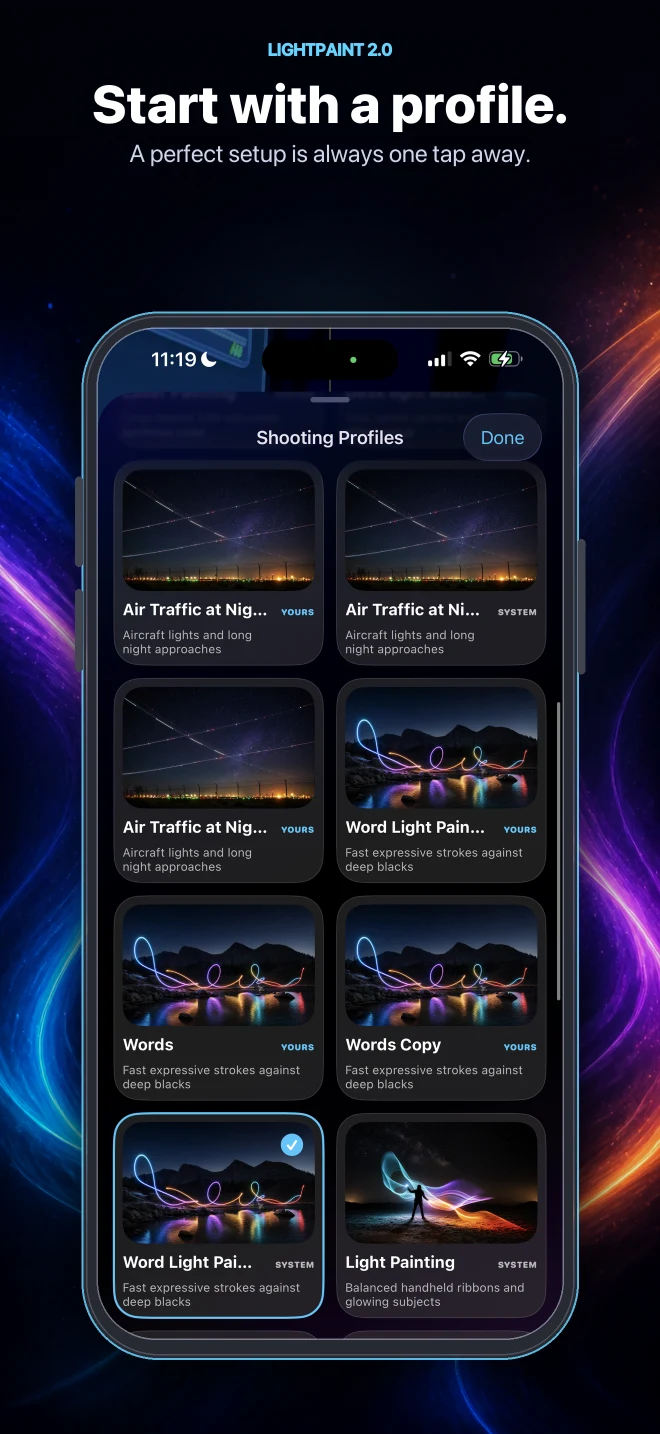
Siri Voice Commands
Hands-free control: every phrase, and the values each setting accepts.
Field note 01
Always say "in Light Paint"
Every command has to name the app, or Siri does not know who you are talking to.
- Say: "Hey Siri, open Light Paint in light painting mode"
- Not: "Hey Siri, open light painting mode"
This is the single most common reason a command does nothing. If Siri answers something unrelated, the app name was missing.
Field note 02
Turning it on
- 1Open Light Paint, go to Settings, then Siri and Shortcuts.
- 2Switch Siri Enabled on, and allow Siri access when iOS asks.
- 3Test it: say "Hey Siri, open Light Paint".
- 4If commands stop being recognised later, use Reset Siri on the same screen.
Field note 03
The four you will use most
- "Open Light Paint"
- "Open Light Paint in light painting mode"
- "Change camera in Light Paint"
- "Change profile in Light Paint"
Field note 04
Opening the camera
- "Open Light Paint" — opens the app.
- "Start light painting in Light Paint" — opens straight into a light painting session.
- "Open Light Paint in light painting mode" — opens the camera in light painting mode.
- "Open Light Paint in photo mode" — opens the camera in photo mode.
Field note 05
Switching camera
- "Change camera in Light Paint" — cycles to the next camera.
- "Switch to front camera in Light Paint"
- "Switch to back camera in Light Paint"
- "Use wide camera in Light Paint"
- "Use ultra wide camera in Light Paint"
- "Change camera to front camera and mirror it in Light Paint"
- "Switch to back camera without mirroring in Light Paint"
Field note 06
Switching profile
- "Change profile in Light Paint" — opens the profile picker.
- "Use Auto profile in Light Paint"
- "Switch to Light Painting in Light Paint"
- "Use Star Trails profile in Light Paint"
- "Change to Vehicles in Light Paint"
Profiles you can name directly:
- "Use Auto in Light Paint"
- "Switch to Light Painting in Light Paint"
- "Use Air Traffic at Night in Light Paint"
- "Change to Star Trails in Light Paint"
- "Switch to Word Light Painting in Light Paint"
- "Use Vehicles in Light Paint"
- "Change to Laser Painting in Light Paint"
Any profile can be named this way, including ones you saved yourself — say its name in place of the ones above.
Field note 07
Camera settings
ISO. The usable range depends on which iPhone and which lens you are on; the app clamps whatever you ask for to what the hardware supports.
- "Set ISO to 400 in Light Paint"
- "Set ISO to 100 in Light Paint"
- "Change ISO to auto in Light Paint"
Shutter speed, in seconds. Also limited by your device rather than by a fixed ceiling — there is no longer a one-second cap, and long light-painting exposures are exactly what this is for.
- "Set shutter speed to 0.5 in Light Paint"
- "Set shutter speed to 1 in Light Paint"
- "Change shutter to auto in Light Paint"
White balance, in kelvin, from 2500 to 8000.
- "Set white balance to 5000 in Light Paint"
- "Set white balance to 6500 in Light Paint"
- "Change white balance to auto in Light Paint"
Exposure compensation, from -3 to 3, where 0 is no change.
- "Set EV to 0 in Light Paint"
- "Change EV to -2 in Light Paint"
- "Set EV to 1.5 in Light Paint"
Zoom, starting at 1.
- "Set zoom to 2 in Light Paint"
- "Change zoom to 1.5 in Light Paint"
- "Set zoom to 4 in Light Paint"
Focus, from 0 to 1. This is a position on the focus range, not a distance in metres.
- "Set focus to 0.5 in Light Paint"
- "Change focus to auto in Light Paint"
- "Reset focus in Light Paint"
Field note 08
Capture settings
- "Set stabilization to standard in Light Paint"
- "Turn torch on in Light Paint"
- "Set countdown to 10 in Light Paint" — seconds before capture starts.
- "Set interval to 5 in Light Paint" — seconds between timelapse frames. Anything from 0.1 to 3600 is accepted.
- "Set video rate to 2 in Light Paint" — playback speed of the rendered video.
Field note 09
Colour and image adjustments
Each of these has a neutral value. Setting a control to its neutral leaves the image unchanged.
Saturation, 0 to 2. Neutral is 1.
- "Set saturation to 2 in Light Paint"
Contrast, 0.5 to 2. Neutral is 1.
- "Set contrast to 1.5 in Light Paint"
Brightness, -1 to 1. Neutral is 0.
- "Set brightness to 0.5 in Light Paint"
Sharpness, 0 to 2. Neutral is 0.
- "Set sharpness to 1 in Light Paint"
Temperature, 0 to 1. Neutral is 0.5 — below that is cooler, above is warmer.
- "Set temperature to 0.8 in Light Paint"
Tint, 0 to 1. Neutral is 0.5.
- "Set tint to 0.7 in Light Paint"
Tilt shift and a reset:
- "Turn on tilt shift in Light Paint"
- "Reset color controls in Light Paint"
Values outside these ranges are not rejected — they are clamped to the nearest end, so asking for a saturation of 5 gets you 2.
Field note 10
Automated zoom
A zoom that moves on its own during capture, which is how you get motion into a timelapse from a fixed phone.
- "Create automated zoom in Light Paint" — Siri then asks for a starting zoom, an ending zoom, and a duration in seconds.
Or give it all at once:
- "Automate zoom from 1 to 4 for 30 seconds in Light Paint"
- "Set automated zoom from 1 to 2 over 60 seconds in Light Paint"
- "Create zoom from 4 to 1 for 45 seconds in Light Paint"
Field note 11
A hands-free setup
Both hands on the lights, nothing to tap. Mount the phone on a tripod, then say these three in order and start painting:
- "Open Light Paint in light painting mode"
- "Set shutter speed to 2 in Light Paint"
- "Set ISO to 400 in Light Paint"
Field note 12
When a command does not work
- Include "in Light Paint". Most failures are this.
- Speak the setting name exactly as written above.
- Open the camera first for anything that changes a camera setting — there is nothing to set otherwise.
- Speak clearly, and somewhere quiet if you can.
- Reset Siri in Settings, then Siri and Shortcuts. Wait half an hour and try again — Siri needs time to relearn the phrases.
For anything more elaborate, build a Shortcut in the iOS Shortcuts app and chain several of these together behind one phrase of your own. An Apple Watch makes the whole thing genuinely hands-free.