Can the free version output to a projector or monitor?
Yes. TimeLapsed can output to any compatible external display for free. Free output is capped at 1080p and always carries ShutterSpeed branding and a share QR code.
TimeLapsed 2.0 · External Display
TimeLapsed sends its finished camera picture over USB-C or HDMI to a field monitor, projector, television, capture card, or display while the controls stay on the phone. Start free, then use Pro when you need clean, unbranded output.

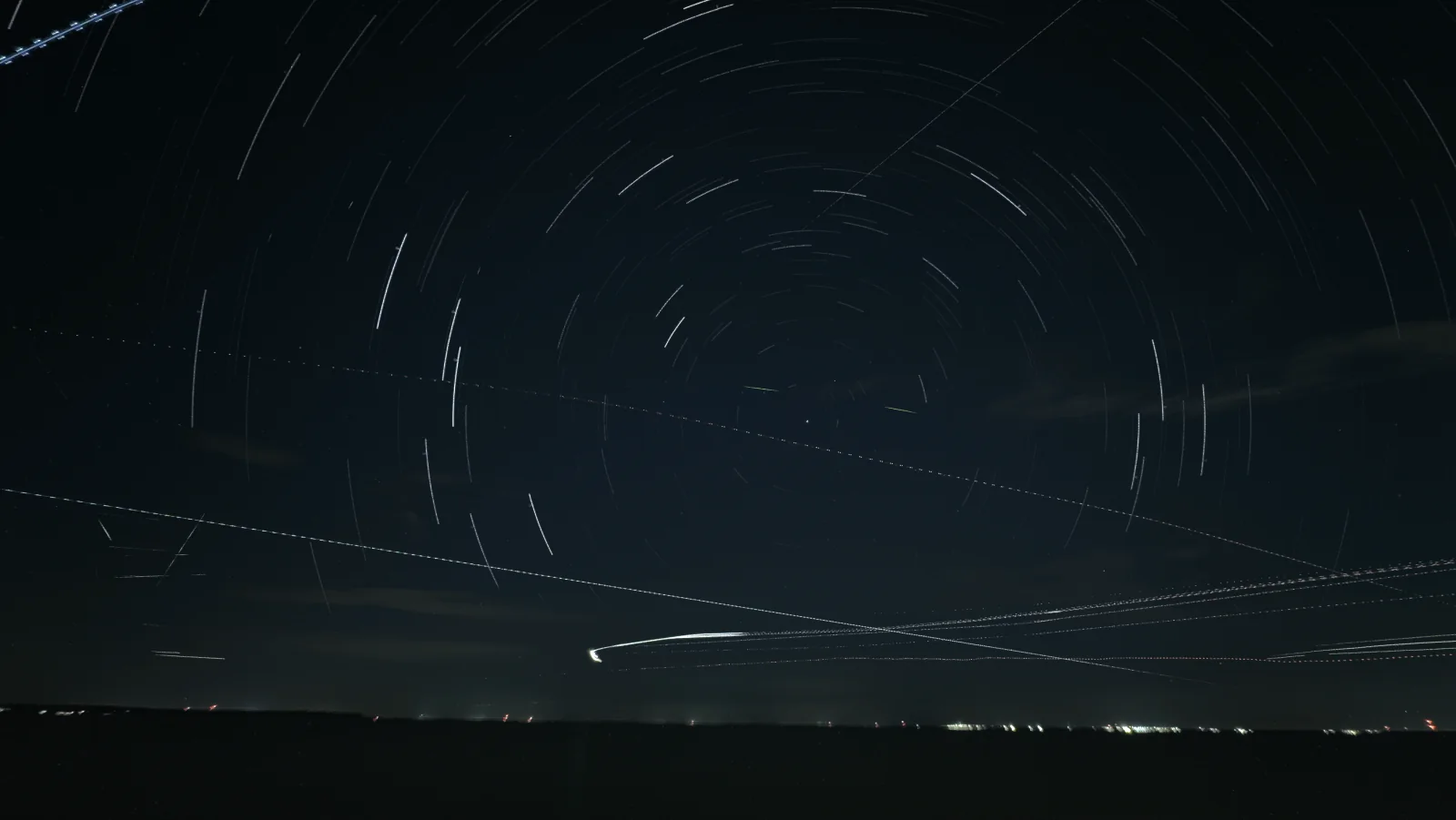
The picture travels to the display. Camera controls stay with the operator.
Choose What Goes to the Display
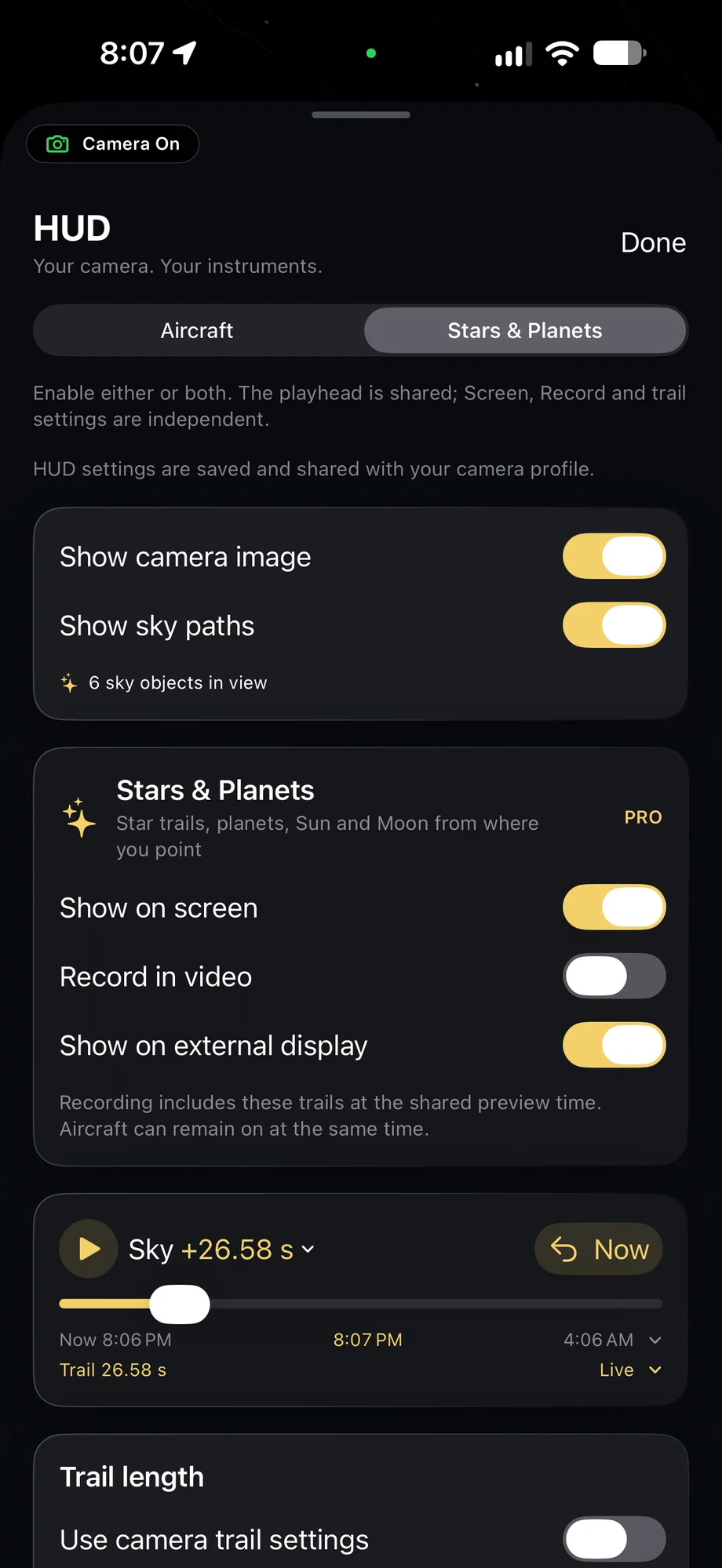
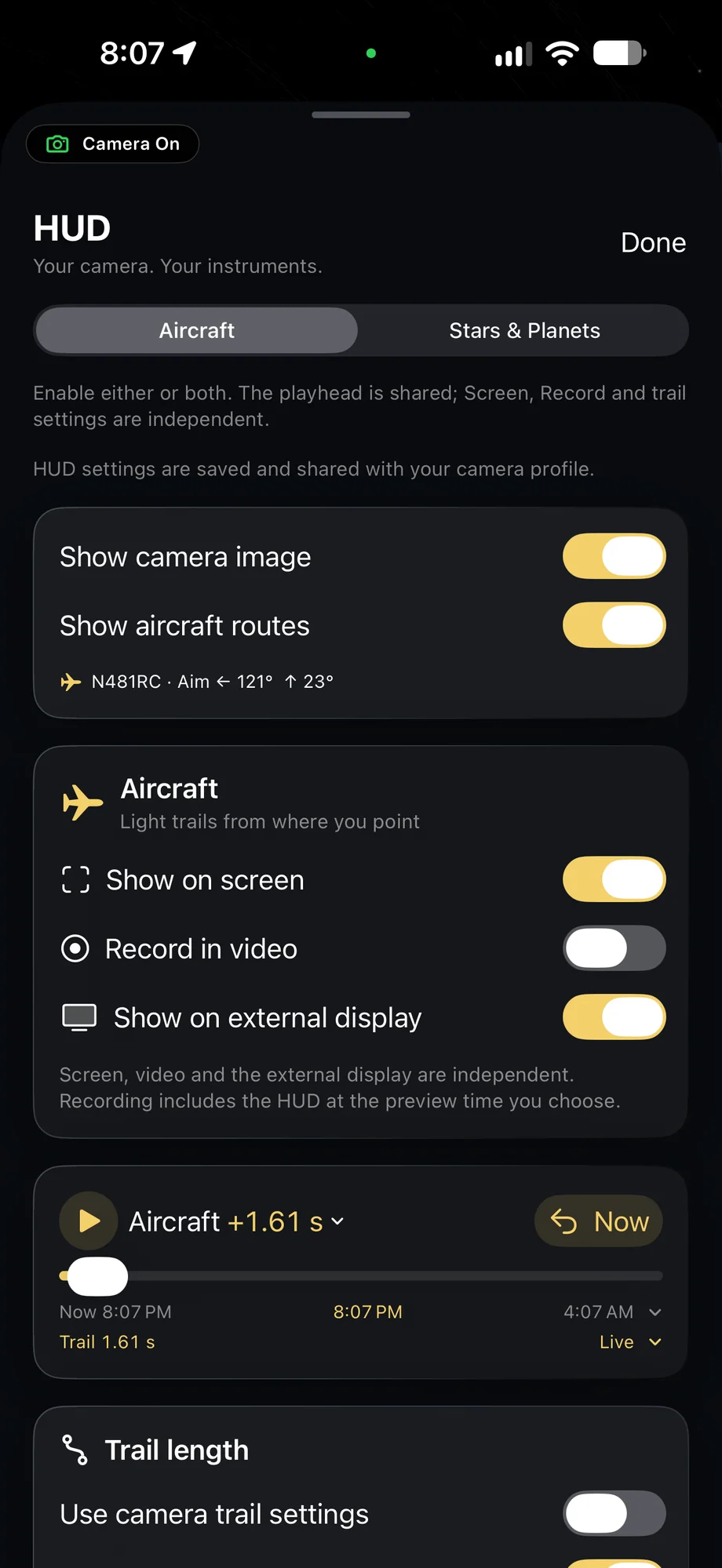
Source → Cable → Display
Choose the finished processed picture or raw camera, then set fit or fill, rotation, resolution and frame-rate matching for the display in front of you. Decide which sky and aircraft overlays go to the external screen separately from the camera view and recording.
The supplied app screens show the HUD output choices. The star-trail picture above illustrates the display destination.
Put focus, framing, exposure, and the developing composite on a larger field or reference monitor without crowding the iPhone interface.
Send the processed timelapse view, light trails, or playback to a projector while the mounted phone keeps recording.
Use a capture-card preset for clean 1080p pixels and live audio, ready for a recorder, switcher, or streaming system.
Mirror still and video playback to the connected display so a crew or client can review the result without handling the camera.
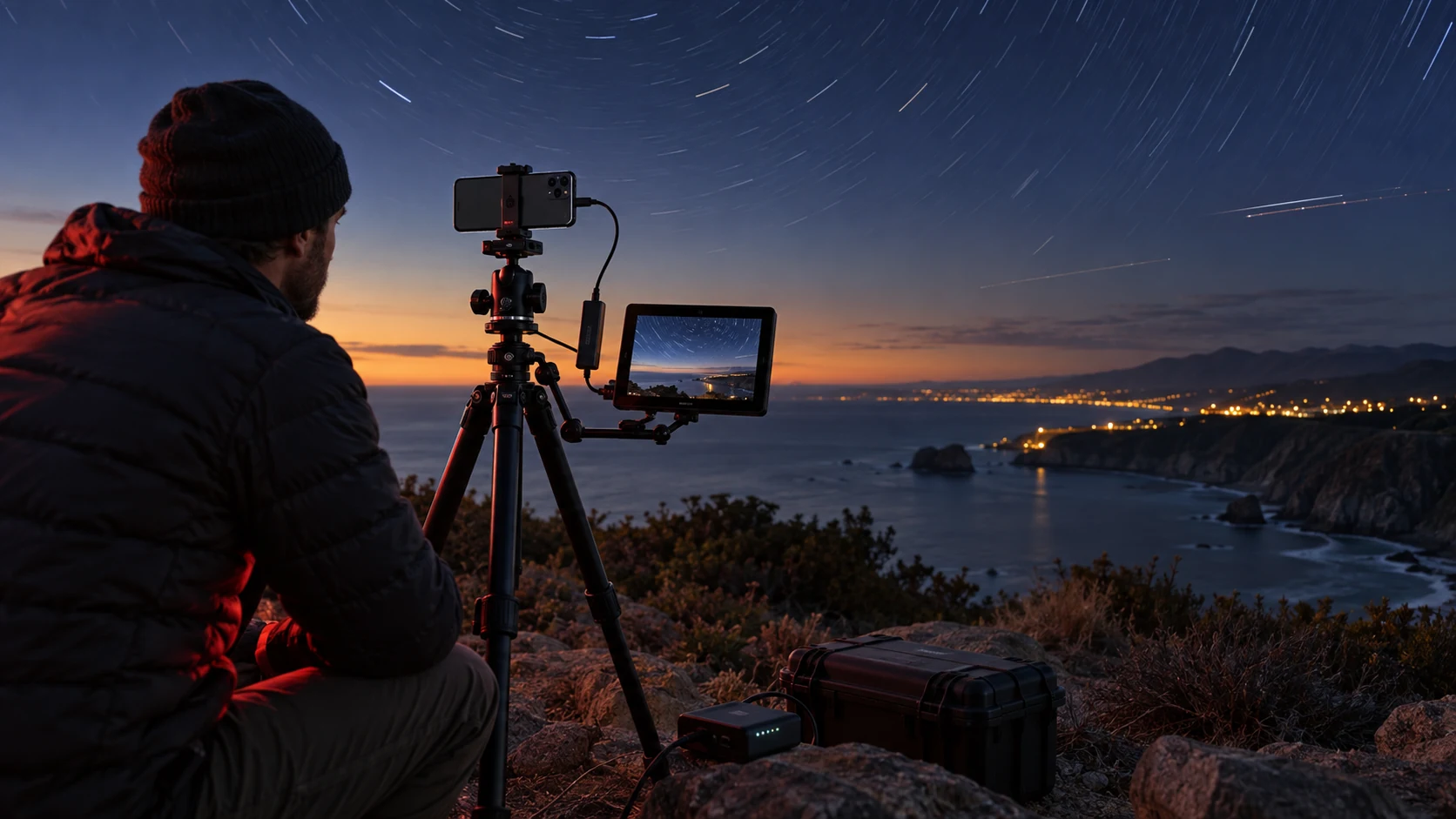
A connected monitor gives the developing image more room while the phone stays mounted.
The destination does not decide the tier. Branding, resolution, production tools and commercial use do.
| Free | Compatible monitors, projectors, TVs and capture cards. 1080p output with shipped presets. | ShutterSpeed branding and share QR code. |
|---|---|---|
| Pro | Clean personal output. Native or 4K resolution, monitoring overlays, live audio and custom presets. | Removes the branding and share QR code. |
| Production Display | Every Pro feature, plus Show Mode, blackout, freeze, alignment patterns and your logo. | $399 per year. Rights to use live output in paid commercial work. |
Production Display replaces a Pro plan. The App Store shows the current price in your currency before purchase.
Yes. TimeLapsed can output to any compatible external display for free. Free output is capped at 1080p and always carries ShutterSpeed branding and a share QR code.
Any TimeLapsed Pro subscription removes the ShutterSpeed branding and share QR code for clean personal output. Pro also unlocks native or 4K output, monitoring overlays, live audio, and unlimited custom display presets.
No. The connected display receives the selected camera source or finished processed picture, not a duplicate of the buttons and controls on the iPhone.
Commercial display use requires the annual Production Display license. It includes every Pro feature plus show-safe controls, your logo, and commercial display rights.
TimeLapsed 2.0 supports 12 languages across the iPhone, iPad and Apple Watch experiences. Use the camera and tools in the language that works for you.
Take the app with you
Capture on iPhone, iPad or a compatible Android phone. Apple Watch controls are available with the iOS app.
Android review is in progress. Beta requests are open.
Scan With an iPhone or iPad to Open the App Store.