When is a Production Display license required?
Use Production Display when the live output is part of paid commercial work: a paid event or installation, a broadcast, a commercial production, or a client deliverable.
TimeLapsed 2.0 · Production Display
Production Display turns TimeLapsed into a show-safe source for paid events, installations, broadcasts, client work, LED walls, projectors, and screens. One annual license includes every Pro feature and the rights to use the live output commercially.

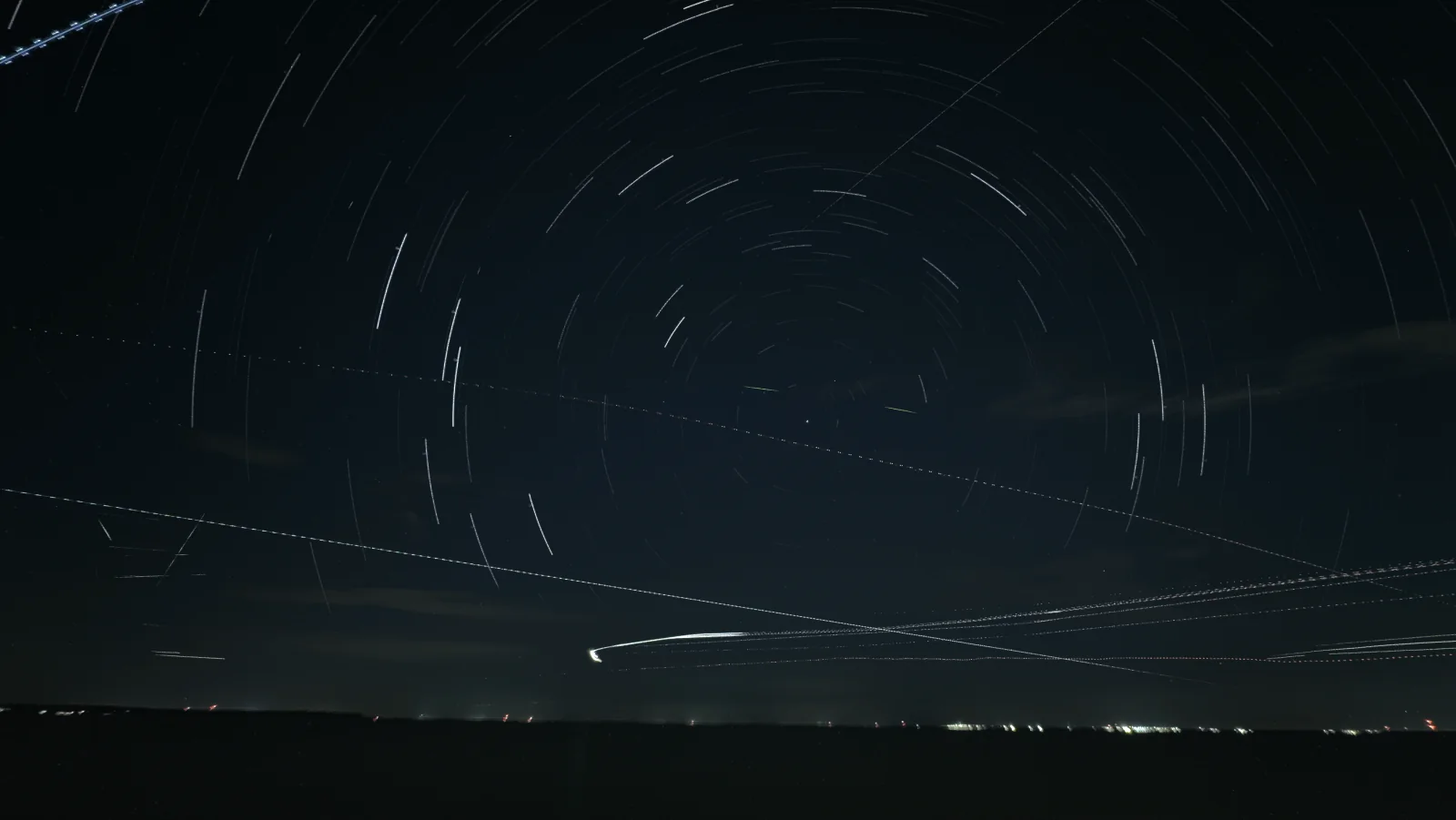
The picture travels to the display. Camera controls stay with the operator.
Choose What Goes to the Display
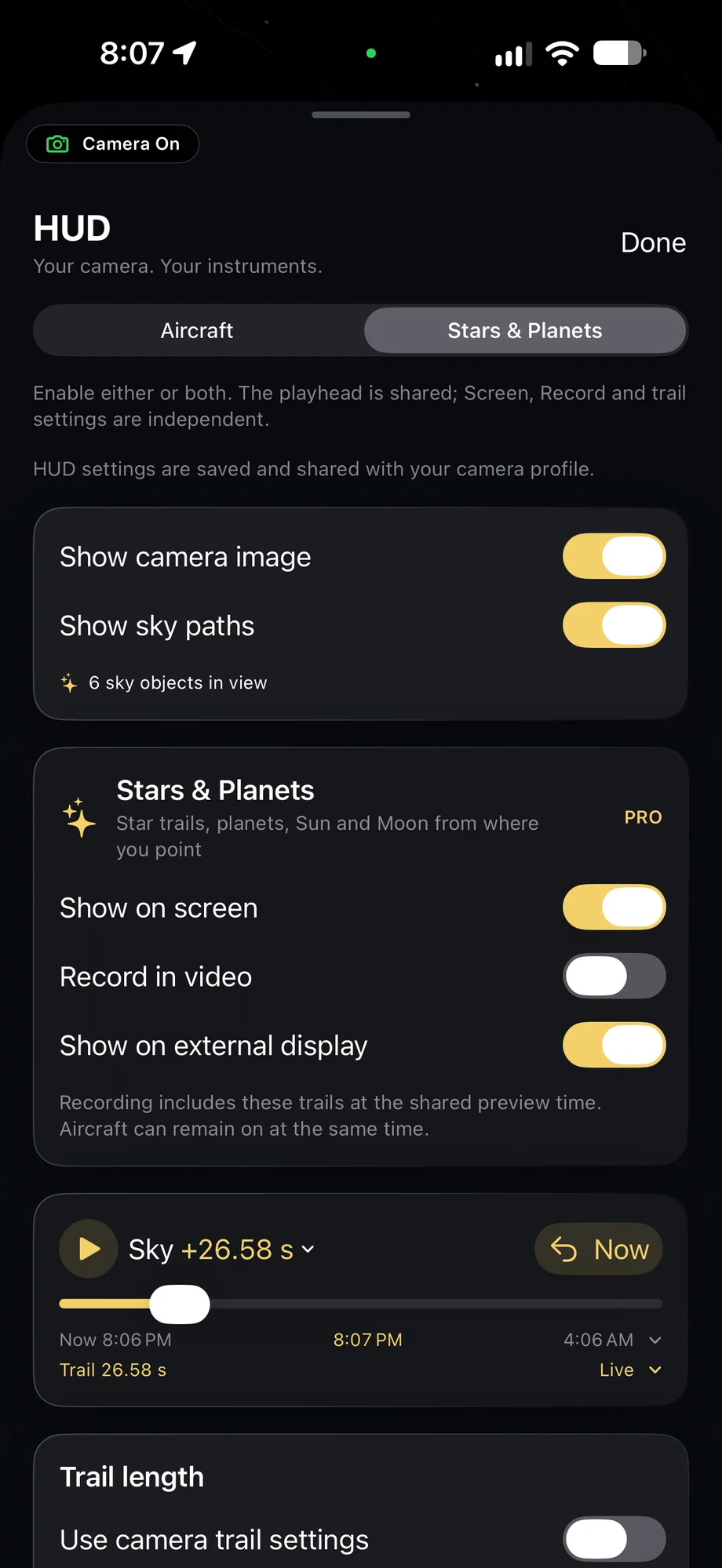
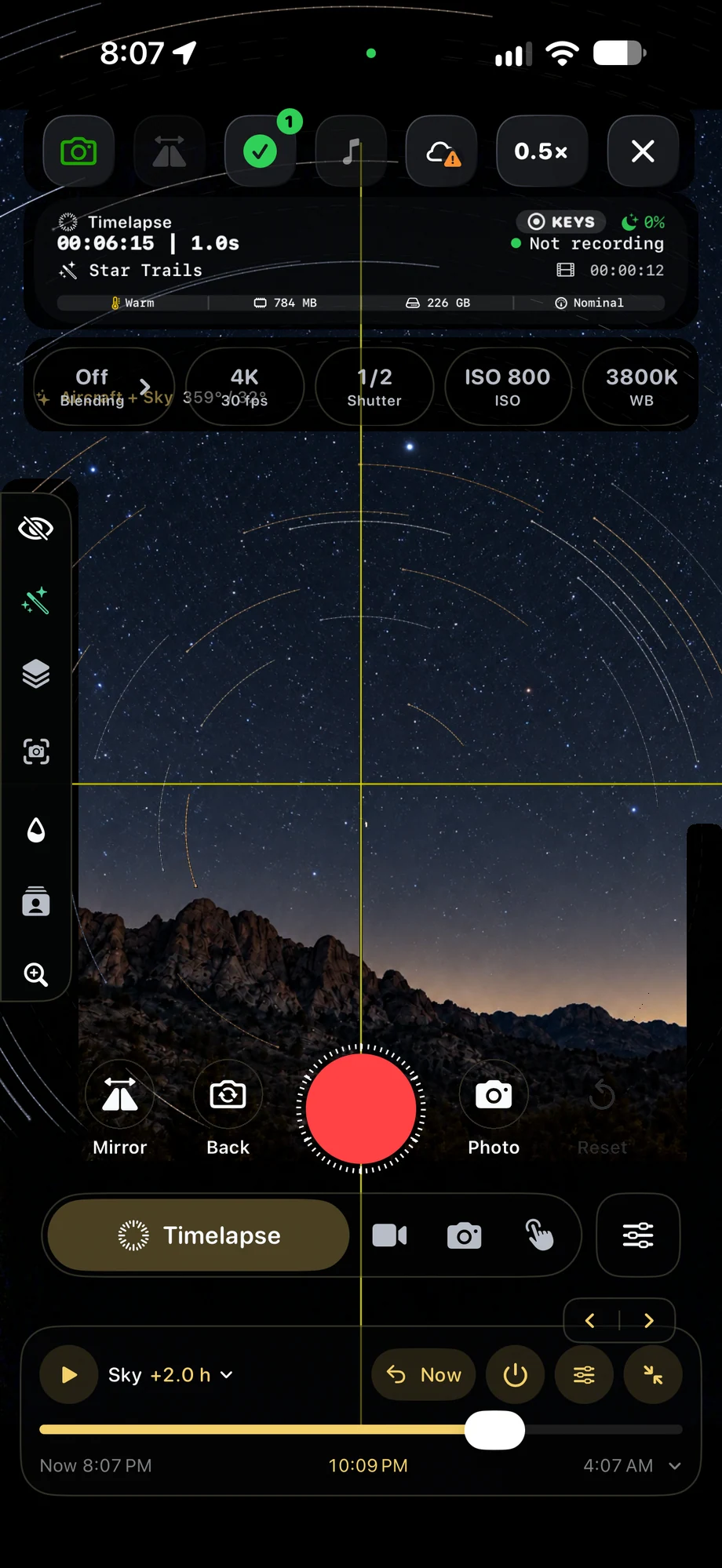
Source → Cable → Display
Choose the finished processed picture or raw camera, then set fit or fill, rotation, resolution and frame-rate matching for the display in front of you. Decide which sky and aircraft overlays go to the external screen separately from the camera view and recording.
The supplied app screens show the HUD output choices. The star-trail picture above illustrates the display destination.
Hold the last good picture when the camera view closes or the app is interrupted, so the audience never sees an operator screen.
Fade the output to black or hold the current frame from the phone without stopping the camera or the recording.
Send color bars and pluge, an 11-step gray ramp, or a focus and keystone chart to line up the display before doors open.
Replace ShutterSpeed branding with a transparent PNG of your own, with position, scale, and opacity controls.
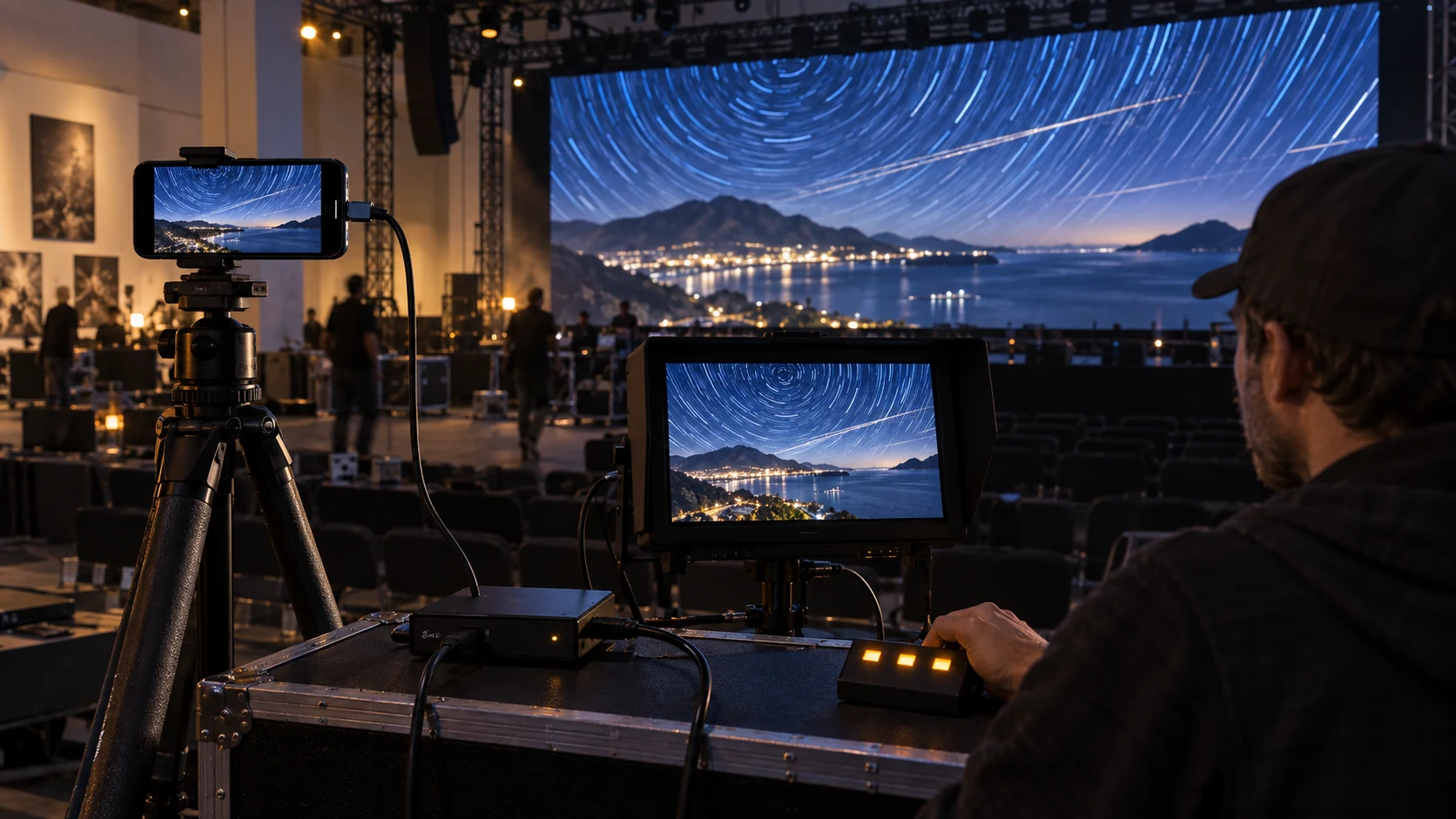
A production rig with the phone as the camera and the connected screen as the output.
The destination does not decide the tier. Branding, resolution, production tools and commercial use do.
| Free | Compatible monitors, projectors, TVs and capture cards. 1080p output with shipped presets. | ShutterSpeed branding and share QR code. |
|---|---|---|
| Pro | Clean personal output. Native or 4K resolution, monitoring overlays, live audio and custom presets. | Removes the branding and share QR code. |
| Production Display | Every Pro feature, plus Show Mode, blackout, freeze, alignment patterns and your logo. | $399 per year. Rights to use live output in paid commercial work. |
Production Display replaces a Pro plan. The App Store shows the current price in your currency before purchase.
Use Production Display when the live output is part of paid commercial work: a paid event or installation, a broadcast, a commercial production, or a client deliverable.
Yes. The annual Production Display license includes every TimeLapsed Pro feature. The license covers the app, the production tools and commercial display rights.
Yes. Production Display can place your transparent PNG on the external output and lets you control its placement, size, and opacity.
Show Mode is designed to hold the last good picture on the display instead of exposing the phone interface or dropping the feed.
TimeLapsed 2.0 supports 12 languages across the iPhone, iPad and Apple Watch experiences. Use the camera and tools in the language that works for you.
Take the app with you
Capture on iPhone, iPad or a compatible Android phone. Apple Watch controls are available with the iOS app.
Android review is in progress. Beta requests are open.
Scan With an iPhone or iPad to Open the App Store.