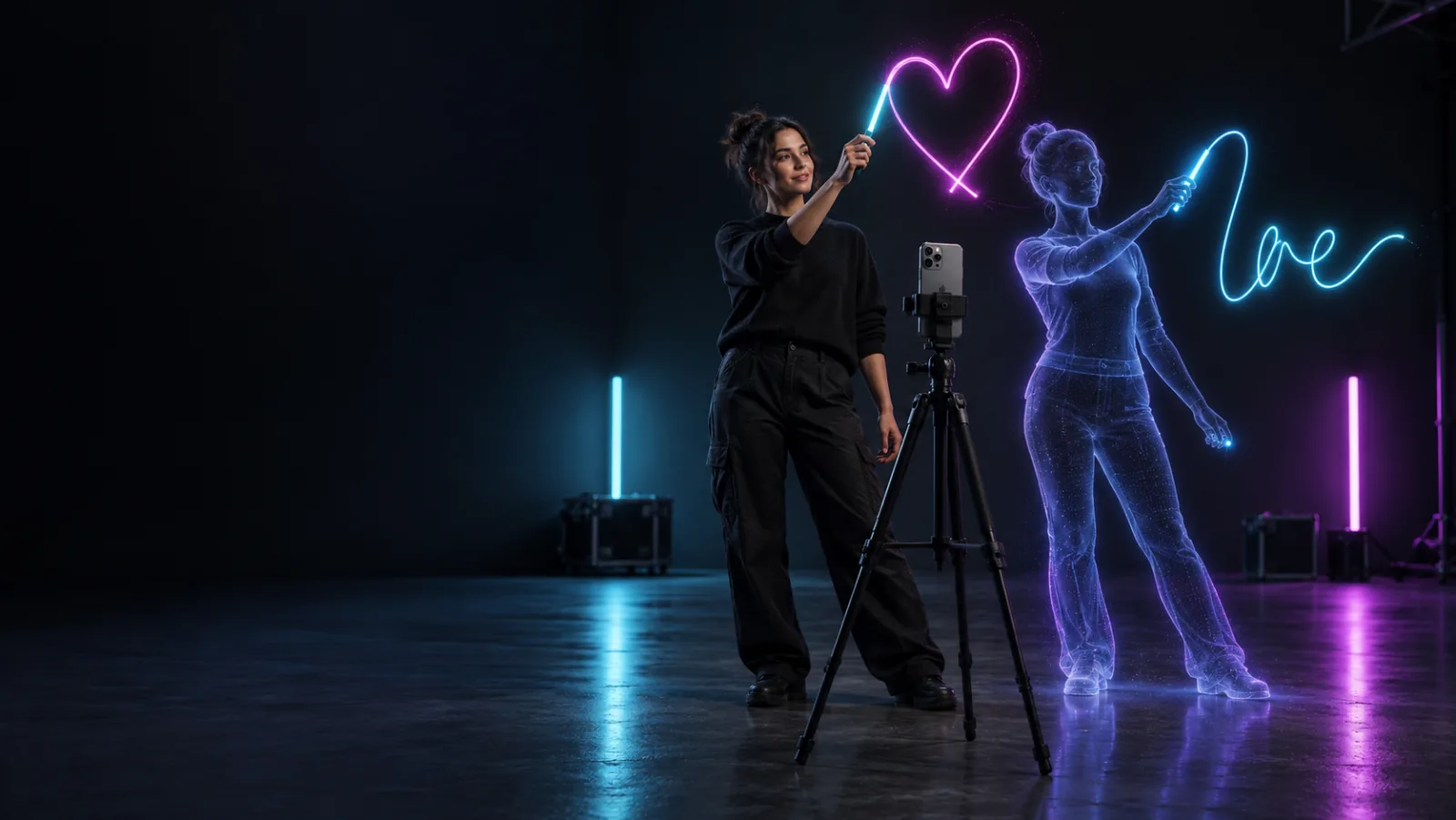
A photographer rehearsing a cyan light painting with an interactive guide beside a tripod-mounted iPhone
LightPaint

LightPaint Learning Studio

Rehearse the light painting before the room goes dark.

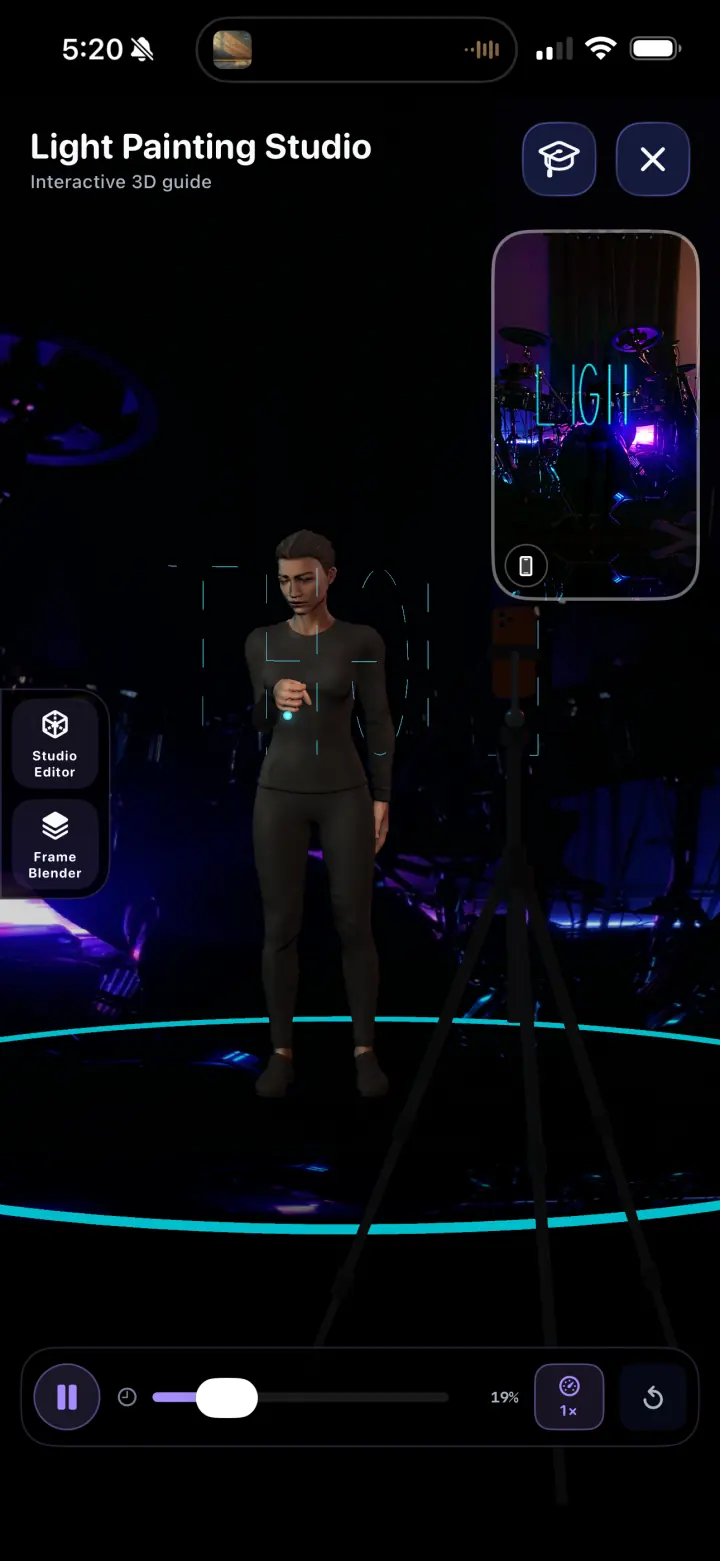
The Learning Studio turns an unfamiliar long-exposure technique into a scene you can see, rotate, rehearse, and then carry directly into the camera. Build the room, watch the movement, test the result, and begin the real capture with the same profile.

Interactive 3D instructionMatch real scene lightingLaunch the tuned camera

9

guided shapes and movements

3D

rotate and inspect every step

1 tap

open the real camera profile

01 · A teacher inside the scene

See the whole performance, not a list of instructions.

The 3D performer demonstrates the physical sequence from tripod setup to the finished gesture. Orbit the stage, change the view, and follow the action at your own pace before anyone starts the exposure.

  • Mount the phone and set the performer position
  • Follow wake, record, walk, raise, and paint cues
  • Scrub, pause, replay, or slow the guide at any point
02 · Your room becomes the rehearsal room

Photograph the location. Match the stage to it.

Take a reference frame from the tripod or choose an existing image. Match Scene Lighting uses that background to light the performer, while Auto Tune can dial the real camera for the same environment.

  • Use the front or rear camera from the tripod position
  • Adjust scene brightness and spill around the performer
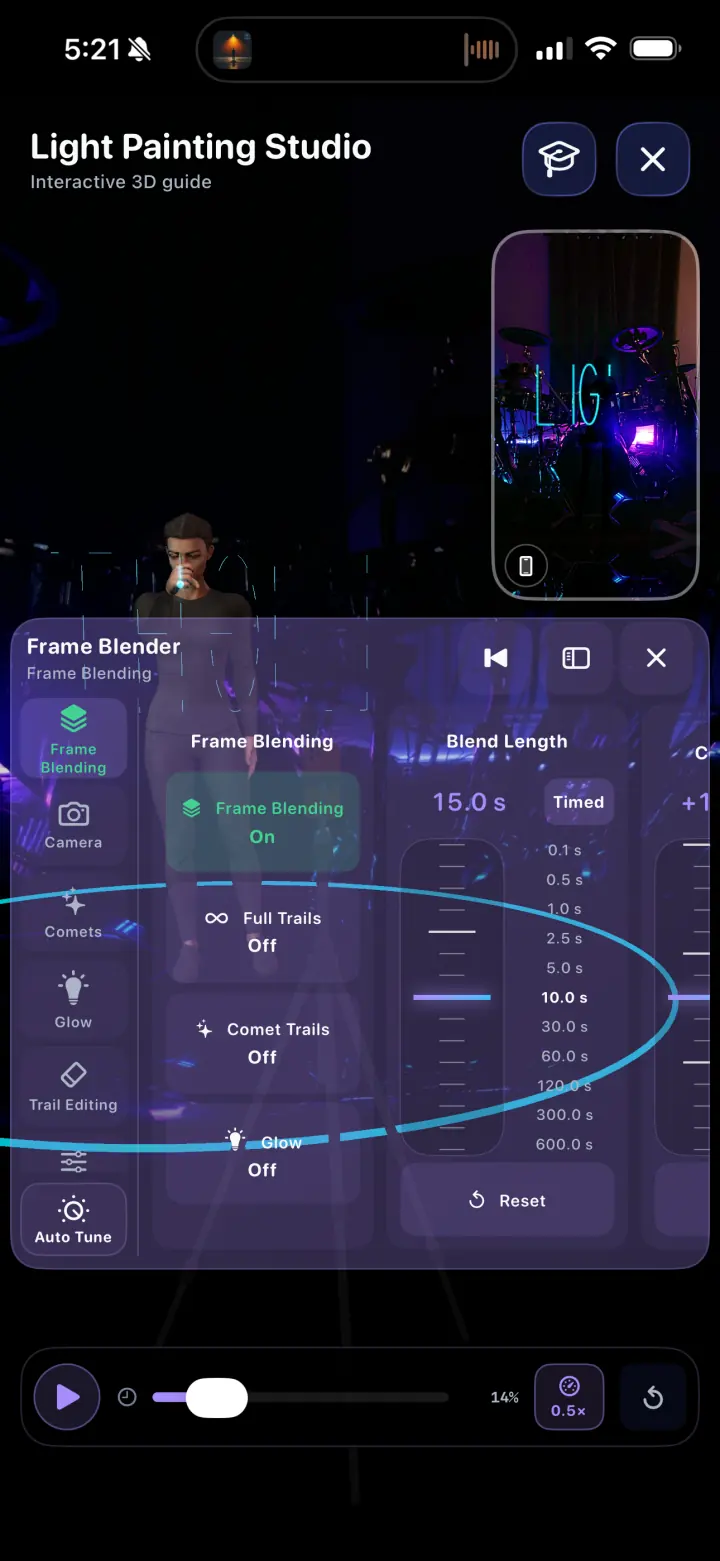
  • Test Frame Blending before opening the camera

03 · A studio that scales with you

Start with a heart. Graduate to your own movement.

Choose a guided word, heart, star, spiral, light streak, butterfly, dragon, or stick figure. Pro adds custom words and lets your own rear-camera motion recording drive the performer.

  • Tool, color, output, scene brightness, and spill controls
  • Two-hand variants for symmetrical light shapes
  • Save the result as a reusable shooting profile

Inside the app

Controls you can read at a glance.

Real screens, optimized for a fast page and arranged as a compact swipeable rail on phones.

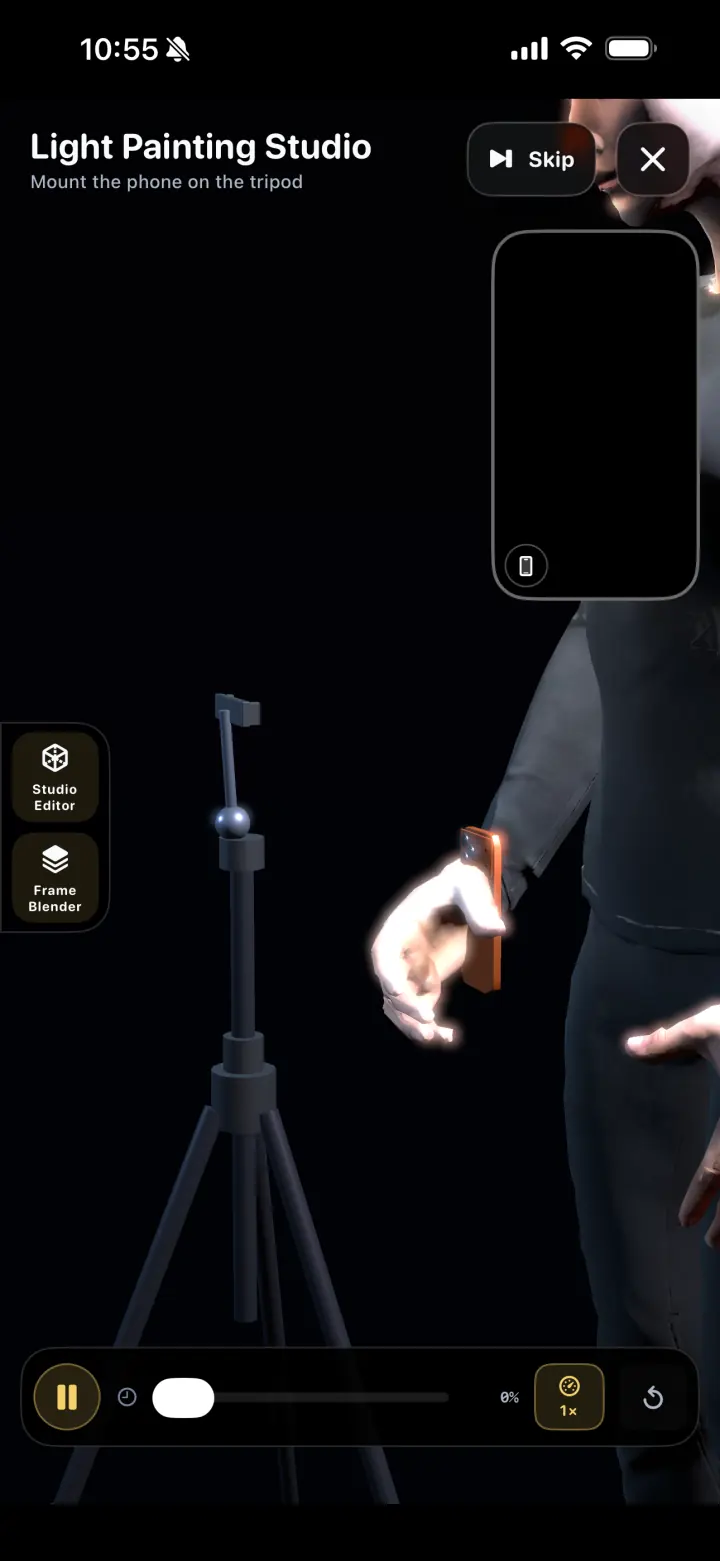
LightPaint Learning Studio with a 3D performer and tripod
01The complete interactive stage
3D guide demonstrating how to mount an iPhone on a tripod
02Physical setup shown from any angle
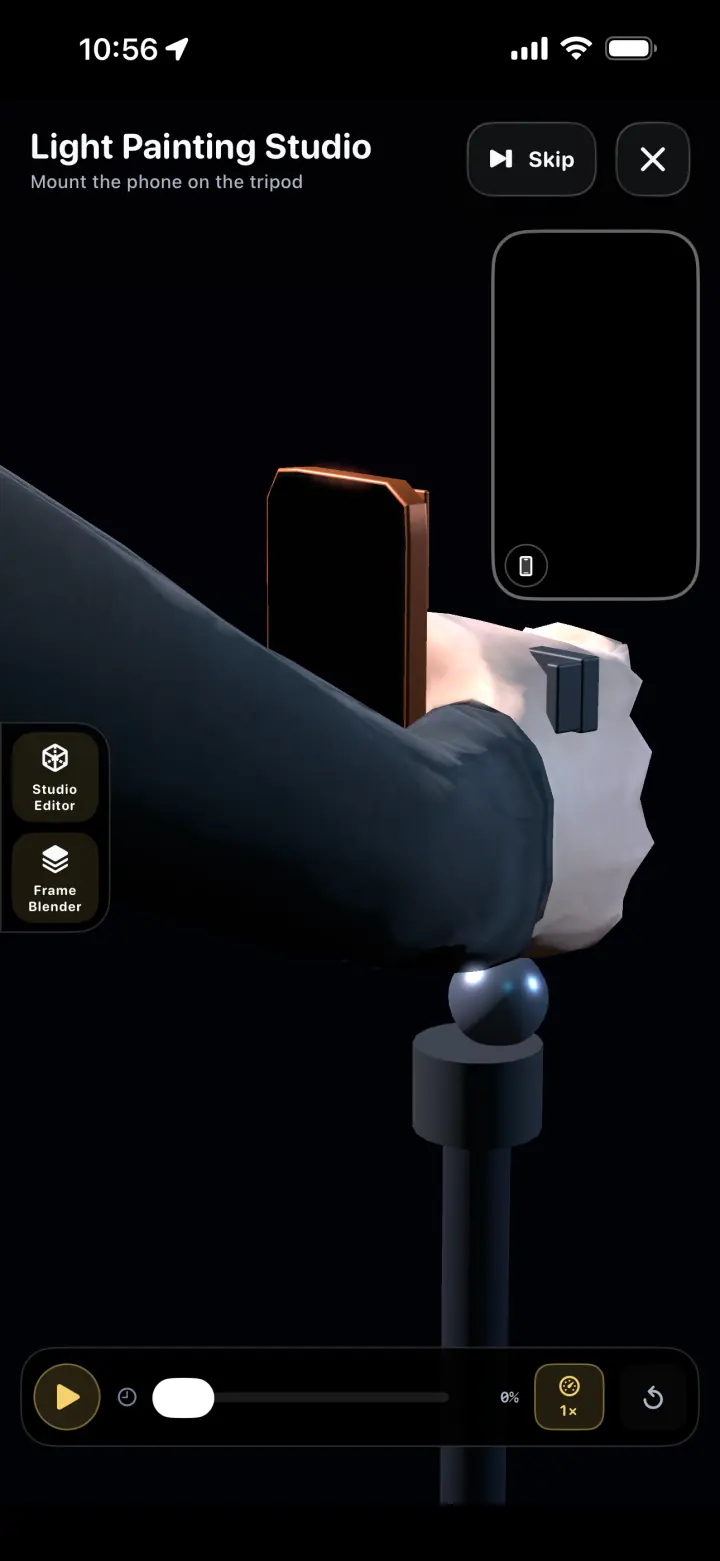
Close view of the 3D performer mounting a phone in the tripod clamp
03Close-up instruction when details matter
Frame Blender settings opened over the interactive guide
04Test the profile before the real capture

The workflow

From reference photo to a camera-ready rehearsal.

01

Build the scene

Photograph the location or choose a background, then position the performer and tripod.

02

Choose the movement

Pick a guided shape, enter a custom word, or use a Pro motion-capture performance.

03

Tune and rehearse

Match lighting, adjust the light tool, and inspect the move from the view that teaches it best.

04

Open the camera

Save the setup as a profile or apply it to the running camera and begin the actual painting.

Questions

The important details, plainly answered.

Does the Learning Studio control the real LightPaint camera?+

Yes. It can prepare a profile and open the actual camera with those settings. If the Studio was opened from an active camera, the profile can be applied in place.

Can I use a photo of the real shooting location?+

Yes. Take a reference photo from the tripod or choose one from the library, then use it as the stage background and as the basis for scene-light matching.

Can the avatar write my own word?+

Yes with LightPaint Pro. Custom words are normalized for a clear guided performance, while the included guide also offers a ready-made LIGHT sequence.

Can I teach the avatar my own movement?+

Yes with LightPaint Pro. Record a rear-camera motion take and use it to drive the on-screen performer during rehearsal.

Can I put the guide on a larger screen?+

Yes. Use LightPaint’s external-display support with a compatible monitor, television, or projector, including USB-C to HDMI setups, when the performer needs to see the guide from across the room.