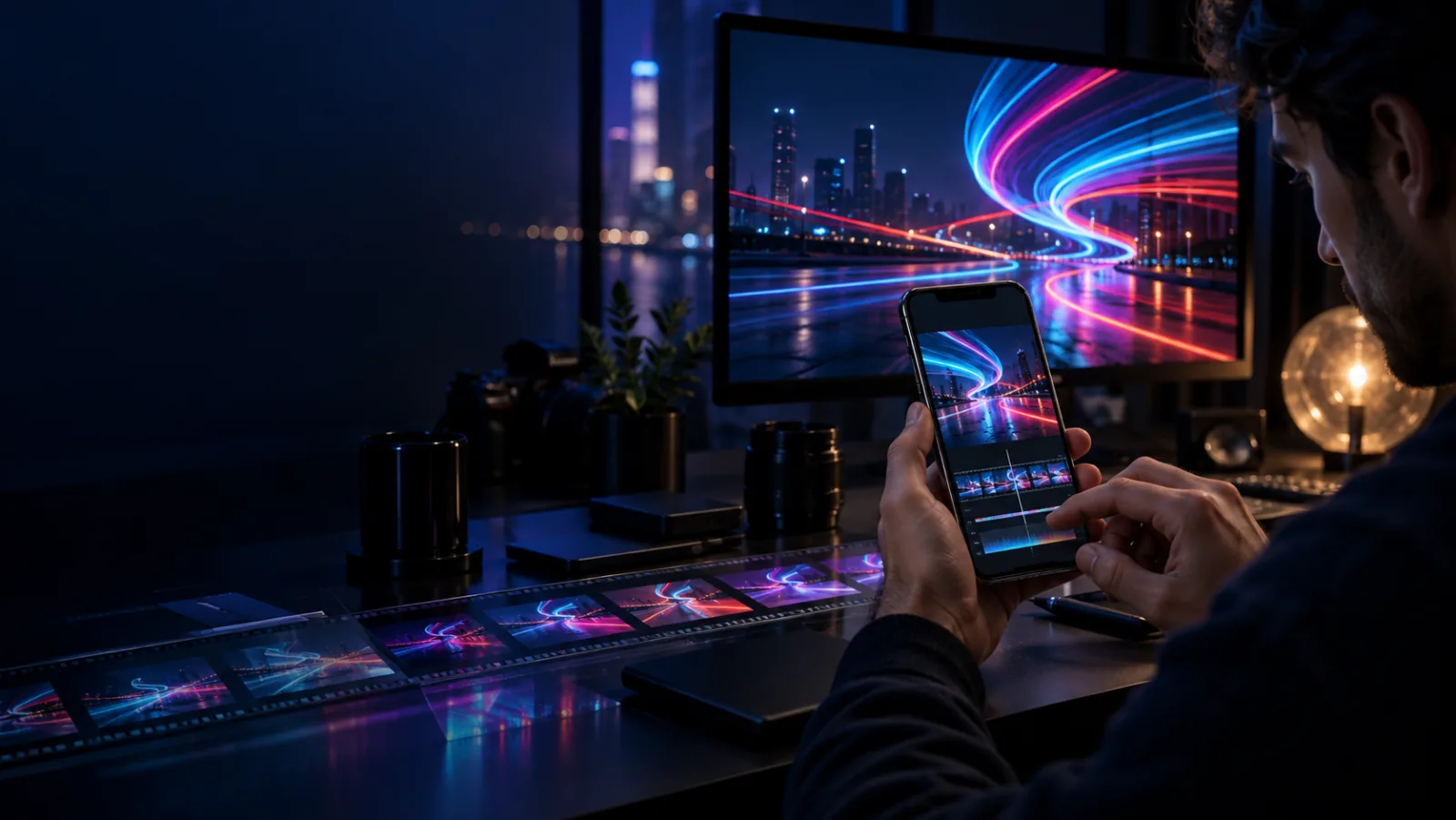
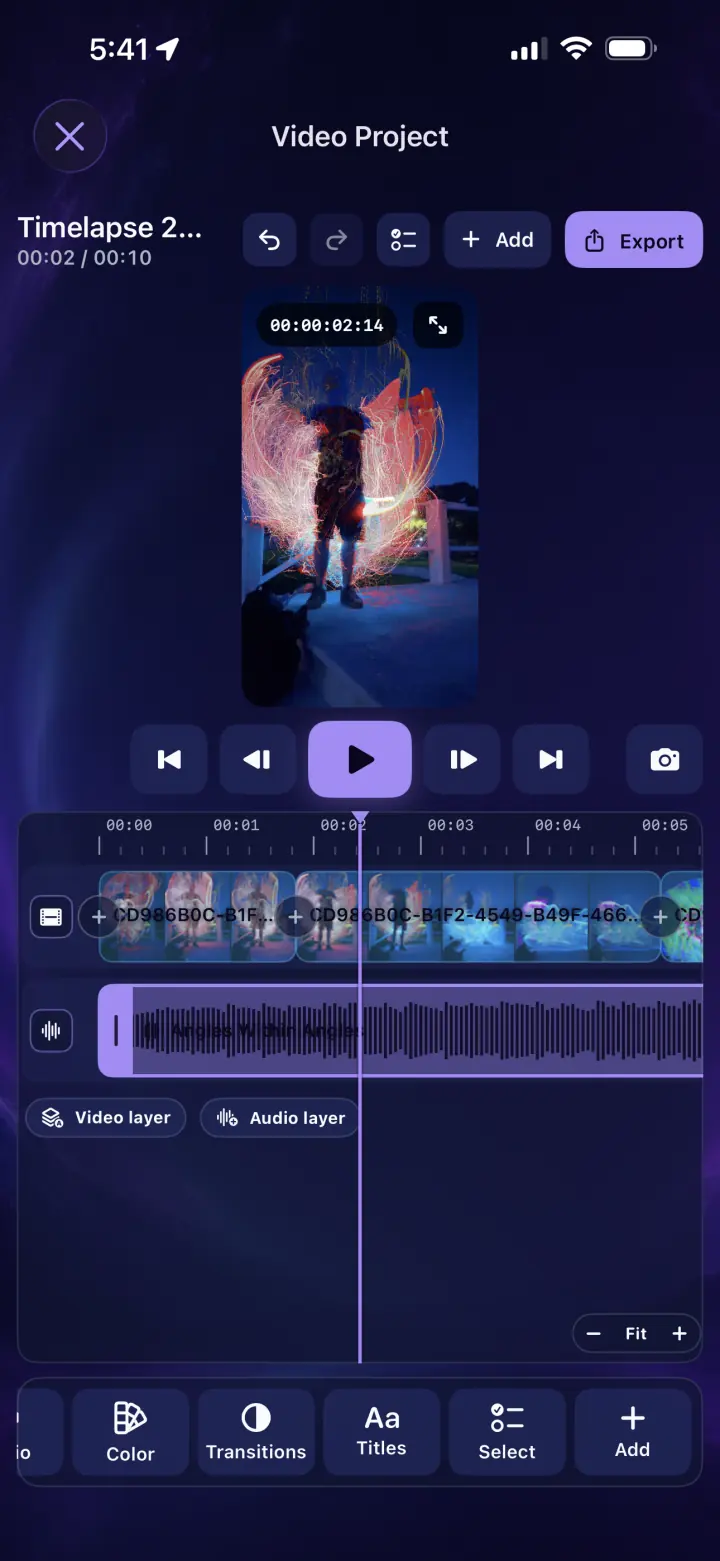
A vertical light painting video being edited on a professional mobile timeline
LightPaint

LightPaint video editor

From live trails to a finished cut—without leaving LightPaint.

The LightPaint editor puts the controls that matter around the work you just made. Assemble clips, shape their timing, finish the color, add titles and cleared music, then export the right frame for Photos, friends, or a social feed.

Layered mobile timelineColor and .cube LUTsUp to 4K export

0.25–8×

clip-speed range

6

ready export aspect ratios

4K

maximum output size shown

01 · A complete cut on the phone

The timeline stays visual, layered, and direct.

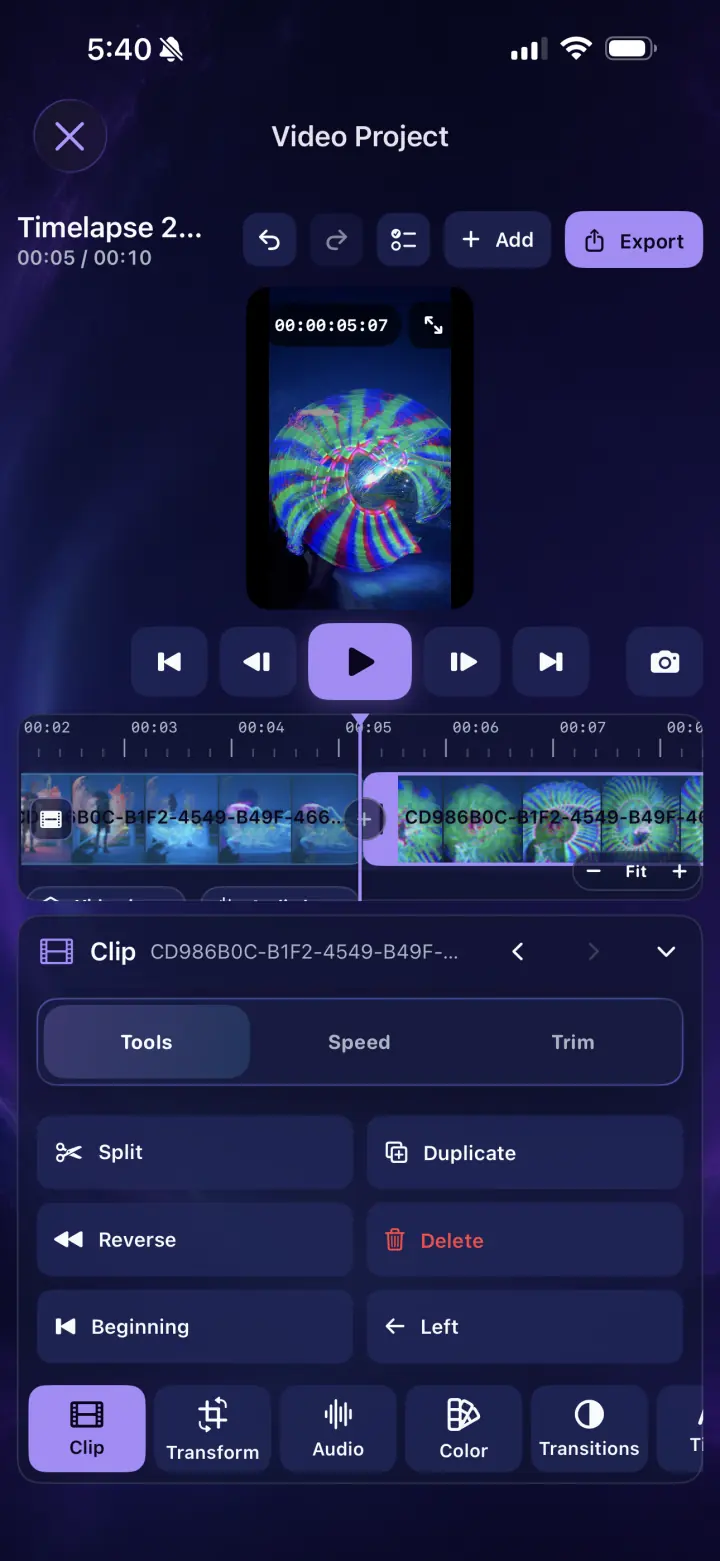
Video, audio, and title layers line up under one playhead. Scrub by frame, jump between edits, undo and redo, capture a still, and zoom the timeline to the level the current decision needs.

  • Add and arrange multiple clips
  • Split, duplicate, reverse, delete, and move
  • Trim edges and change clip speed from 0.25× to 8×
02 · Finish the look

Color, movement, and typography belong in the same project.

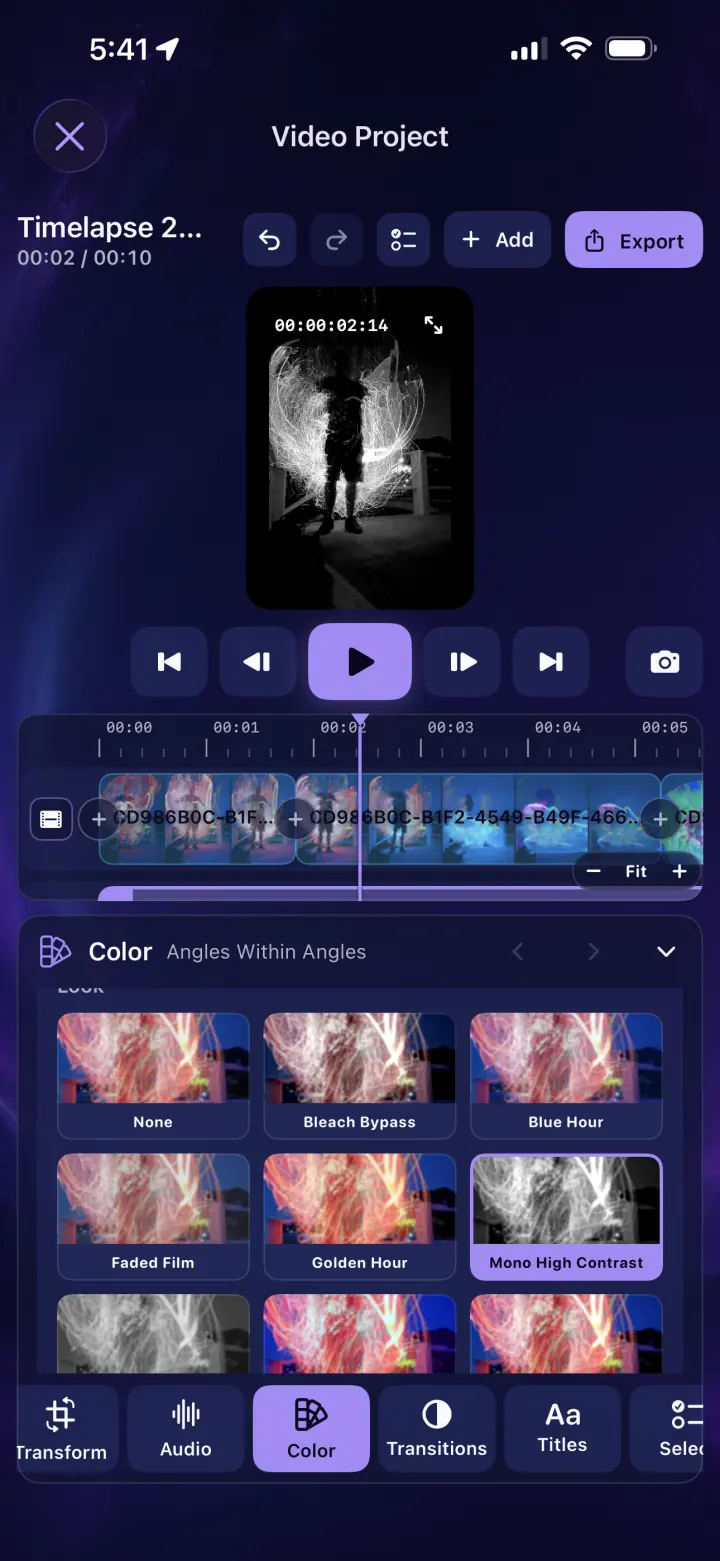
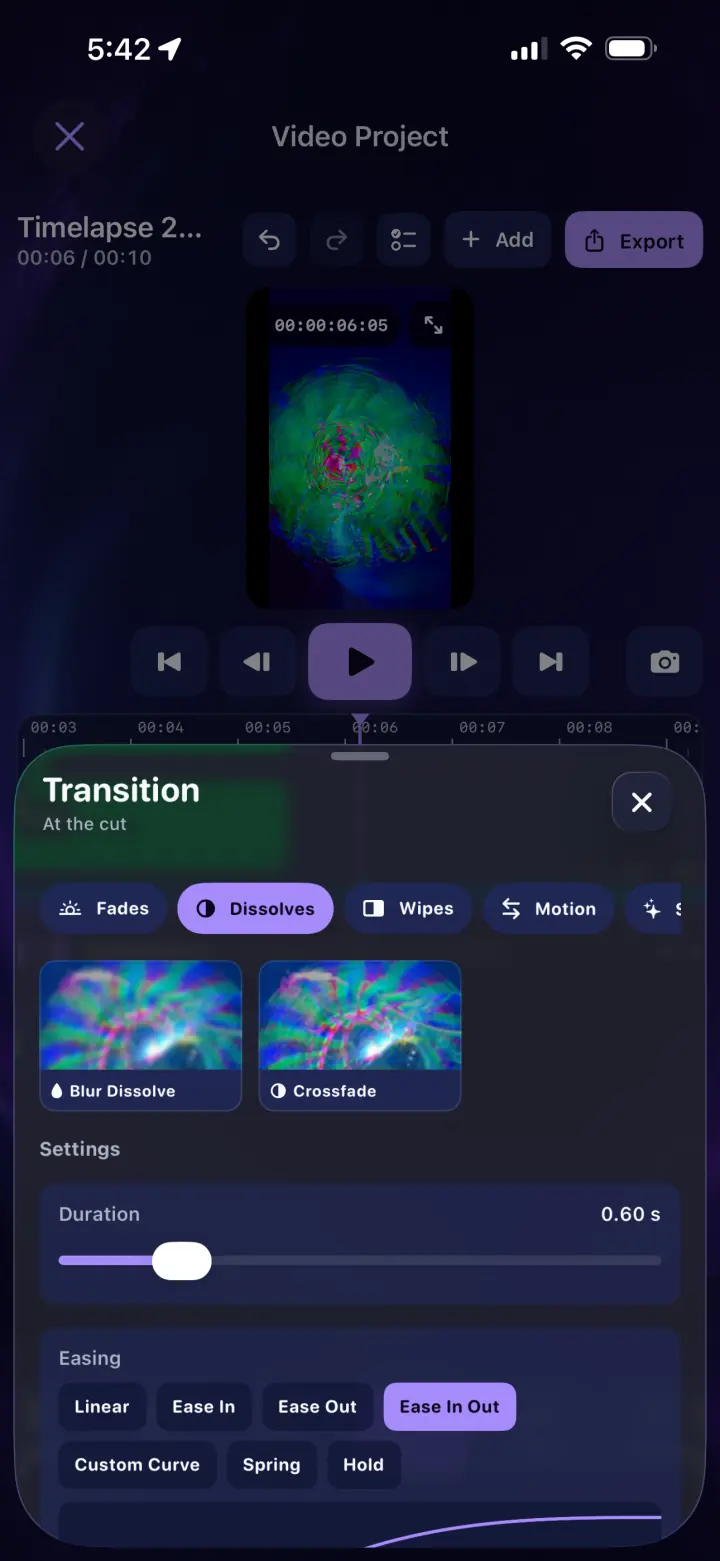
Choose a built-in look, import a .cube LUT, transform the frame, add a title layer, and shape the cut with fades, dissolves, wipes, motion, and stylized transitions.

  • Transition duration and easing controls
  • Linear, ease, spring, hold, and custom-curve behavior
  • Title, audio, transform, color, and selection tools

03 · Export for the destination

Choose the cover, crop, quality, and delivery path.

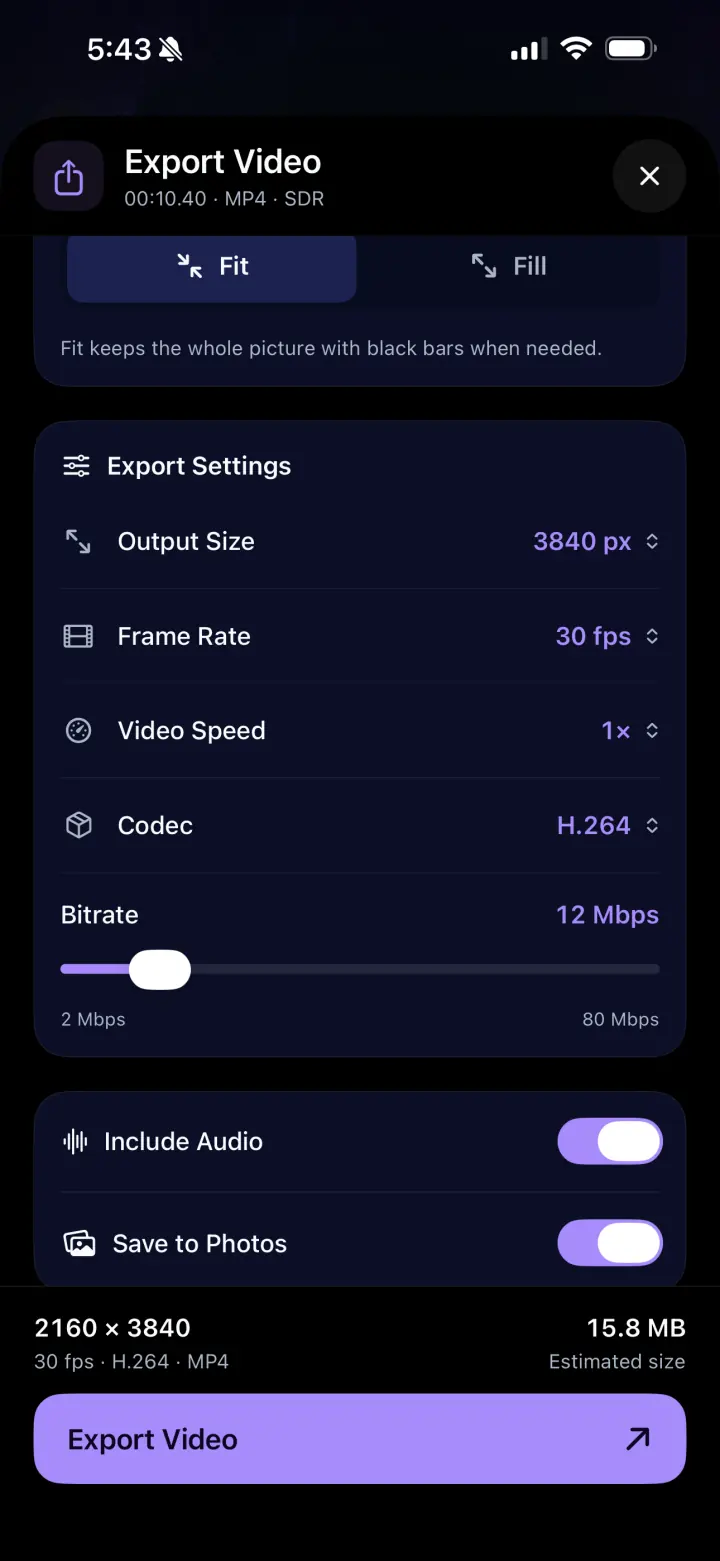
Select a video cover and use the original frame or reshape the story for 16:9, 9:16, 1:1, 4:3, or 4:5. Set output size, frame rate, codec, bitrate, audio, and Photos delivery with a visible size estimate.

  • Fit preserves the whole frame; Fill uses the whole canvas
  • MP4, SDR, H.264, frame-rate, speed, and bitrate controls
  • Save to Photos, share to people and social apps, or play after export with AirPlay

Inside the app

Controls you can read at a glance.

Real screens, optimized for a fast page and arranged as a compact swipeable rail on phones.

LightPaint layered video and audio timeline
01Video and audio under one precise playhead
LightPaint clip tools including split, duplicate, and reverse
02The editing commands used most stay close
LightPaint editor color looks and cube LUT import
03Built-in looks and .cube LUT import
LightPaint transition browser with duration and easing
04Transition style, duration, and easing
LightPaint 4K video export settings
05Resolution, frame rate, codec, bitrate, and audio

The workflow

A straight line from the session to the share sheet.

01

Open a session

Start from the organized LightPaint session and choose the videos and frames worth using.

02

Build the cut

Arrange, trim, split, reverse, and retime clips on a layered visual timeline.

03

Finish the story

Add cleared music, titles, color, LUTs, transforms, and transitions.

04

Export once

Pick the destination shape and quality, then save, share, or play the completed file.

Questions

The important details, plainly answered.

Can I make a vertical social video?+

Yes. Export supports 9:16 vertical video as well as 16:9, square, 4:3, 4:5, and the project’s original ratio.

Can I use my own LUT?+

Yes. Import a standard .cube LUT alongside the built-in color looks.

Can I use Apple Music in the editor?+

No. Apple Music is available for listening, but protected subscription tracks cannot be exported in a video. Use the cleared ShutterSpeed catalog in the editor.

Where can an exported video go?+

Save it to Photos, open the iOS share sheet for friends or social apps, and use standard playback options such as AirPlay with the finished file.