TimeLapsed 2.0 · Sky, Weather & Field Planning

Plan aircraft trails with more than a guess at the sky.

Aircraft lights make strong trails, but the path matters as much as the exposure. Air Traffic Watch adds aircraft data and predicted movement to TimeLapsed when you supply your own supported provider keys. Use that information to consider direction and timing before composing a recording beneath an active sky.

iPhone · iPad · Apple Watch · English + 11 Languages

Air Traffic Watch

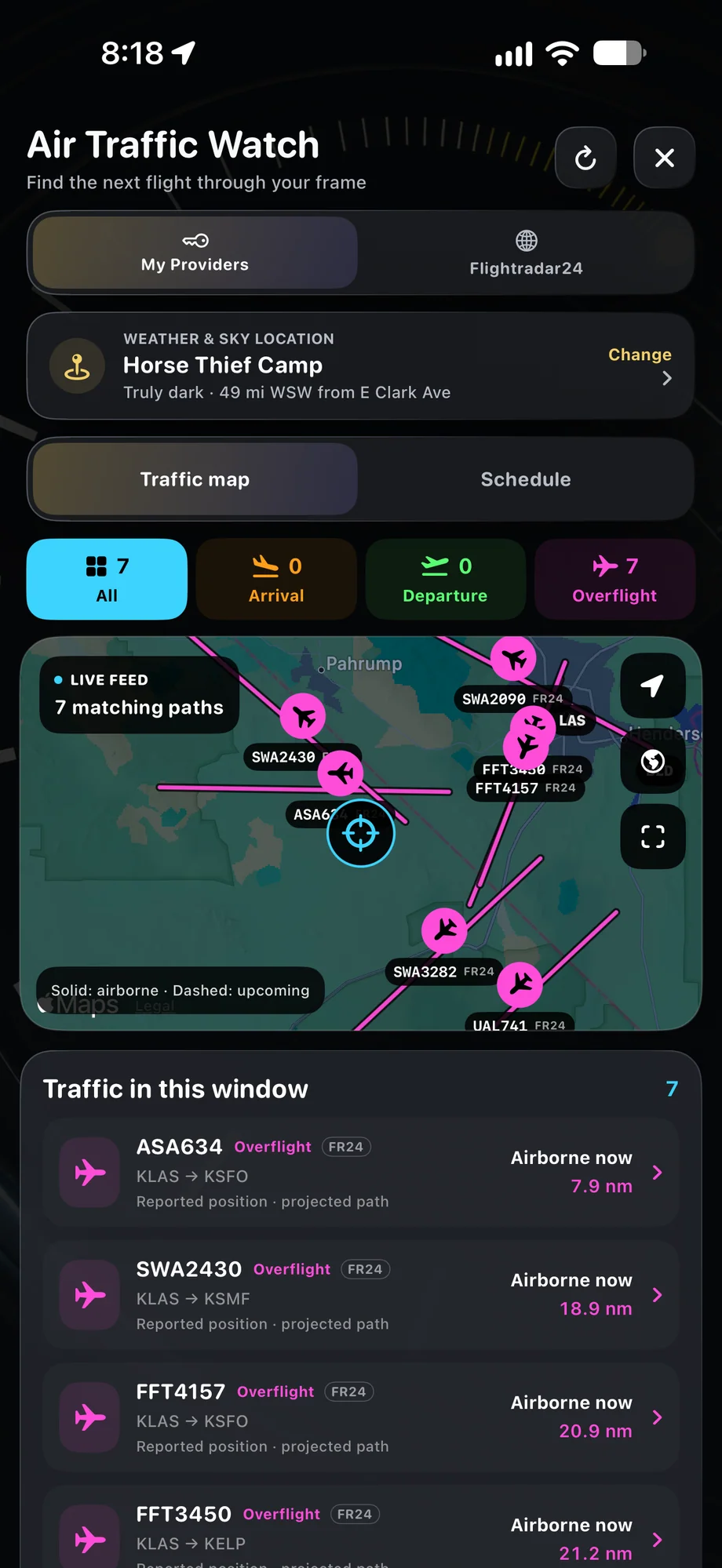
TimeLapsed Air Traffic Watch with nearby flights and a map
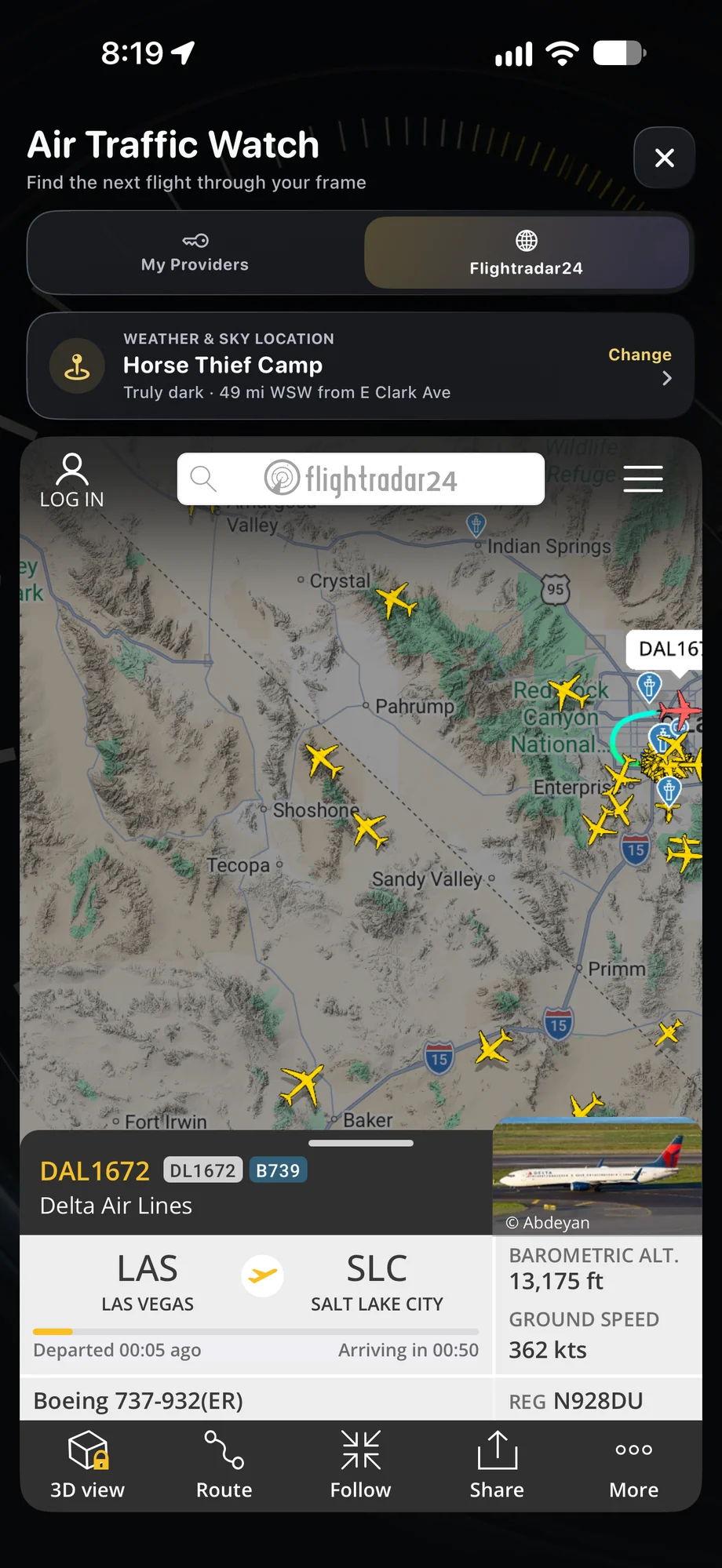
TimeLapsed FlightRadar24 aircraft details in Air Traffic Watch
TimeLapsed Aircraft paths in the sky view
Air Traffic Watch with nearby flights and a mapFlightRadar24 aircraft details in Air Traffic Watch

01 · Air Traffic Watch

Connect the provider you choose.

The app supports aircraft data through your own flight-provider access, including AeroDataBox and FlightRadar24 integrations. Enter the supported keys in the app and review the provider’s coverage and plan. Your account gives you a direct relationship with the data service; usage limits, availability and any provider charges follow that service.

Connect the provider you choose.
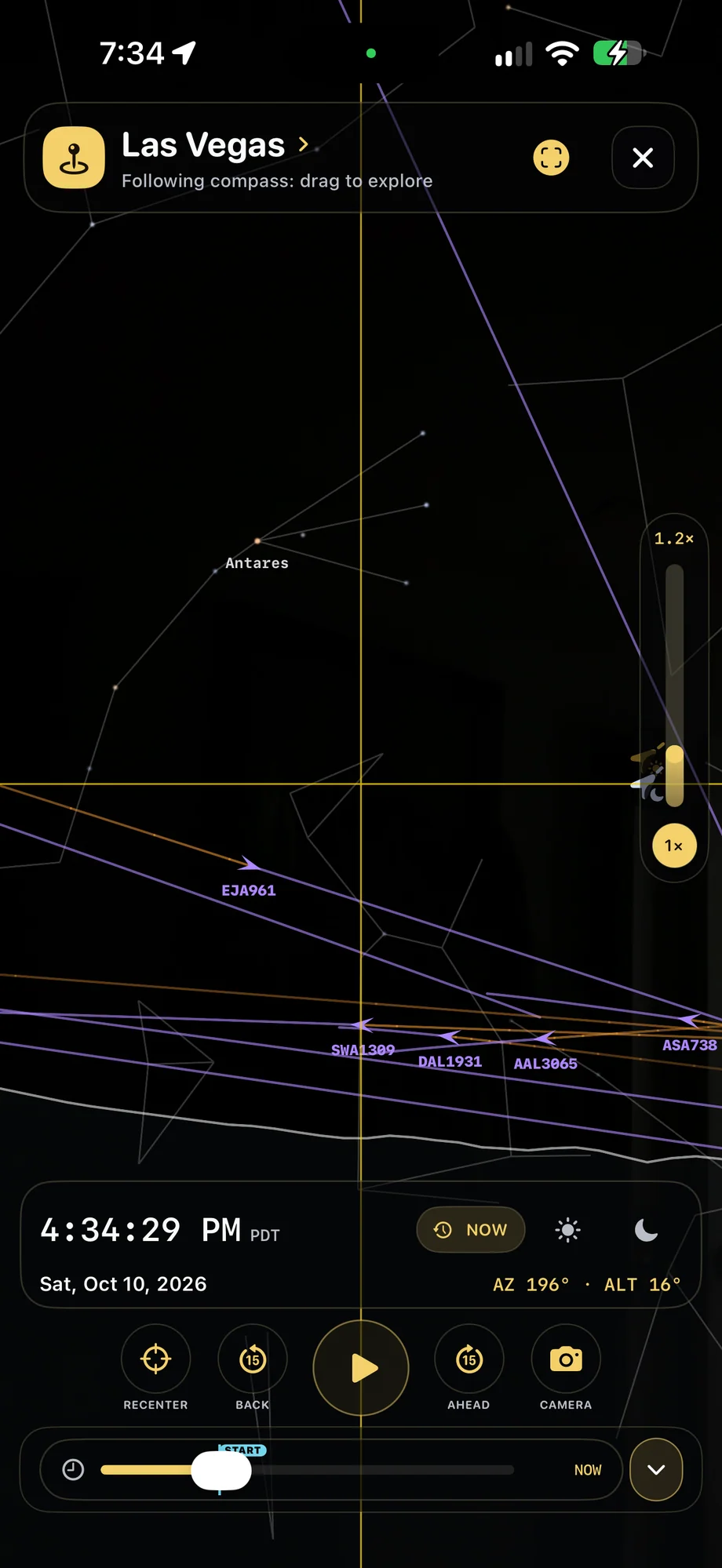
TimeLapsed Aircraft paths in the sky view
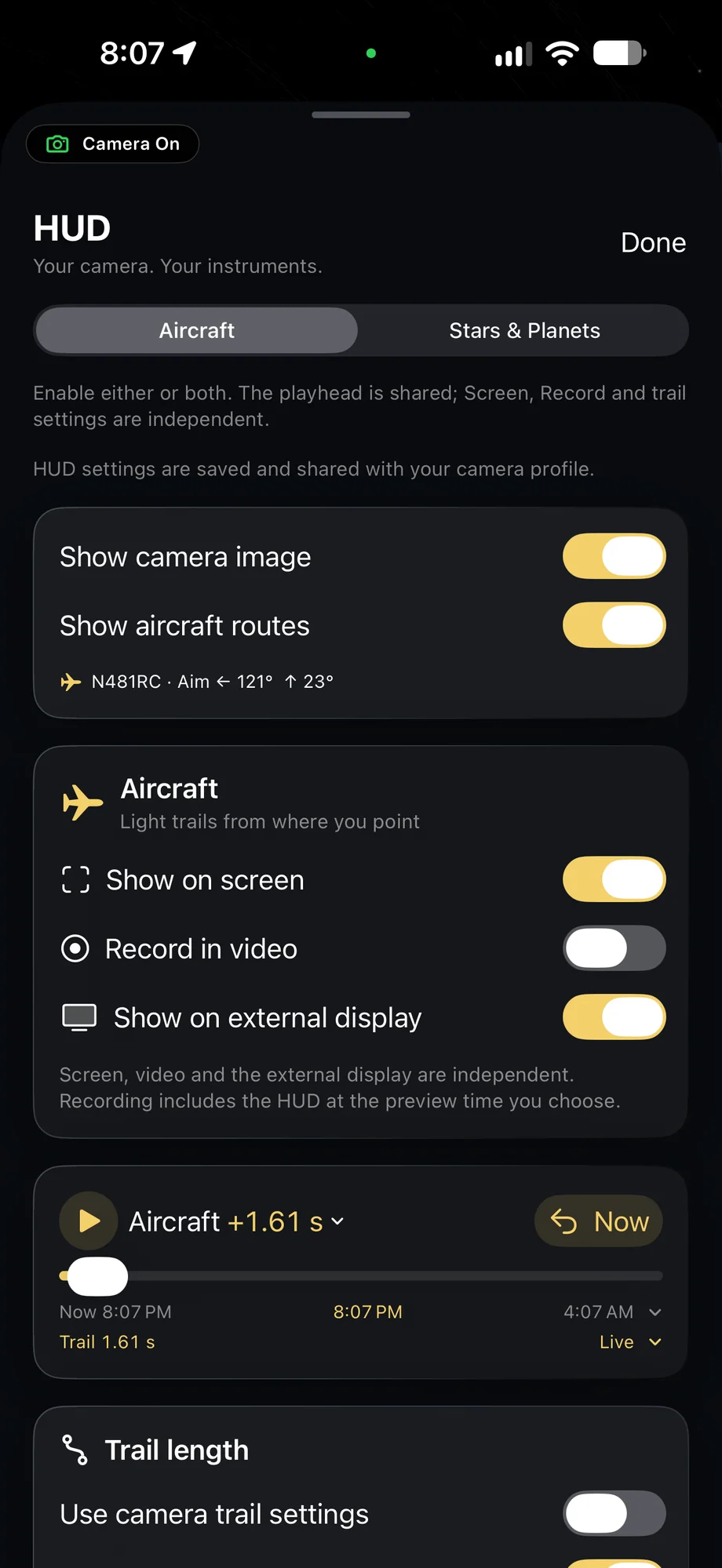
TimeLapsed Aircraft HUD and recording options
Aircraft paths in the sky viewAircraft HUD and recording options

02 · Air Traffic Watch

Compose around a predicted path.

Review aircraft information in relation to the sky and the camera view. Leave space for a light trail to cross the composition rather than placing the subject only where it appears now. Predicted paths help with planning, but aircraft movement can change. Check the real view and keep the capture ready instead of treating a prediction as a guaranteed pass.

Compose around a predicted path.
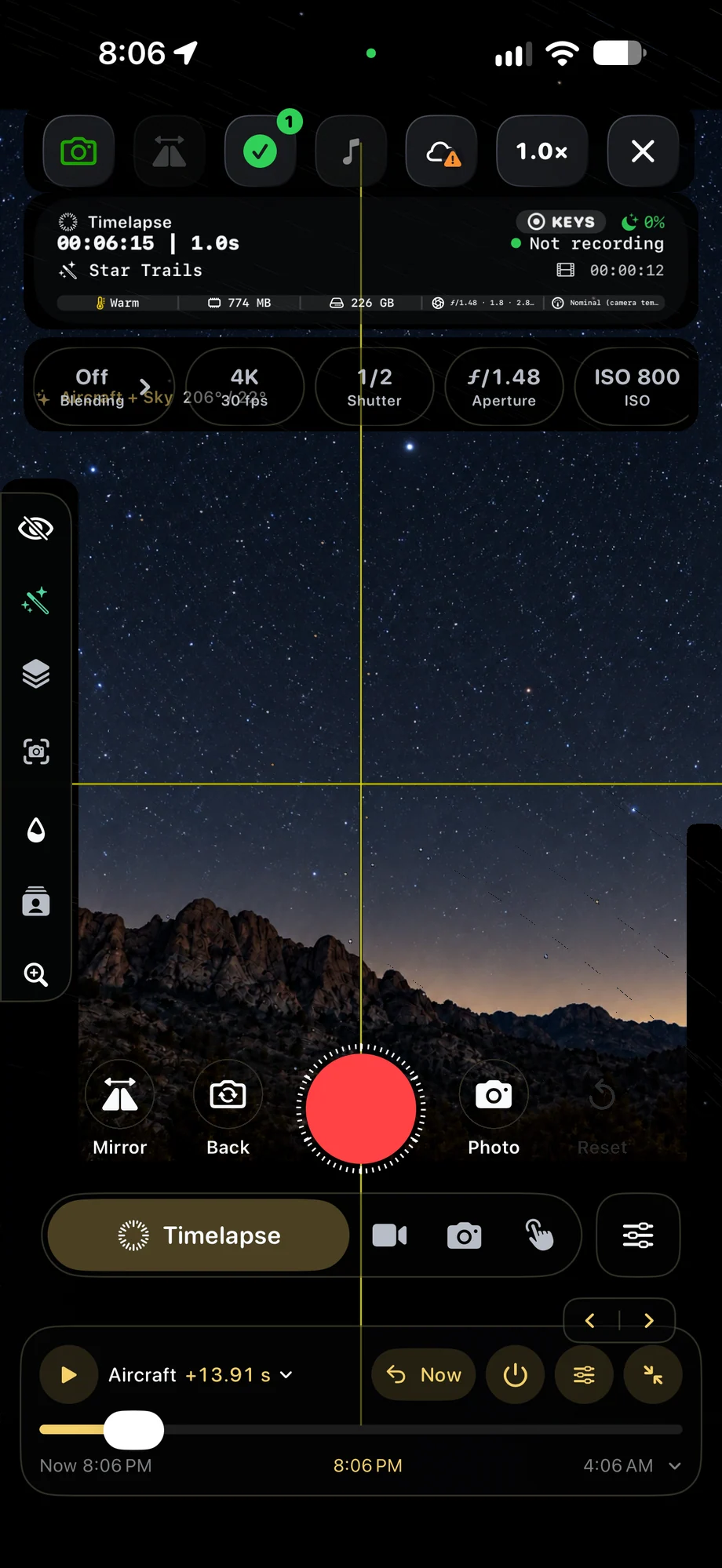
TimeLapsed Aircraft HUD and recording options
TimeLapsed Aircraft direction over the camera view, with an illustrated scene beneath the captured camera controls
Aircraft HUD and recording optionsAircraft direction over the camera viewCaptured iOS Controls · Illustrated Camera Preview

03 · Air Traffic Watch

Match the trail to the flight.

Use a stable mount, set exposure for bright moving lights and choose the blending history for the length of path you want to retain. Comet or rolling trails can make separate passes easier to read. The website’s Departure Watch is a related field tool for airport planning; the app’s Air Traffic Watch uses the provider connections you configure.

Match the trail to the flight.

TimeLapsed Aircraft HUD and recording options
TimeLapsed Aircraft direction over the camera view, with an illustrated scene beneath the captured camera controls
Aircraft HUD and recording optionsAircraft direction over the camera viewCaptured iOS Controls · Illustrated Camera Preview

A Practical Workflow

  1. 01

    Configure provider access

    Add your own supported flight-provider keys in the app.

  2. 02

    Review direction and timing

    Use aircraft data and predicted paths to plan the composition.

  3. 03

    Capture the actual pass

    Check exposure and blending in the live view as the lights cross the scene.

Inside the App

Tap a Screen for a Closer Look

Air Traffic Watch with nearby flights and a map
FlightRadar24 aircraft details in Air Traffic Watch
Aircraft paths in the sky view
Aircraft HUD and recording options
Aircraft direction over the camera viewCaptured Controls · Illustrated Camera Preview

Air Traffic Watch with nearby flights and a map

TimeLapsed Air Traffic Watch with nearby flights and a map

Questions About Air Traffic Watch

Does TimeLapsed include a paid flight-provider subscription?

No. You supply your own supported provider keys. The provider may charge for access or usage.

Are predicted aircraft paths guaranteed?

No. Predictions are planning aids and depend on the available data. Actual aircraft movement and provider coverage can change.

Browse All 33 TimeLapsed Features

English + 11 More Languages

TimeLapsed 2.0 supports 12 languages across the iPhone, iPad and Apple Watch experiences. Use the camera and tools in the language that works for you.

  • English
  • Spanish
  • French
  • German
  • Italian
  • Brazilian Portuguese
  • Japanese
  • Korean
  • Simplified Chinese
  • Hindi
  • Russian
  • Turkish

Take the app with you

Download TimeLapsed.

Capture on iPhone, iPad or a compatible Android phone. Apple Watch controls are available with the iOS app.

Download on the App Store

TimeLapsed for Android

Awaiting Google’s review

We’re awaiting Google’s review. Check back soon, or apply for the beta test by sending us the email address you use on Google Play. We’ll be adding testers every few days.

Apply for the beta test

Android review is in progress. Beta requests are open.

QR code to download TimeLapsed on the App Store

Scan With an iPhone or iPad to Open the App Store.