TimeLapsed 2.0 · Light Trails & Frame Blending

Give moving lights a bright head and a fading tail.

A full trail keeps every part of a light’s path. A comet effect lets the old path fade while the newest light stays bright. TimeLapsed gives you both choices, so an aircraft, a star or an LED wand can leave a trail that moves through the picture instead of filling it permanently.

iPhone · iPad · Apple Watch · English + 11 Languages

Comet & Rolling Trails

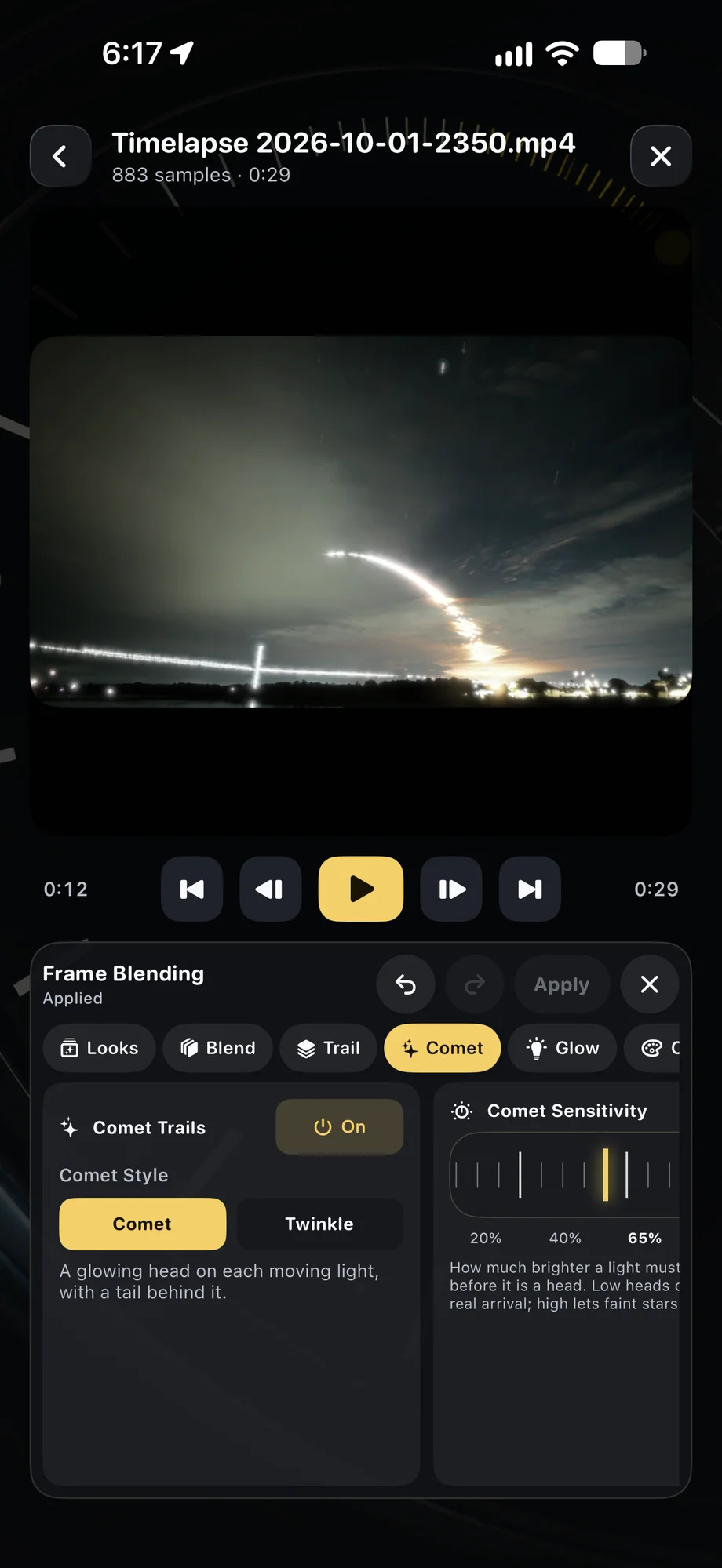
TimeLapsed Comet trails with sensitivity and sparkle controls
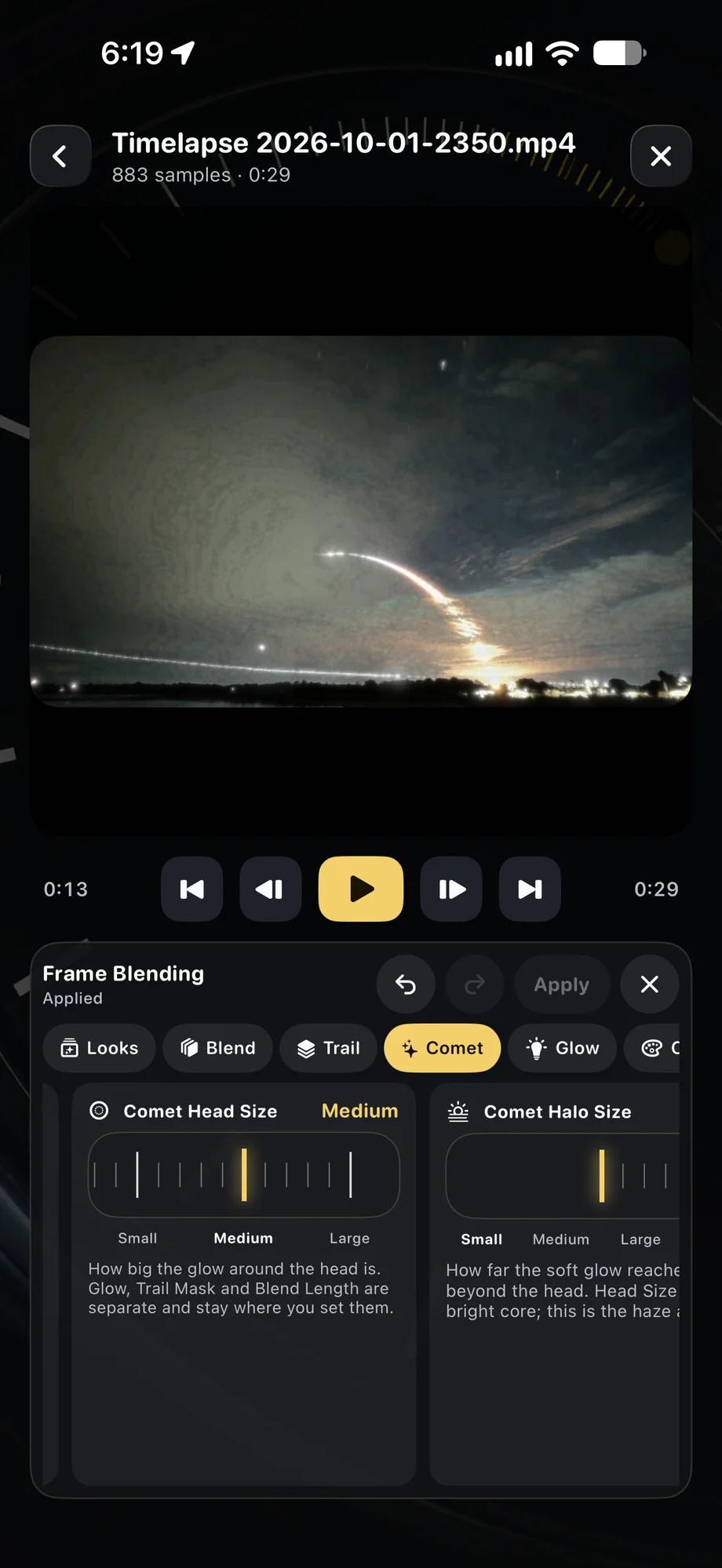
TimeLapsed Comet head size, mask and glow
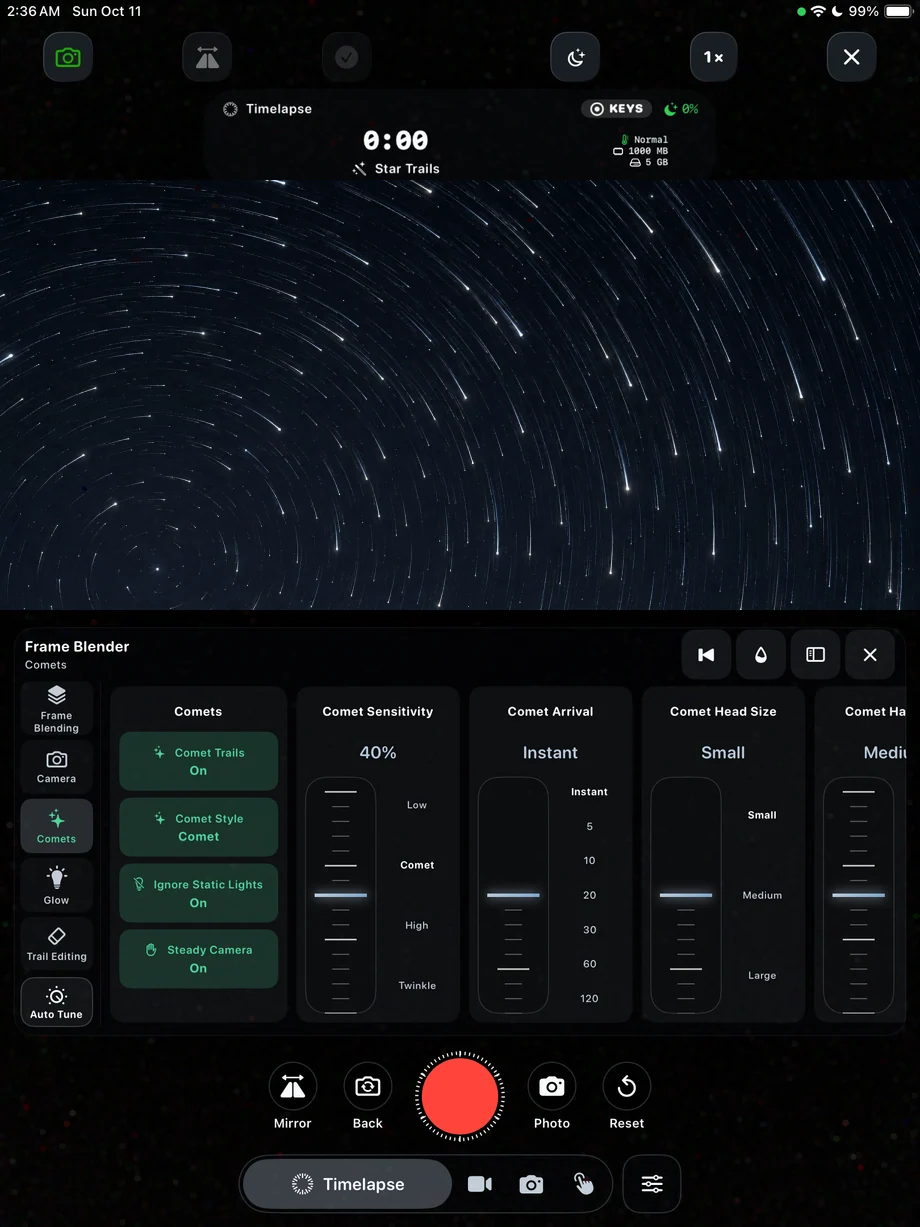
TimeLapsed Comet controls in the live camera, with an illustrated scene beneath the captured camera controls
Comet trails with sensitivity and sparkle controlsComet head size, mask and glowCaptured iOS Controls · Illustrated Camera Preview

01 · Comet & Rolling Trails

Match the tail to the motion.

Fast traffic and slow star motion need different trail settings. Start with a short history, watch how far the subject travels and extend the tail until the movement is clear. Rolling trails keep recent motion in view; comet behavior emphasizes the newest position. The live preview helps you judge the shape without guessing from a setting alone.

Match the tail to the motion.
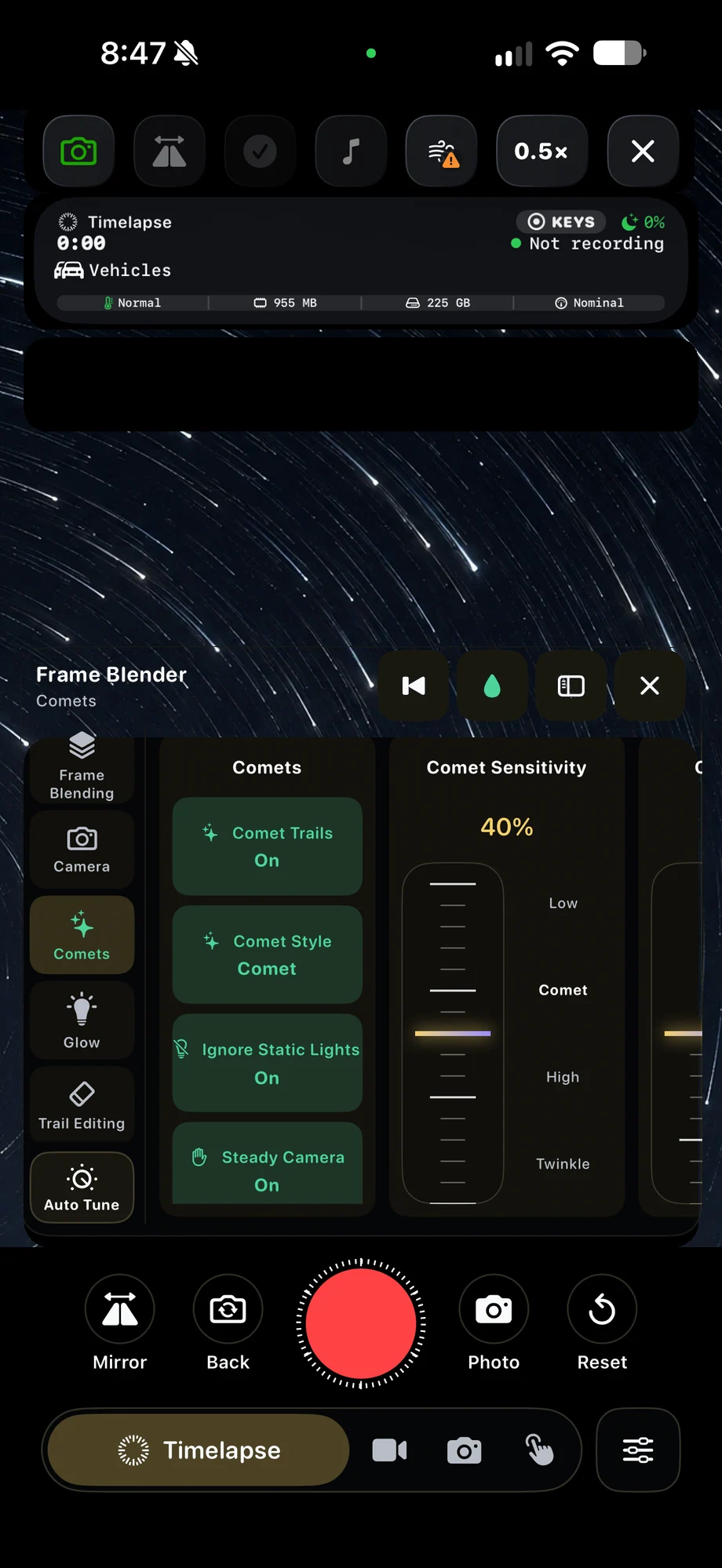
TimeLapsed Comet controls in the live camera, with an illustrated scene beneath the captured camera controls
TimeLapsed Comet and star-trail controls on iPad, with an illustrated scene beneath the captured camera controls
Comet controls in the live cameraComet and star-trail controls on iPadCaptured iOS Controls · Illustrated Camera Preview

02 · Comet & Rolling Trails

Use glow and color with the exposure.

A bright trail can lose its color when the source is overexposed. Set shutter and ISO to retain the light, then add glow and adjust color to suit the scene. Make small changes and watch several passes before deciding. A camera profile keeps a combination you like ready for another location or another light tool.

Use glow and color with the exposure.
TimeLapsed Comet and star-trail controls on iPad, with an illustrated scene beneath the captured camera controls
TimeLapsed Compare star trails, rolling trails and comet trails
Comet and star-trail controls on iPadCompare star trails, rolling trails and comet trailsCaptured iOS Controls · Illustrated Camera Preview

03 · Comet & Rolling Trails

Try another treatment after the shoot.

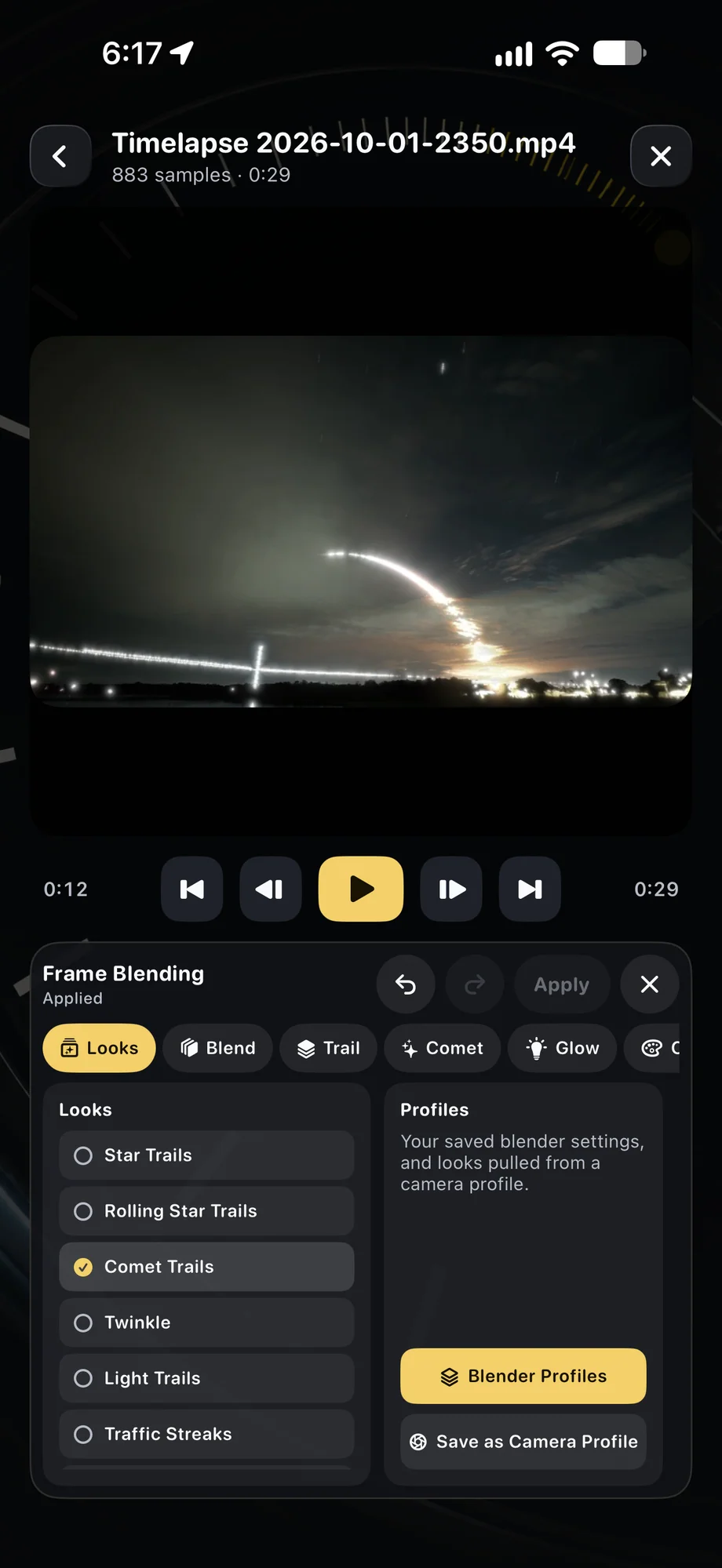
The same blending engine is available for existing video. A companion movie gives you an effects-free source from your live take, and imported footage can become a new trail experiment. Preview different histories and effects before rendering. Keep the original movie so you can compare the motion at normal speed with the processed result.

Try another treatment after the shoot.

TimeLapsed Comet and star-trail controls on iPad, with an illustrated scene beneath the captured camera controls
TimeLapsed Compare star trails, rolling trails and comet trails
Comet and star-trail controls on iPadCompare star trails, rolling trails and comet trailsCaptured iOS Controls · Illustrated Camera Preview

A Practical Workflow

  1. 01

    Find a moving light

    Frame aircraft, traffic, stars or a light-painting performance.

  2. 02

    Tune the tail

    Adjust history, comet behavior, glow and color while watching the preview.

  3. 03

    Save a repeatable look

    Keep a profile or revisit the source movie in Video Frame Blender.

Inside the App

Tap a Screen for a Closer Look

Comet trails with sensitivity and sparkle controls
Comet head size, mask and glow
Comet controls in the live cameraCaptured Controls · Illustrated Camera Preview
Comet and star-trail controls on iPadCaptured Controls · Illustrated Camera Preview
Compare star trails, rolling trails and comet trails

Comet trails with sensitivity and sparkle controls

TimeLapsed Comet trails with sensitivity and sparkle controls

Questions About Comet & Rolling Trails

Is Comet mode only for stars?

No. It can shape the trails of aircraft, vehicles, drones and light-painting tools as well as stars.

Can I change a comet effect on imported footage?

Yes. Video Frame Blender lets you preview and render trail effects from a source movie after it was recorded.


Browse All 33 TimeLapsed Features

English + 11 More Languages

TimeLapsed 2.0 supports 12 languages across the iPhone, iPad and Apple Watch experiences. Use the camera and tools in the language that works for you.

  • English
  • Spanish
  • French
  • German
  • Italian
  • Brazilian Portuguese
  • Japanese
  • Korean
  • Simplified Chinese
  • Hindi
  • Russian
  • Turkish

Take the app with you

Download TimeLapsed.

Capture on iPhone, iPad or a compatible Android phone. Apple Watch controls are available with the iOS app.

Download on the App Store

TimeLapsed for Android

Awaiting Google’s review

We’re awaiting Google’s review. Check back soon, or apply for the beta test by sending us the email address you use on Google Play. We’ll be adding testers every few days.

Apply for the beta test

Android review is in progress. Beta requests are open.

QR code to download TimeLapsed on the App Store

Scan With an iPhone or iPad to Open the App Store.