TimeLapsed 2.0 · From Take to Finished Film

Keep every frame and build the story from it.

Timelapse work can create hundreds or thousands of frames around a handful of finished movies. TimeLapsed keeps the source, session output, stills, albums, and edit projects organized, then helps turn the best pieces into something ready to watch.

iPhone · iPad · Apple Watch · English + 11 Languages

Media Gallery

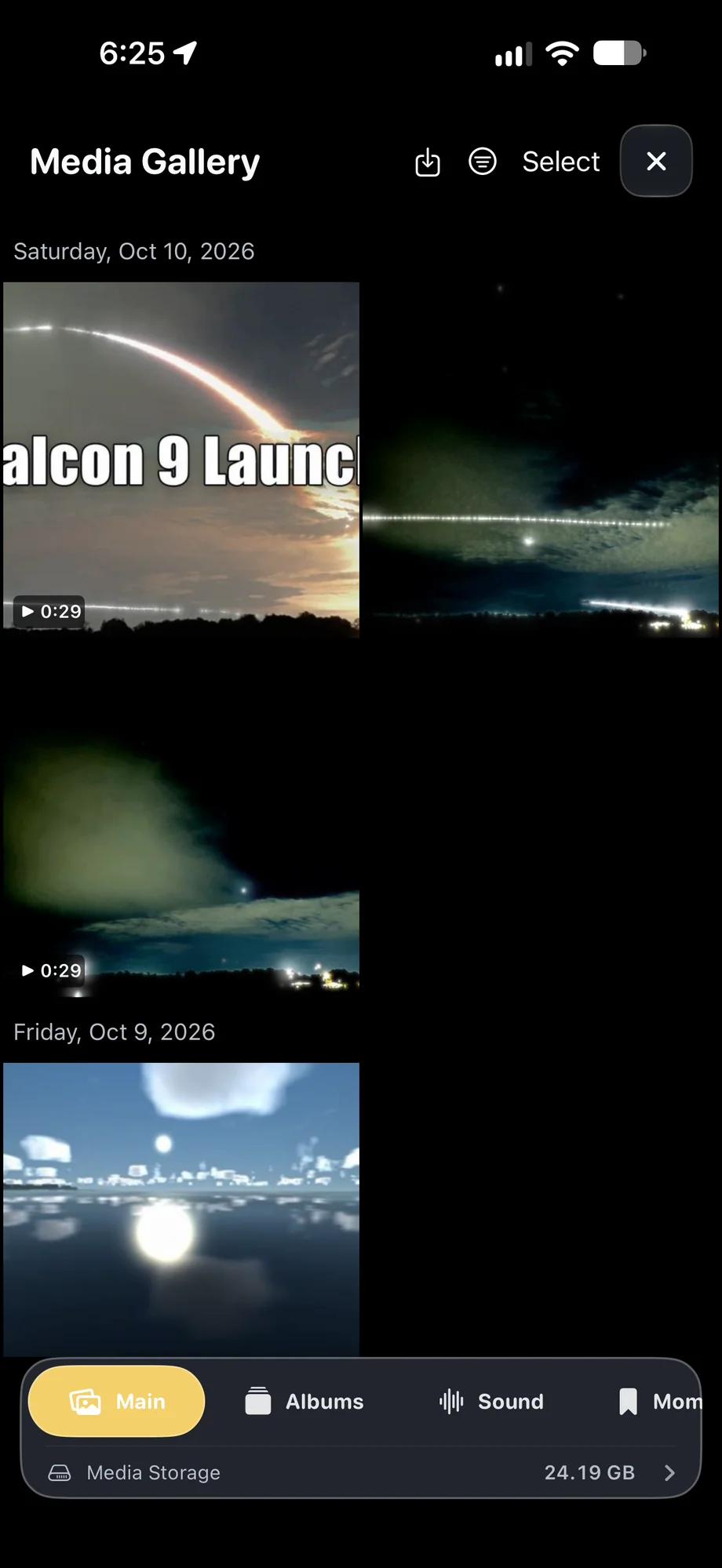
TimeLapsed Videos and images in the media gallery
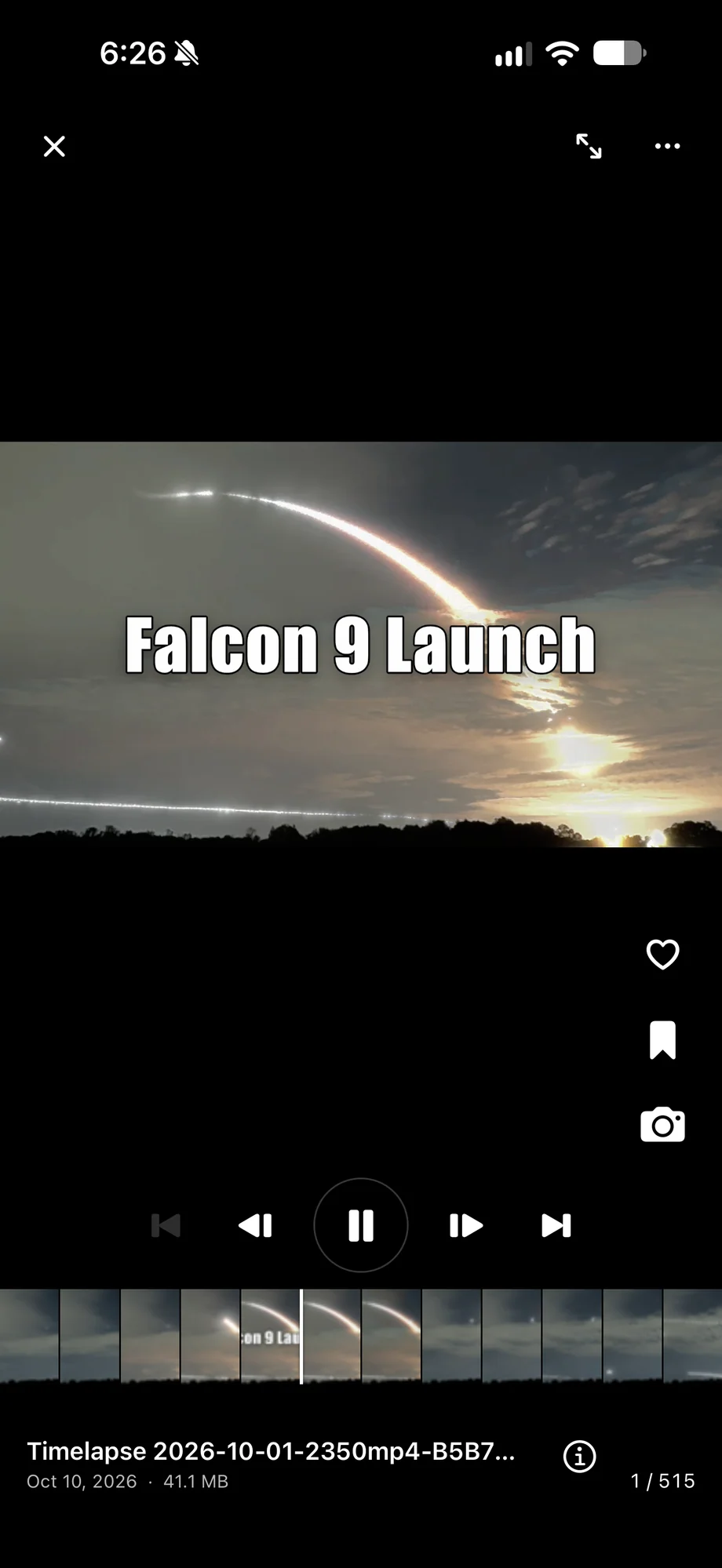
TimeLapsed A full-screen movie with favorites and frame capture
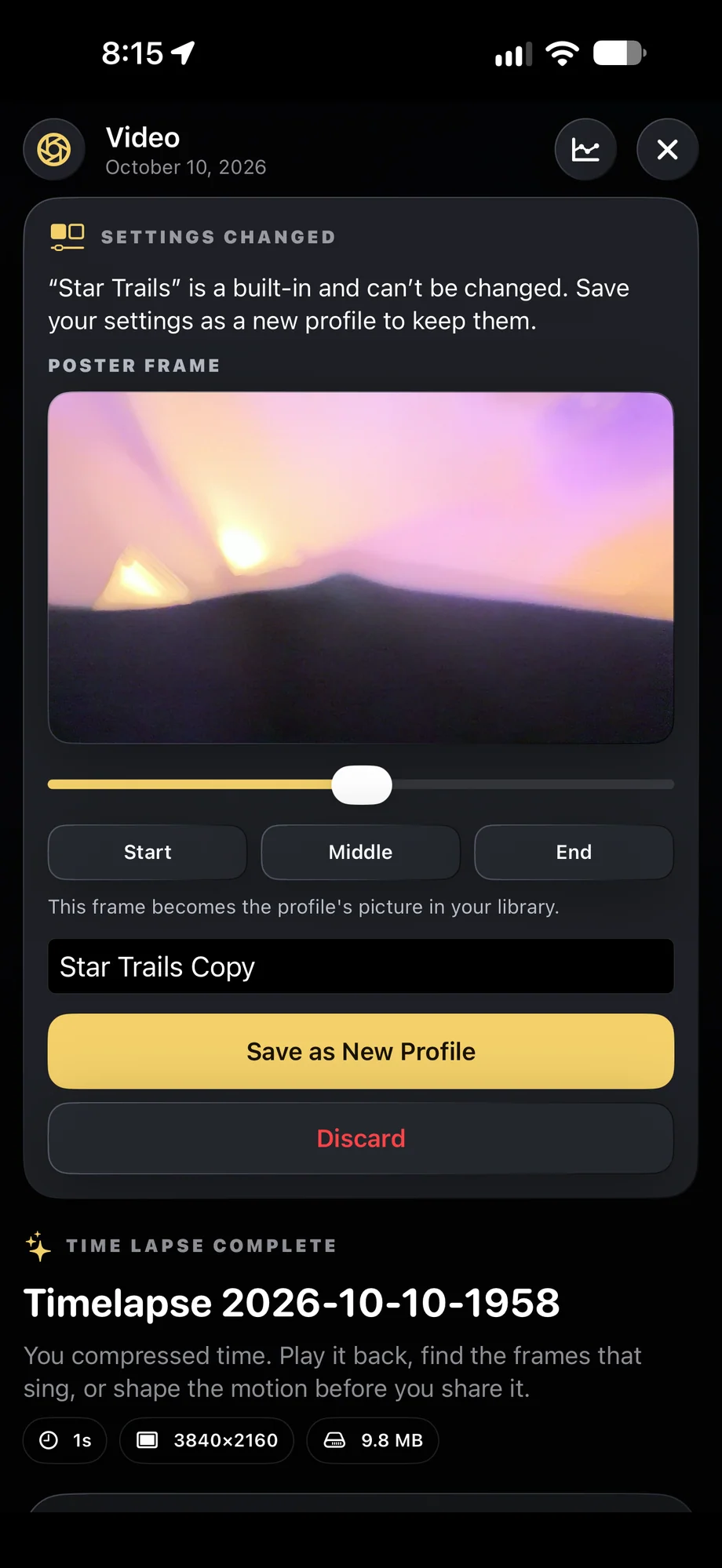
TimeLapsed Capture information and save-as-profile controls
Videos and images in the media galleryA full-screen movie with favorites and frame capture

01 · Media Gallery

Know which session produced the media in front of you.

Move between the full library and the Session Index, where dates, capture types, file sizes, frame counts, photos, and videos make a large archive understandable before you open anything.

  • Main, Albums, Projects, Library, and Session Index views
  • Visible frame, photo, video, and storage counts
  • Favorites and bookmarks for durable curation

Know which session produced the media in front of you.
TimeLapsed Capture information and save-as-profile controls
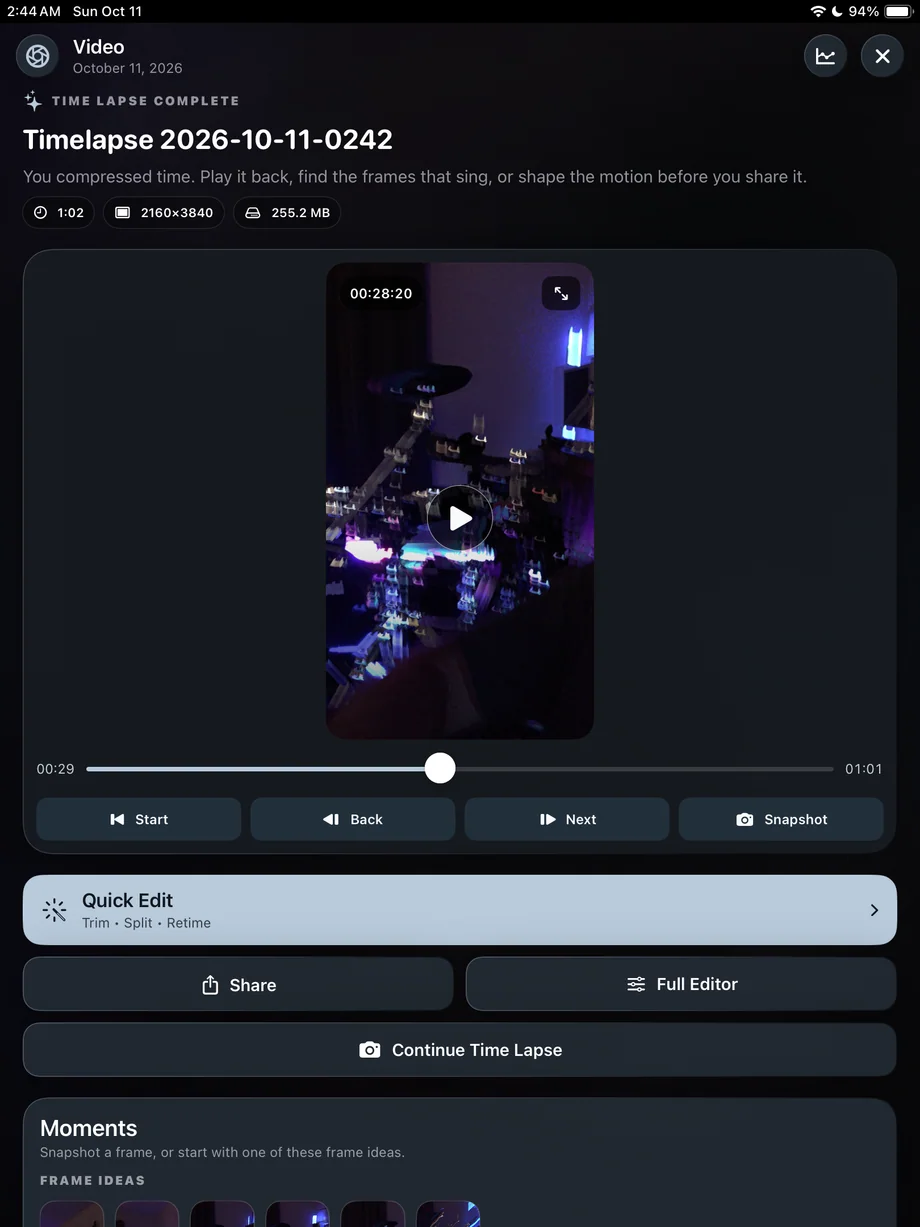
TimeLapsed The iPad viewer with sharing, editing and Moments
Capture information and save-as-profile controlsThe iPad viewer with sharing, editing and Moments

02 · Media Gallery

Treat every timelapse video as a source of still photographs.

Use the full-screen player and visual filmstrip to find a precise instant. Capture it as a photo, keep it as a favorite, bookmark it for later, or add it directly to a project.

  • Frame stepping and scrubber filmstrip
  • One-action photo capture from the current video frame
  • Project, editor, share, and information actions

Treat every timelapse video as a source of still photographs.
TimeLapsed The iPad viewer with sharing, editing and Moments
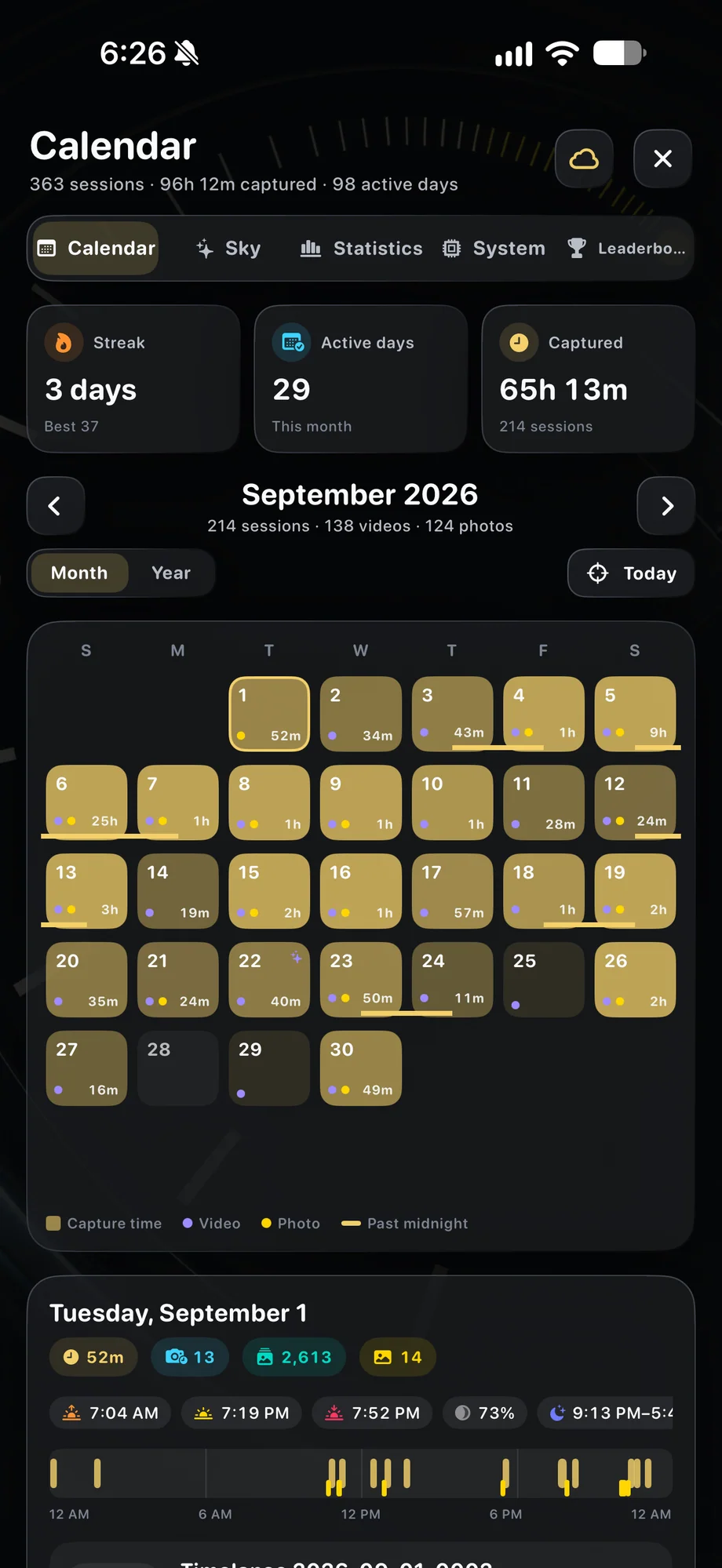
TimeLapsed Find a capture by date in the calendar
The iPad viewer with sharing, editing and MomentsFind a capture by date in the calendar

03 · Media Gallery

Turn highlights from several sessions into one recap.

Mark media as Moments and let TimeLapsed assemble the selections with a theme, background music, and transitions. When it is ready, watch on the device or present it over USB-C to HDMI.

  • Mix stills and videos from the library
  • Automatic music, themes, and transitions
  • External-display playback for a television, monitor, or projector

Turn highlights from several sessions into one recap.

TimeLapsed The iPad viewer with sharing, editing and Moments
TimeLapsed Find a capture by date in the calendar
The iPad viewer with sharing, editing and MomentsFind a capture by date in the calendar

A Practical Workflow

  1. 01

    Open the session index

    Find a shoot by date, capture type, size, frame count, or finished media.

  2. 02

    Curate the archive

    Use albums, projects, favorites, and bookmarks to keep different decisions separate.

  3. 03

    Extract the stills

    Scrub a timelapse recording and save any decisive frame as its own photo.

  4. 04

    Create the Moment

    Select the highlights and generate a themed movie with music and transitions.

Inside the App

Tap a Screen for a Closer Look

Videos and images in the media gallery
A full-screen movie with favorites and frame capture
Capture information and save-as-profile controls
The iPad viewer with sharing, editing and Moments
Find a capture by date in the calendar

Videos and images in the media gallery

TimeLapsed Videos and images in the media gallery

Questions About Media Gallery

Can I save a still photo from a video?

Yes. Pause or scrub to the frame you want and use the camera action to capture it as a photo without leaving the gallery viewer.

What is a Moment?

A Moment is media you mark as meaningful. The app can gather those selections into a finished highlight video with a theme, music, and transitions.

Can I show my TimeLapsed gallery on a television or projector?

Yes. Connect a compatible iPhone or iPad to an external display, including a USB-C to HDMI setup, to present photos and videos on a larger screen.

Browse All 33 TimeLapsed Features

English + 11 More Languages

TimeLapsed 2.0 supports 12 languages across the iPhone, iPad and Apple Watch experiences. Use the camera and tools in the language that works for you.

  • English
  • Spanish
  • French
  • German
  • Italian
  • Brazilian Portuguese
  • Japanese
  • Korean
  • Simplified Chinese
  • Hindi
  • Russian
  • Turkish

Take the app with you

Download TimeLapsed.

Capture on iPhone, iPad or a compatible Android phone. Apple Watch controls are available with the iOS app.

Download on the App Store

TimeLapsed for Android

Awaiting Google’s review

We’re awaiting Google’s review. Check back soon, or apply for the beta test by sending us the email address you use on Google Play. We’ll be adding testers every few days.

Apply for the beta test

Android review is in progress. Beta requests are open.

QR code to download TimeLapsed on the App Store

Scan With an iPhone or iPad to Open the App Store.