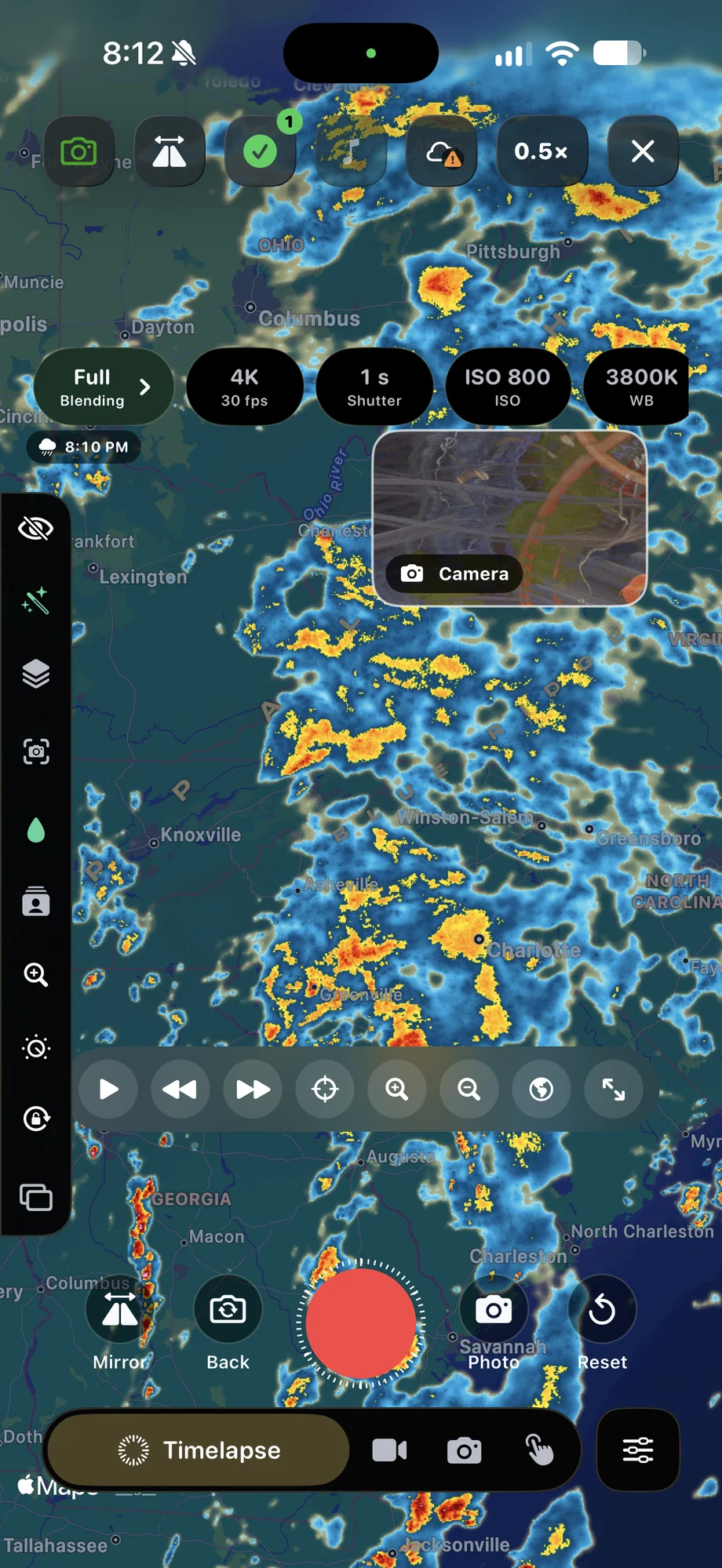
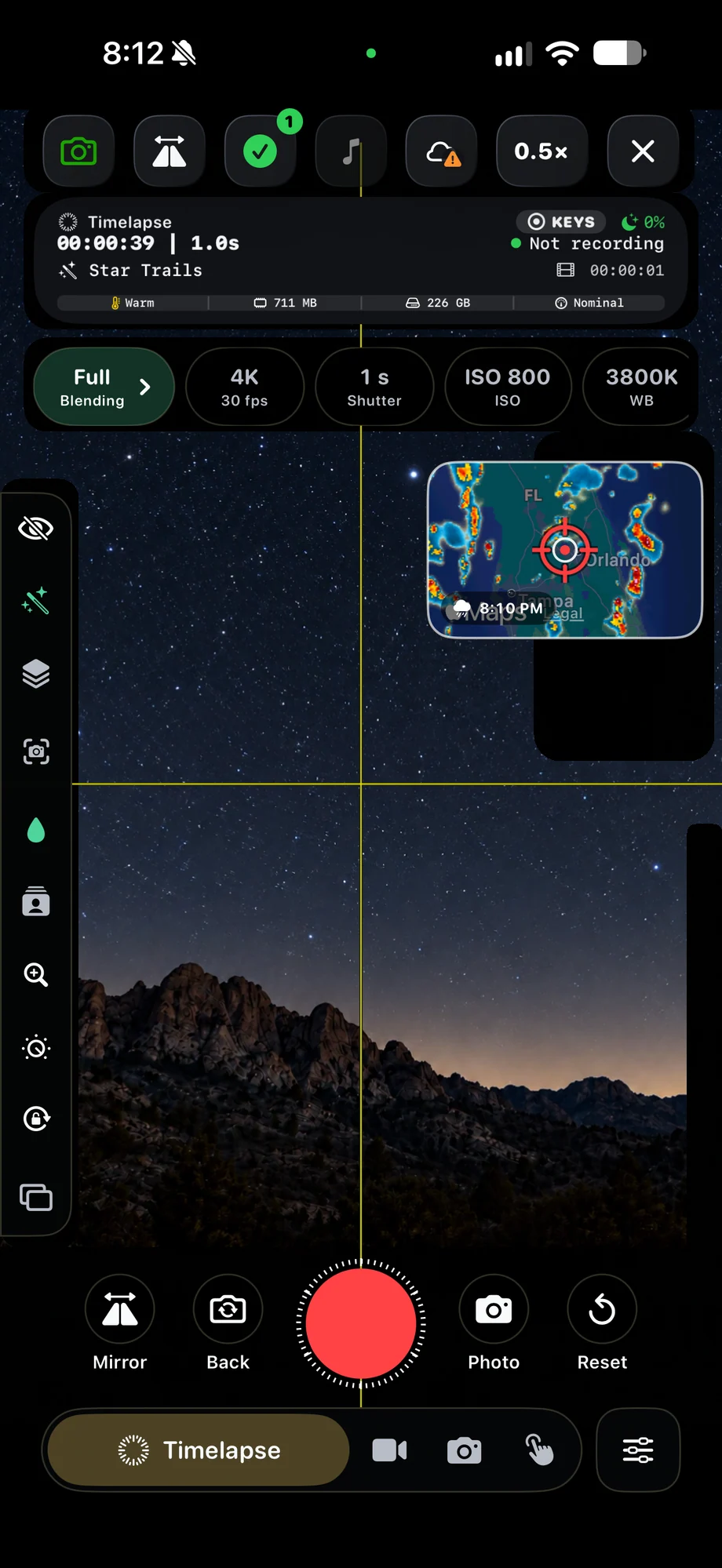
01 · Dual Camera
Arrange the views around the subject.
Picture-in-picture keeps one camera dominant and places the other inside the frame. Stacked layouts give both views more space. Drag the views into place, adjust the framing and lock the arrangement once it is ready. Think about where the important movement will happen so the smaller view does not cover it.
Camera Inset Layout Reference
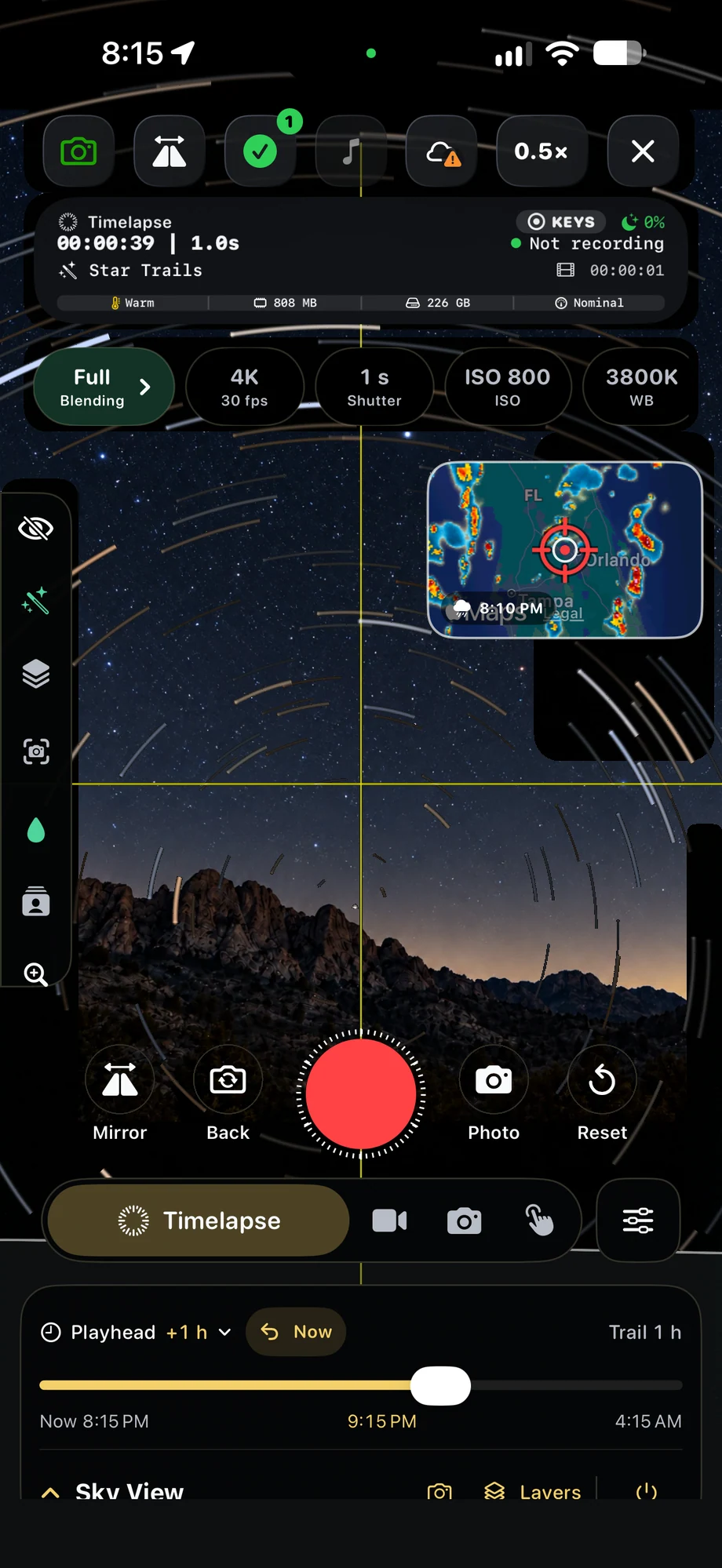
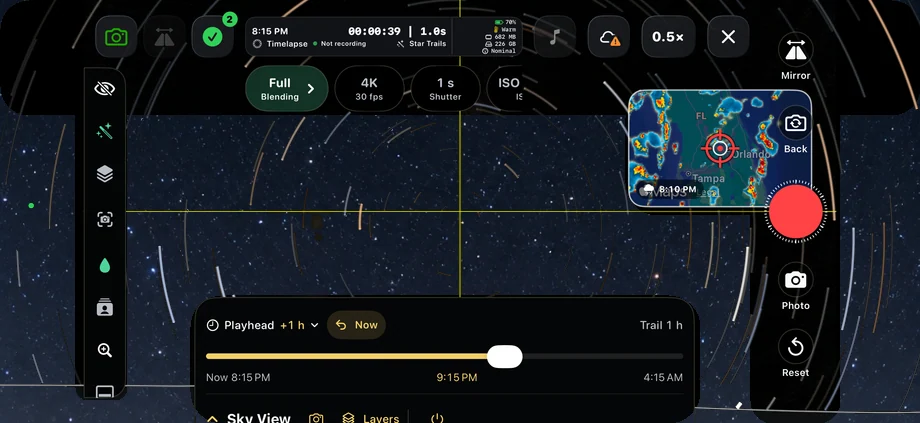
02 · Dual Camera
Check the layout in the orientation you will record.
Portrait and landscape compositions have different amounts of room for each camera. Review the actual layout after rotating the device, then choose the arrangement that fits your subject. A small face view can work well over a wide landscape; a stacked composition can be easier to read when both scenes need equal attention.
Camera Inset Layout Reference
03 · Dual Camera
Treat the combined picture as a single take.
The camera layout becomes part of the video or timelapse composition. Check each view before capture and keep the phone steady while the take runs. When it is finished, use the editor to trim, frame and add audio to the result. Dual-camera availability depends on the device and the supported camera combination.
Camera Inset Layout Reference
A Practical Workflow
- 01
Open the camera layout
Choose a supported pair of cameras for the scene.
- 02
Arrange both views
Select picture-in-picture or a stacked layout, frame each view and lock it.
- 03
Record the composition
Review the combined picture before capturing a video or timelapse.
Camera Layout References
Tap a Screen for a Closer Look
Questions About Dual Camera
Does dual camera work on every device?
No. Simultaneous camera support depends on the device and camera combination. Use the choices available in your camera layout controls.
Can I change the layout for landscape shooting?
Yes. TimeLapsed offers alternate layouts for portrait and landscape compositions. Review the framing before you start the take.