01 · Horizon Mask
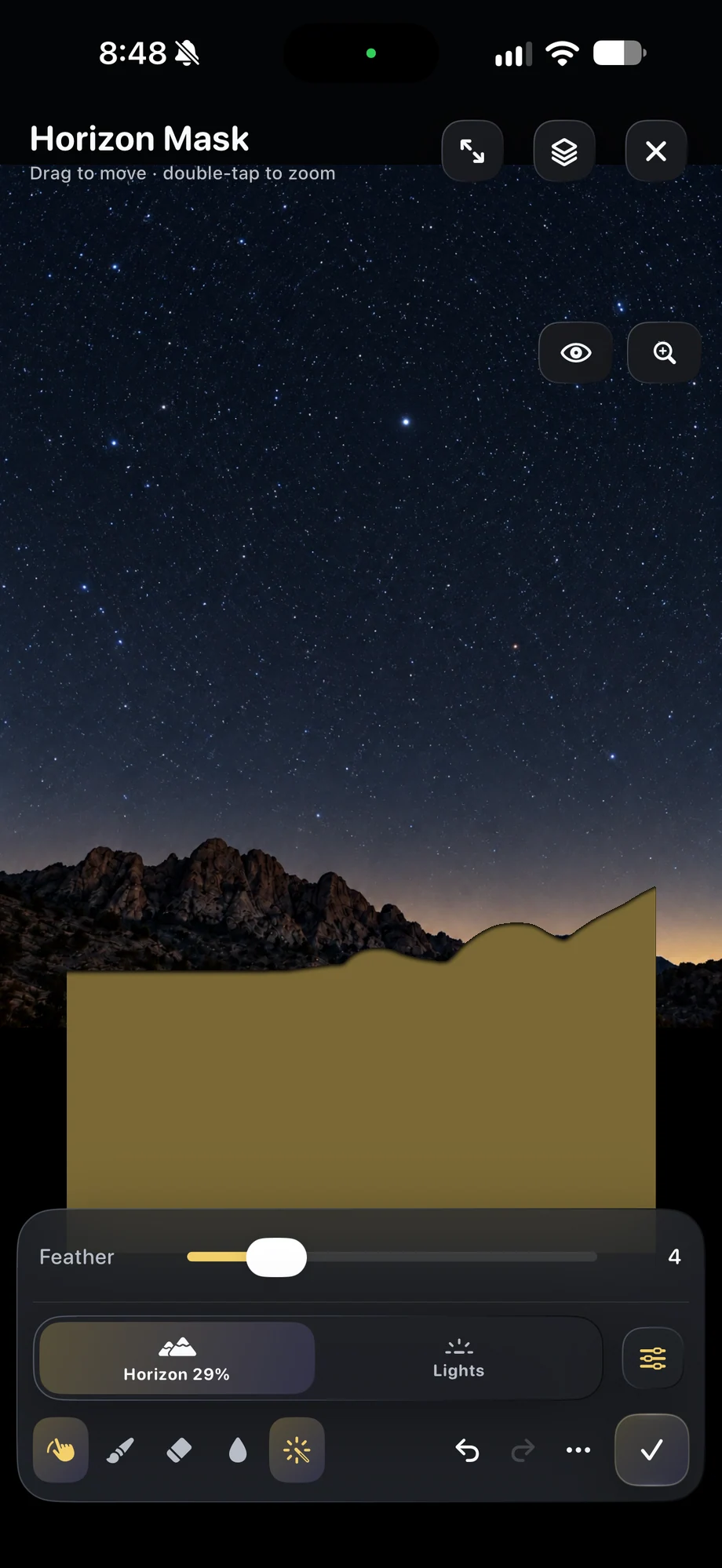
Plan the boundary around the actual skyline.
Frame the shot first, then inspect where the sky meets the foreground. Trees, rooftops and ridgelines can cut into the part of the image where trails are building. Check the mask against the composed view rather than assuming the horizon is a straight line through the middle. Review the preview after any major change to camera framing.
Plan the boundary around the actual skyline.
02 · Horizon Mask
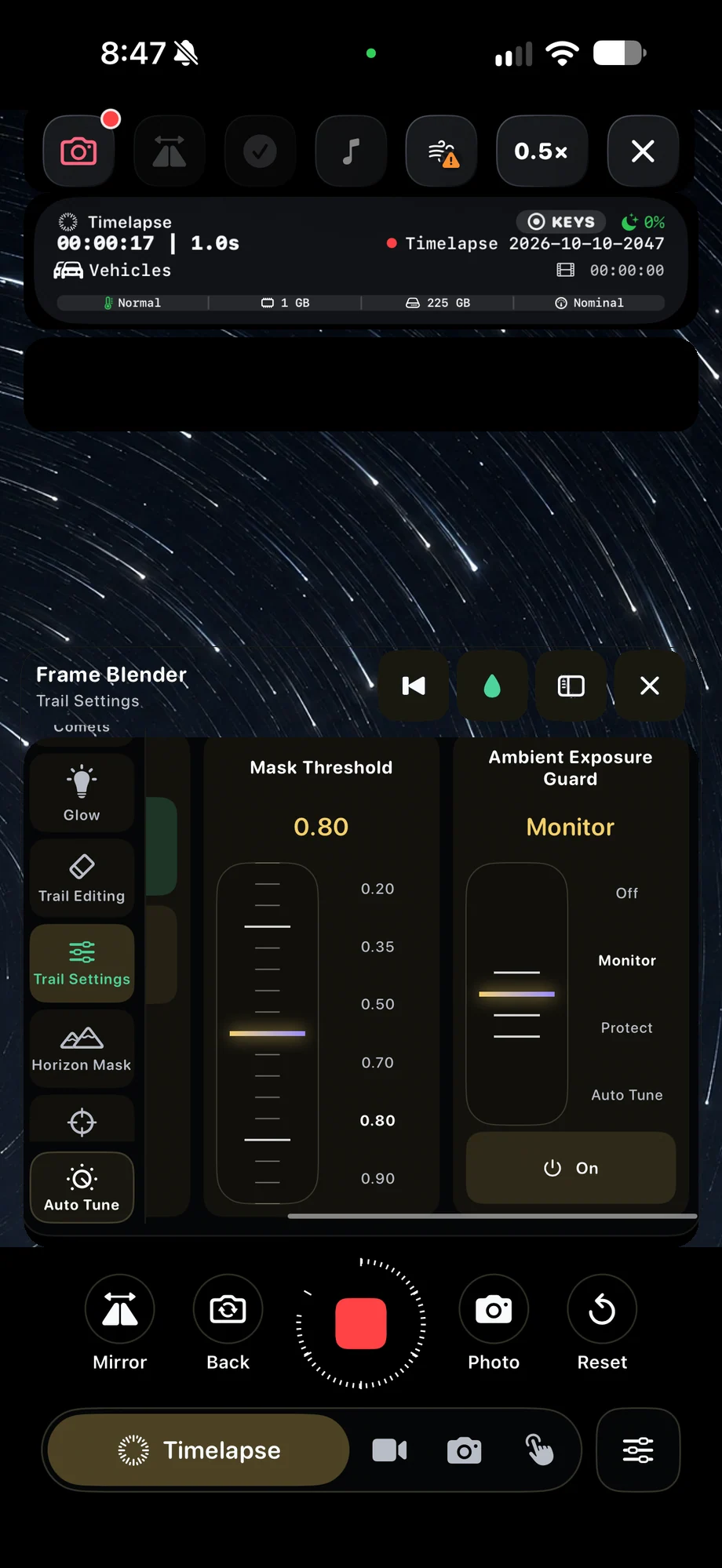
Balance the mask with the trail settings.
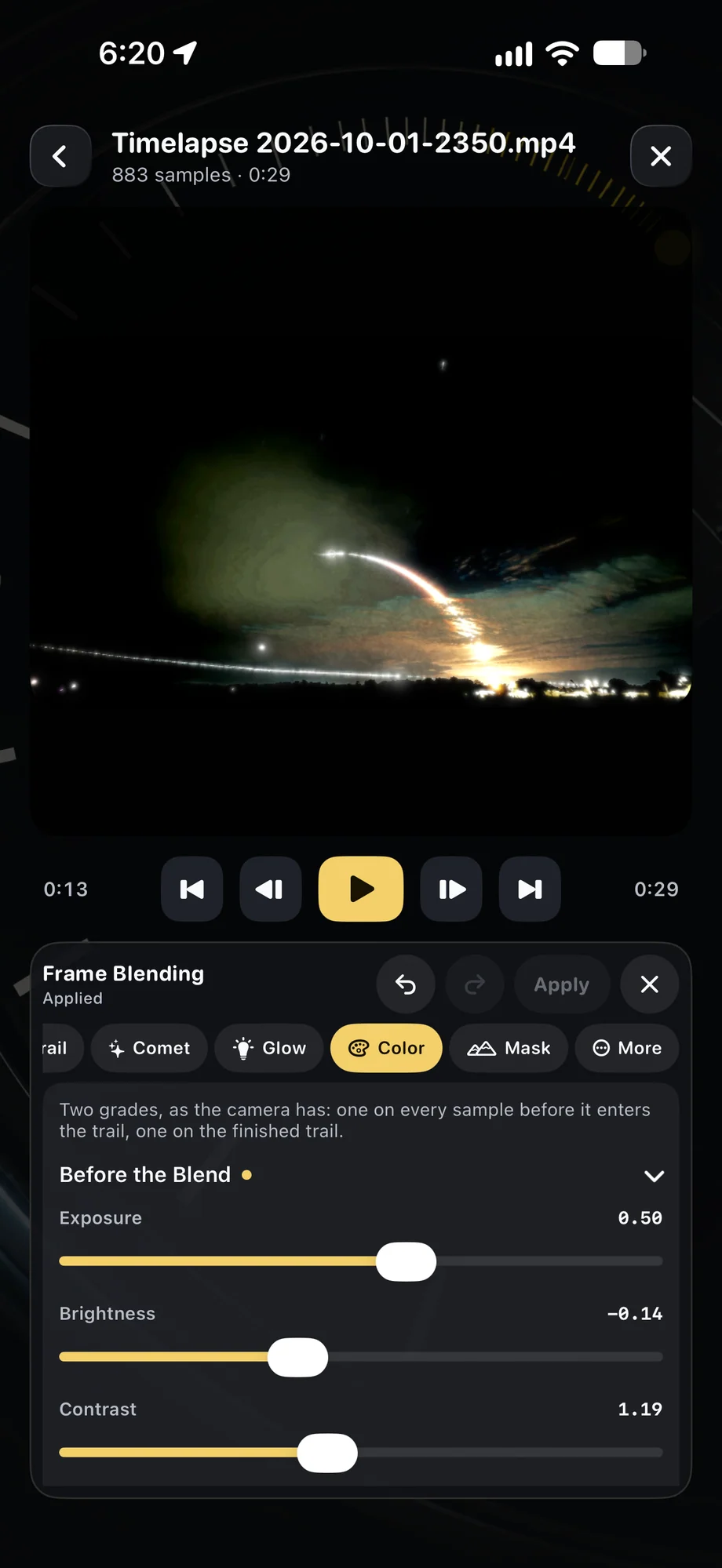
Horizon Mask is part of the blending workflow. Set exposure for the visible lights, choose the trail history and inspect the foreground as the composite develops. A mask can help keep sky trails off the land, but it cannot replace a suitable exposure or a stable mount. Let the preview show whether the treatment fits this particular scene.
Balance the mask with the trail settings.
03 · Horizon Mask
Keep your composition steady.
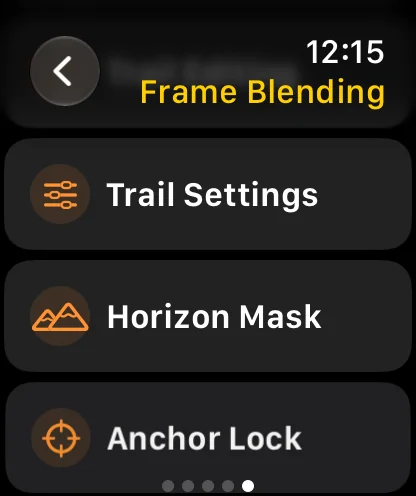
A boundary chosen for one view needs to stay aligned with that view. Use a tripod, avoid moving the phone during the take and review framing if it is disturbed. Anchor Lock offers help with mounted-camera bumps, and saved-position guidance helps return to a reference. Those tools complement the mask while serving different parts of the capture.
Keep your composition steady.
A Practical Workflow
- 01
Compose the skyline
Choose the camera view and identify the foreground boundary.
- 02
Apply the mask
Set up sky processing and inspect the developing blend near the horizon.
- 03
Watch the result
Keep the phone steady and review alignment if the composition changes.
Inside the App
Tap a Screen for a Closer Look
Questions About Horizon Mask
What does Horizon Mask do?
It helps keep sky trail processing off the foreground so the two parts of a night scene can remain visually distinct.
Is Horizon Mask the same as Anchor Lock?
No. Horizon Mask controls the processing region. Anchor Lock helps correct bumps in a mounted-camera shot.