TimeLapsed 2.0 · Light Trails & Frame Blending

Bring another camera’s still frames into the film.

A timelapse may begin on a camera that saves individual stills instead of a movie. TimeLapsed 2.0 can import image sequences through Photos or Files and turn those frames into a timelapse. Bring the sequence into the same editing workflow used for phone captures, then decide how the finished film should look.

iPhone · iPad · Apple Watch · English + 11 Languages

Image Sequence Import

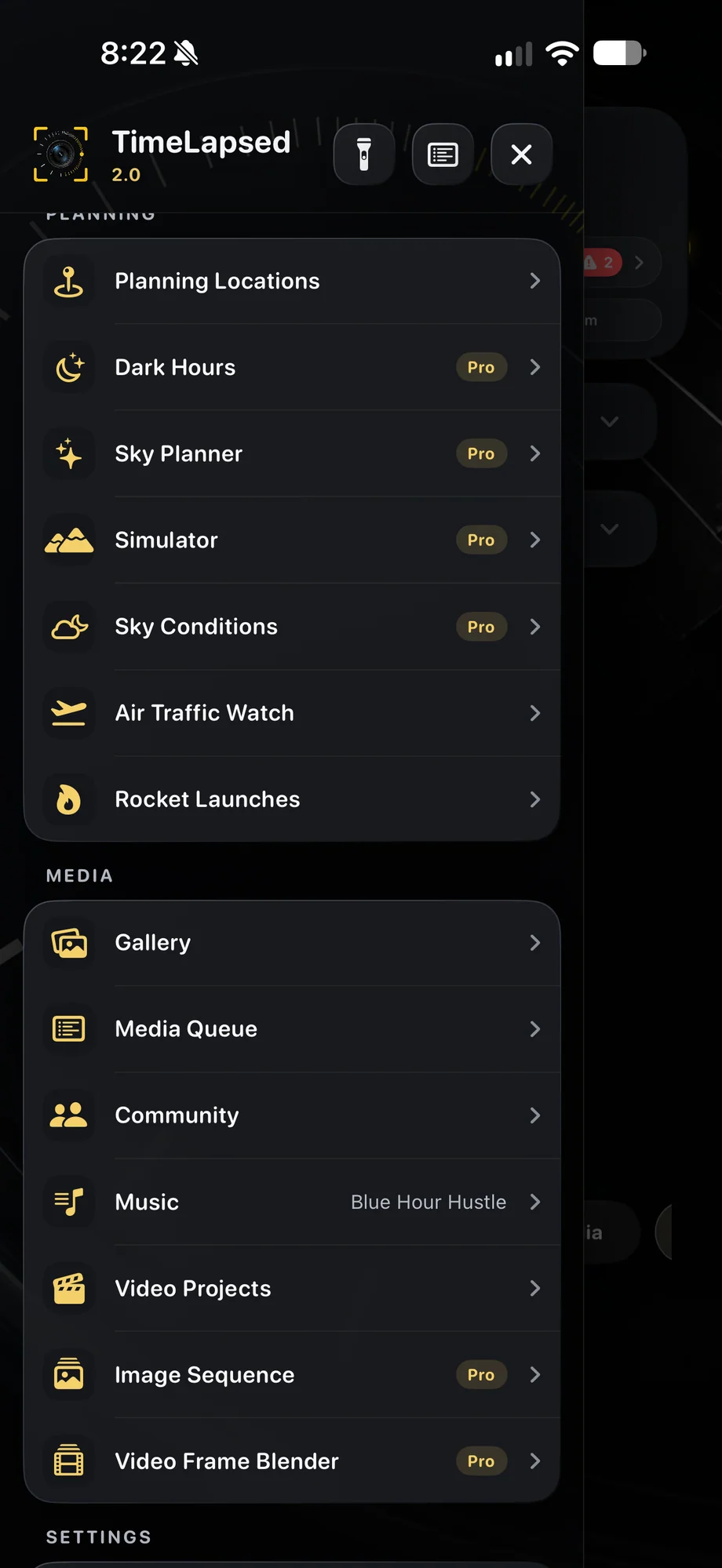
TimeLapsed Image Sequence and Video Frame Blender in app navigation
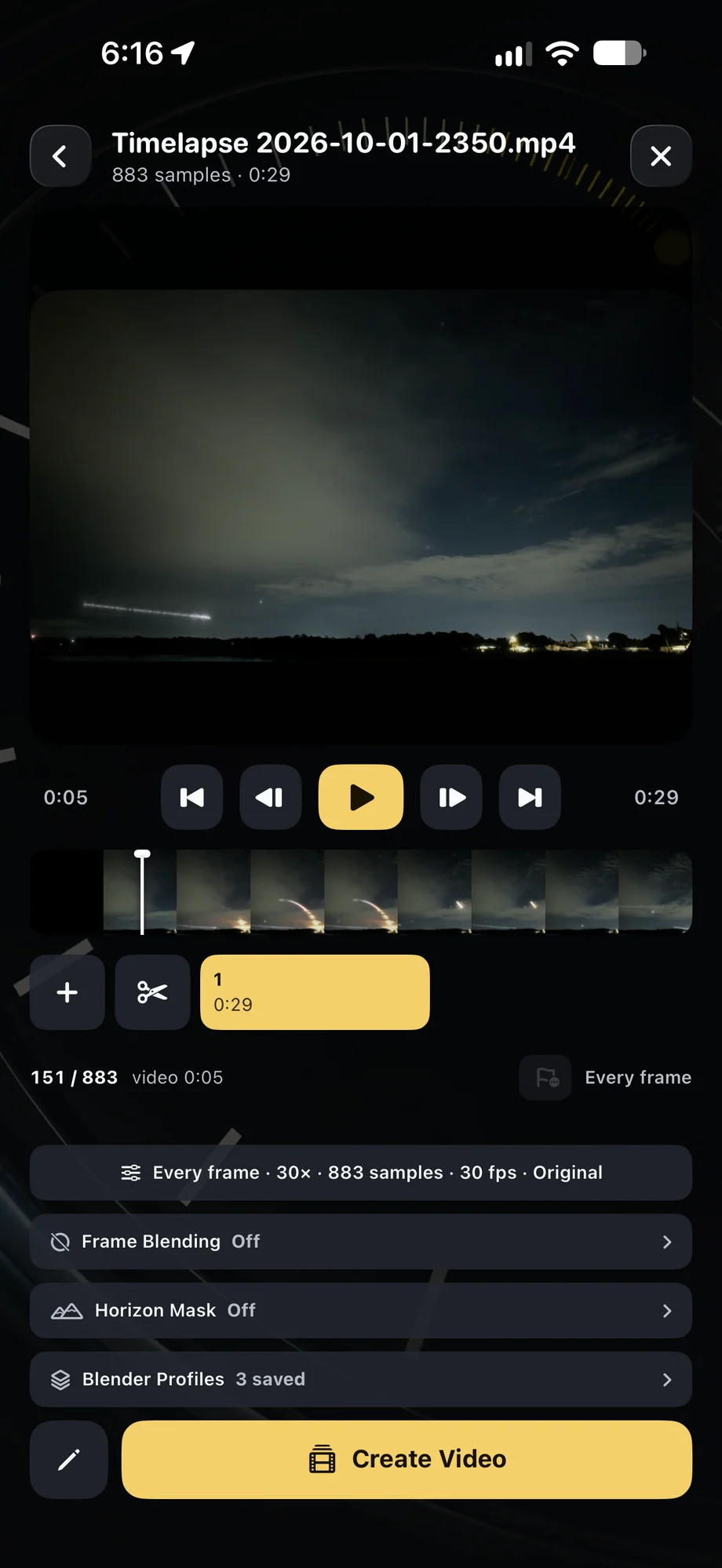
TimeLapsed Review a movie in the blending workflow
TimeLapsed Choose output settings for a finished sequence
Image Sequence and Video Frame Blender in app navigationReview a movie in the blending workflow

01 · Image Sequence Import

Prepare a sequence that belongs together.

Use stills from the same capture session and check their order before importing. A consistent frame size and composition make the transition between images easier to judge. If the source came from another camera, move the files into a location Photos or Files can access. A supported card reader or external drive can be part of that transfer.

Prepare a sequence that belongs together.
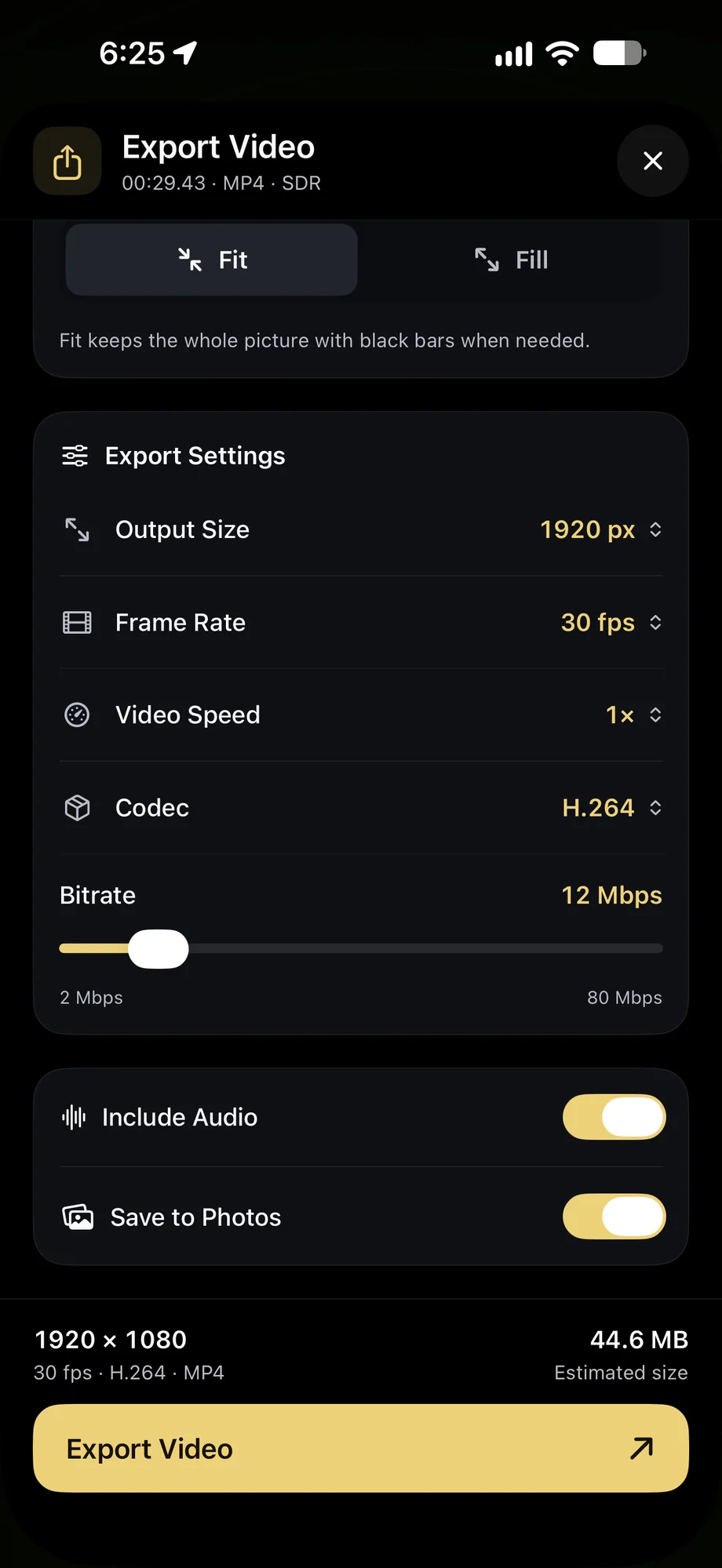
TimeLapsed Choose output settings for a finished sequence
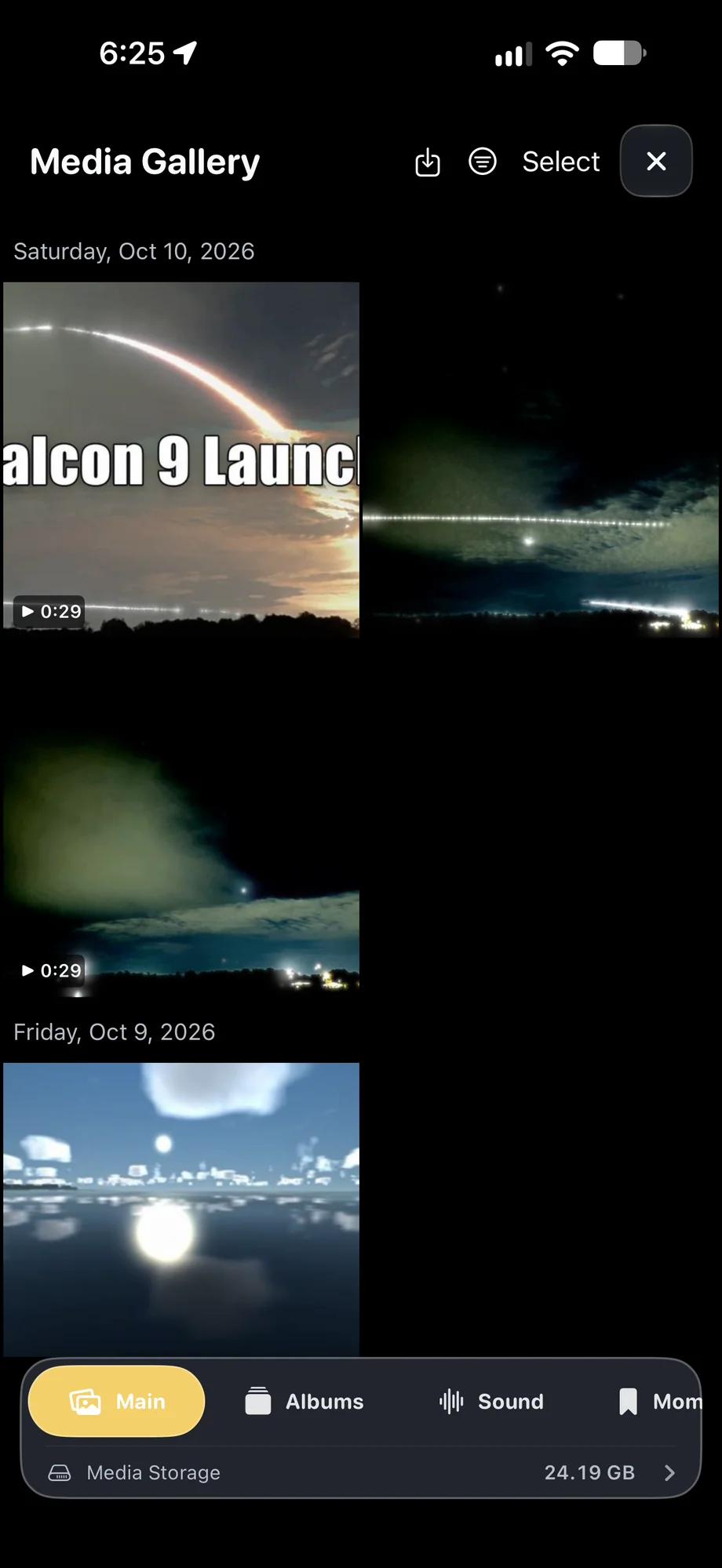
TimeLapsed Saved movies and projects in the gallery
Choose output settings for a finished sequenceSaved movies and projects in the gallery

02 · Image Sequence Import

Turn separate pictures into visible motion.

Import the sequence and review how the frames play together. The interval used by the original camera determines what movement was captured; playback choices determine how quickly you see it. A changing sky, a growing drawing or a long exposure series can each need a different pace. Watch the result before putting it into a larger project.

Turn separate pictures into visible motion.

TimeLapsed Choose output settings for a finished sequence
TimeLapsed Saved movies and projects in the gallery
Choose output settings for a finished sequenceSaved movies and projects in the gallery

03 · Image Sequence Import

Finish the sequence as part of a story.

Use the rebuilt video editor to combine the timelapse with other clips, change framing, adjust color and add titles or audio. Choose portrait or widescreen for the destination where it will be watched. Keep the source stills until you are satisfied with the output so you can revisit a frame or make a different version later.

Finish the sequence as part of a story.

TimeLapsed Choose output settings for a finished sequence
TimeLapsed Saved movies and projects in the gallery
Choose output settings for a finished sequenceSaved movies and projects in the gallery

A Practical Workflow

  1. 01

    Gather the stills

    Move a related, ordered sequence into Photos or Files.

  2. 02

    Import and review

    Bring the sequence into TimeLapsed and check the motion and pace.

  3. 03

    Build the film

    Edit the result with clips, titles, color and a soundtrack.

Inside the App

Tap a Screen for a Closer Look

Image Sequence and Video Frame Blender in app navigation
Review a movie in the blending workflow
Choose output settings for a finished sequence
Saved movies and projects in the gallery

Image Sequence and Video Frame Blender in app navigation

TimeLapsed Image Sequence and Video Frame Blender in app navigation

Questions About Image Sequence Import

Do the stills have to come from an iPhone?

No. TimeLapsed can import still-image sequences captured with other cameras through Photos or Files.

Can I connect a memory card?

A compatible reader can expose files to the device. Access depends on your iPhone or iPad, the reader and the storage format it supports.

Browse All 33 TimeLapsed Features

English + 11 More Languages

TimeLapsed 2.0 supports 12 languages across the iPhone, iPad and Apple Watch experiences. Use the camera and tools in the language that works for you.

  • English
  • Spanish
  • French
  • German
  • Italian
  • Brazilian Portuguese
  • Japanese
  • Korean
  • Simplified Chinese
  • Hindi
  • Russian
  • Turkish

Take the app with you

Download TimeLapsed.

Capture on iPhone, iPad or a compatible Android phone. Apple Watch controls are available with the iOS app.

Download on the App Store

TimeLapsed for Android

Awaiting Google’s review

We’re awaiting Google’s review. Check back soon, or apply for the beta test by sending us the email address you use on Google Play. We’ll be adding testers every few days.

Apply for the beta test

Android review is in progress. Beta requests are open.

QR code to download TimeLapsed on the App Store

Scan With an iPhone or iPad to Open the App Store.