TimeLapsed 2.0 · Your Camera Setup

Operate the camera without reaching into the shot.

Once the phone is aimed and secured, reaching for the screen can disturb the composition. TimeLapsed remote operation lets another device become the place where you preview and control capture. Keep the recording camera mounted while you check the view, adjust supported controls and start or stop the take.

iPhone · iPad · Apple Watch · English + 11 Languages

Remote Camera Control

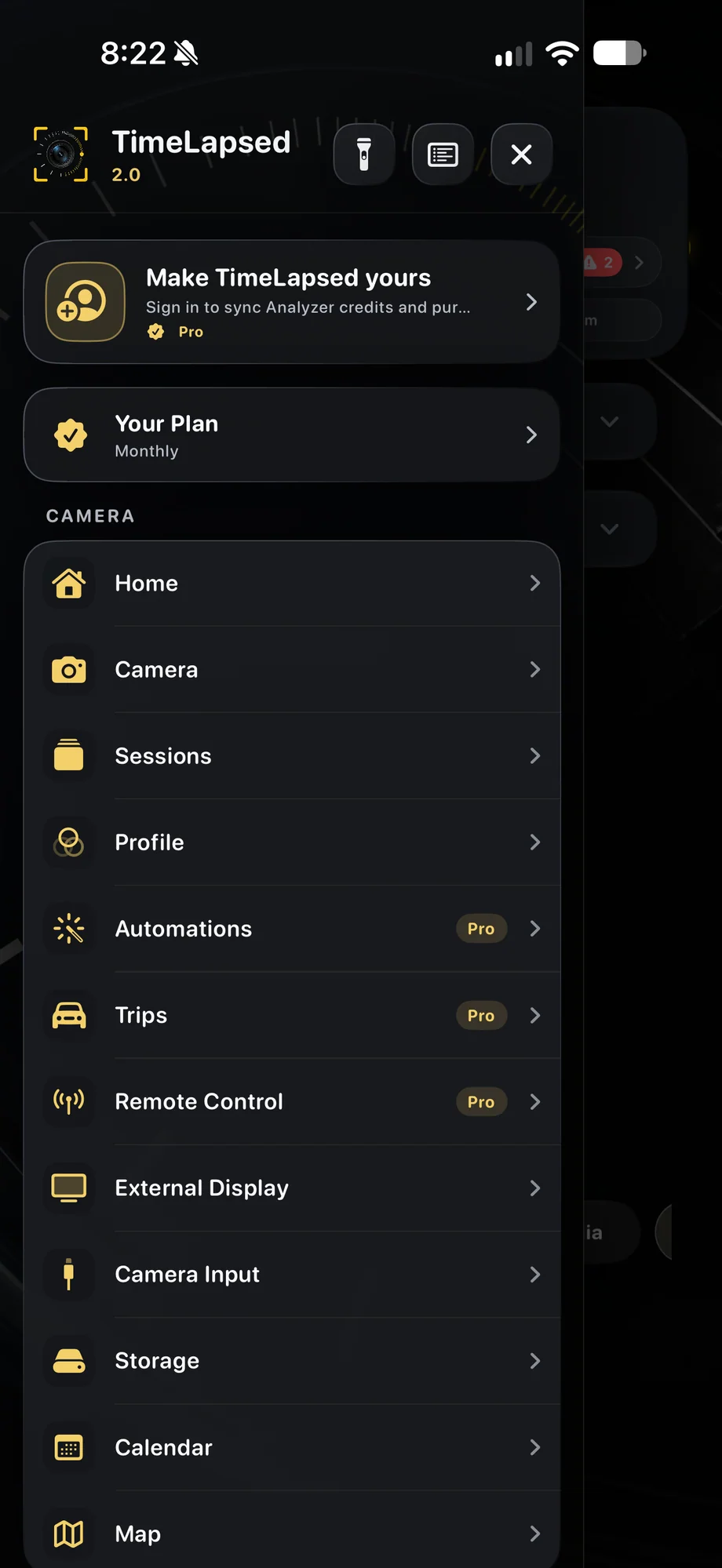
TimeLapsed Open Remote Control from app navigation
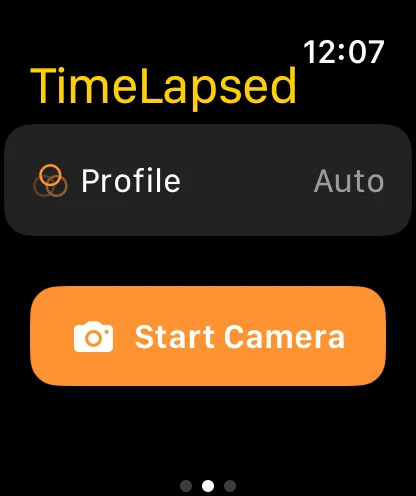
TimeLapsed Start the paired iPhone camera from Apple Watch
TimeLapsed Confirm opening the camera on iPhone
Open Remote Control from app navigationStart the paired iPhone camera from Apple Watch

01 · Remote Camera Control

Make the mounted device the camera.

Set up the recording phone first: mount it, choose the lens, compose the view and connect power or accessories if the session needs them. Connect from another TimeLapsed device and review the remote preview before recording. This is useful when the camera is positioned above a drawing, at the edge of a tripod rig or away from where you need to stand.

Make the mounted device the camera.
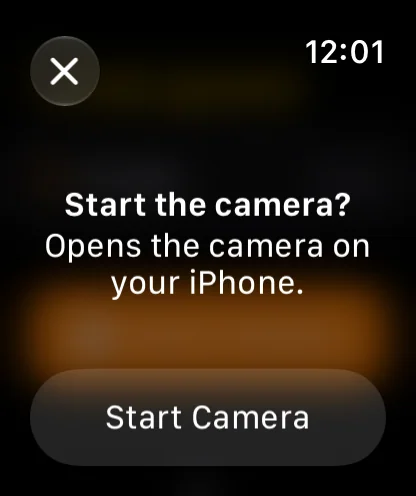
TimeLapsed Confirm opening the camera on iPhone
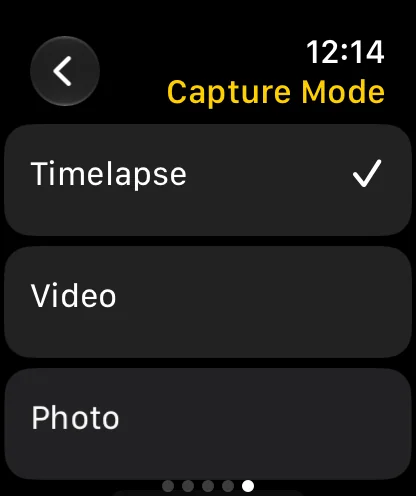
TimeLapsed Select a capture mode from the wrist
Confirm opening the camera on iPhoneSelect a capture mode from the wrist

02 · Remote Camera Control

Review the picture from the control device.

Use the remote view and supported controls to operate the capture without touching the mount. Check that the devices are connected before relying on the remote for a long take. The camera still needs suitable exposure, storage and power. A remote control surface makes operation more convenient, but it does not remove those requirements from the recording device.

Review the picture from the control device.

TimeLapsed Confirm opening the camera on iPhone
TimeLapsed Select a capture mode from the wrist
Confirm opening the camera on iPhoneSelect a capture mode from the wrist

03 · Remote Camera Control

Build the connection around the equipment you have.

TimeLapsed also supports remote operation of compatible Canon cameras, and Apple Watch offers a separate wrist-control workflow for the phone camera. Available controls depend on the connected device. Review compatibility and the active camera before starting the session, particularly when switching between a phone capture and an external camera.

Build the connection around the equipment you have.

TimeLapsed Confirm opening the camera on iPhone
TimeLapsed Select a capture mode from the wrist
Confirm opening the camera on iPhoneSelect a capture mode from the wrist

A Practical Workflow

  1. 01

    Prepare the recording camera

    Secure the mount, frame the view and check power and storage.

  2. 02

    Connect the control device

    Open the remote camera and confirm the preview and supported controls.

  3. 03

    Run the take

    Start, review and stop capture from a position that leaves the mount alone.

Inside the App

Tap a Screen for a Closer Look

Open Remote Control from app navigation
Start the paired iPhone camera from Apple Watch
Confirm opening the camera on iPhone
Select a capture mode from the wrist

Open Remote Control from app navigation

TimeLapsed Open Remote Control from app navigation

Questions About Remote Camera Control

Can another TimeLapsed device control the camera?

Yes. Device remote operation provides preview and supported capture controls for a connected TimeLapsed camera.

Does every Canon camera work?

No. Remote Canon support depends on a compatible camera and connection. Confirm compatibility for the model you intend to use.

Browse All 33 TimeLapsed Features

English + 11 More Languages

TimeLapsed 2.0 supports 12 languages across the iPhone, iPad and Apple Watch experiences. Use the camera and tools in the language that works for you.

  • English
  • Spanish
  • French
  • German
  • Italian
  • Brazilian Portuguese
  • Japanese
  • Korean
  • Simplified Chinese
  • Hindi
  • Russian
  • Turkish

Take the app with you

Download TimeLapsed.

Capture on iPhone, iPad or a compatible Android phone. Apple Watch controls are available with the iOS app.

Download on the App Store

TimeLapsed for Android

Awaiting Google’s review

We’re awaiting Google’s review. Check back soon, or apply for the beta test by sending us the email address you use on Google Play. We’ll be adding testers every few days.

Apply for the beta test

Android review is in progress. Beta requests are open.

QR code to download TimeLapsed on the App Store

Scan With an iPhone or iPad to Open the App Store.