01 · Video Editor
Cut across clips without losing the history of the shoot.
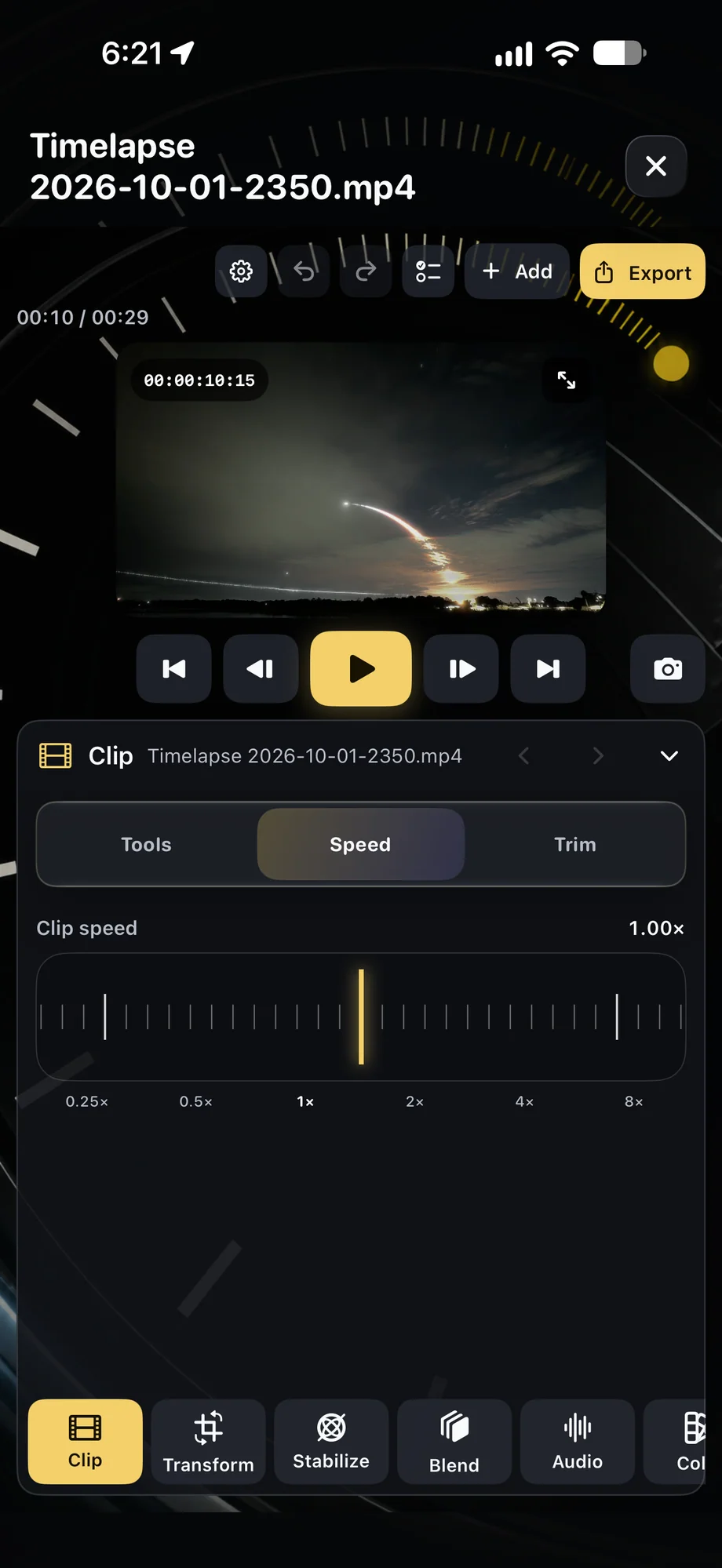
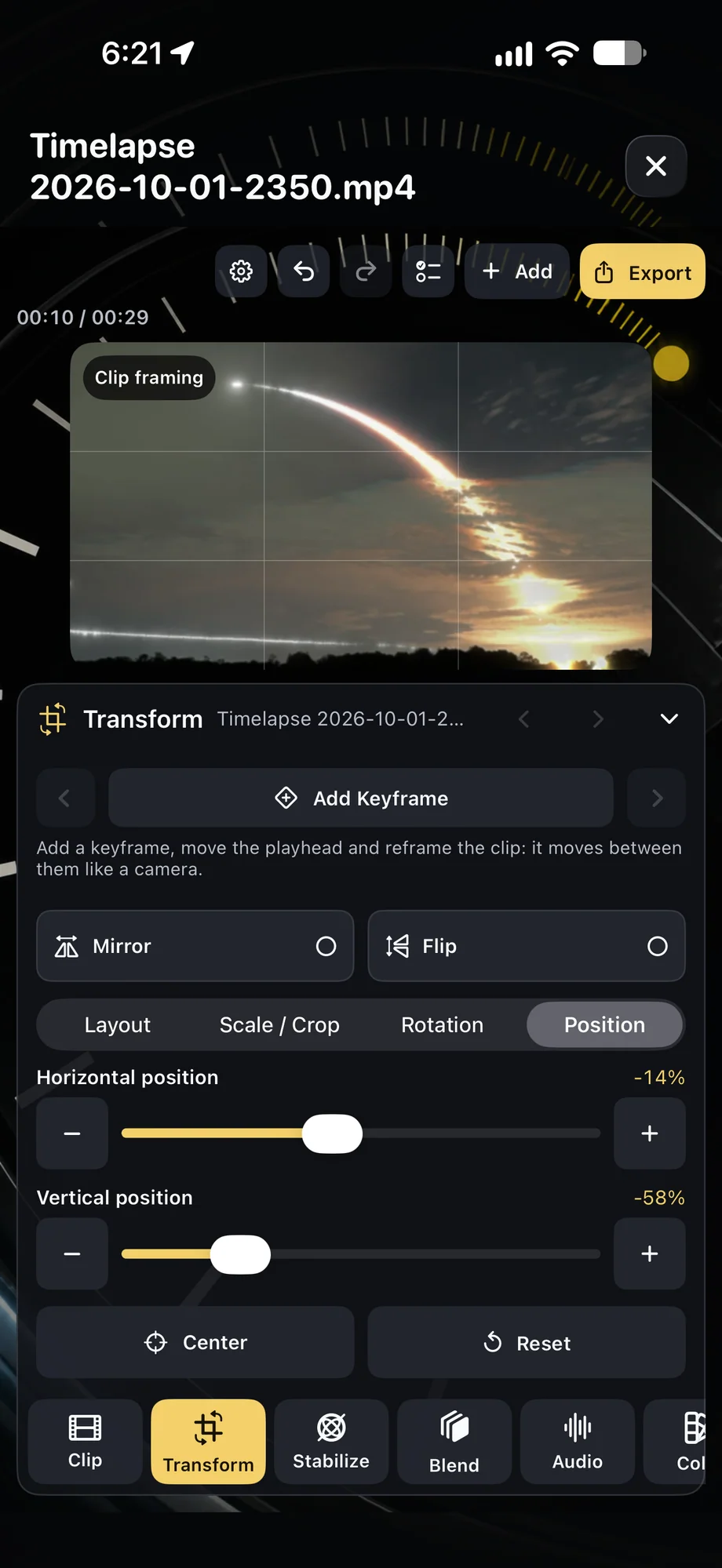
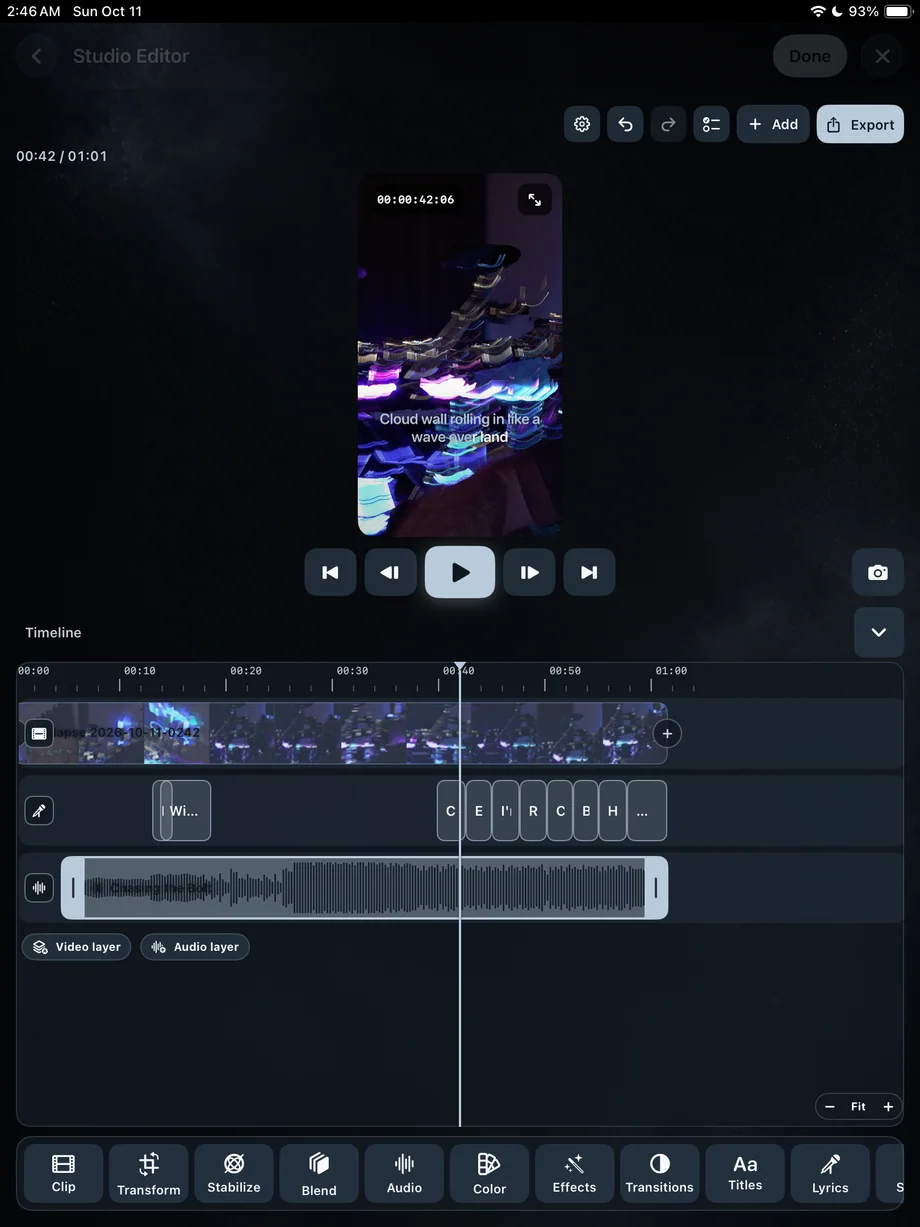
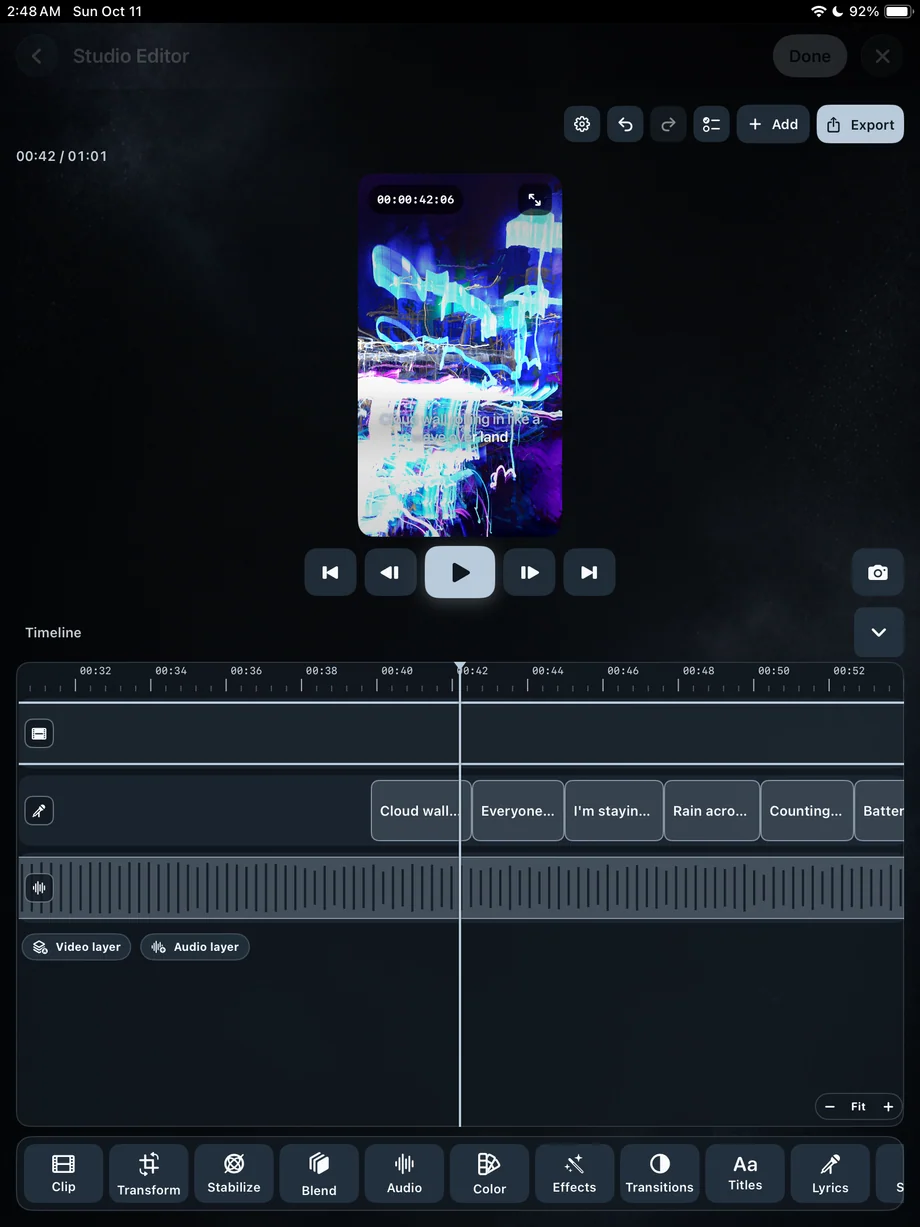
Bring session videos into a layered timeline, compare frames under the playhead, and work across video, audio, and title tracks. The interface stays compact enough for a phone while preserving the decisions a full edit requires.
- Split, duplicate, reverse, trim, delete, and reorder
- Per-clip speed from 0.25× to 8×
- Undo, redo, frame stepping, fit, and timeline zoom
Cut across clips without losing the history of the shoot.
02 · Video Editor
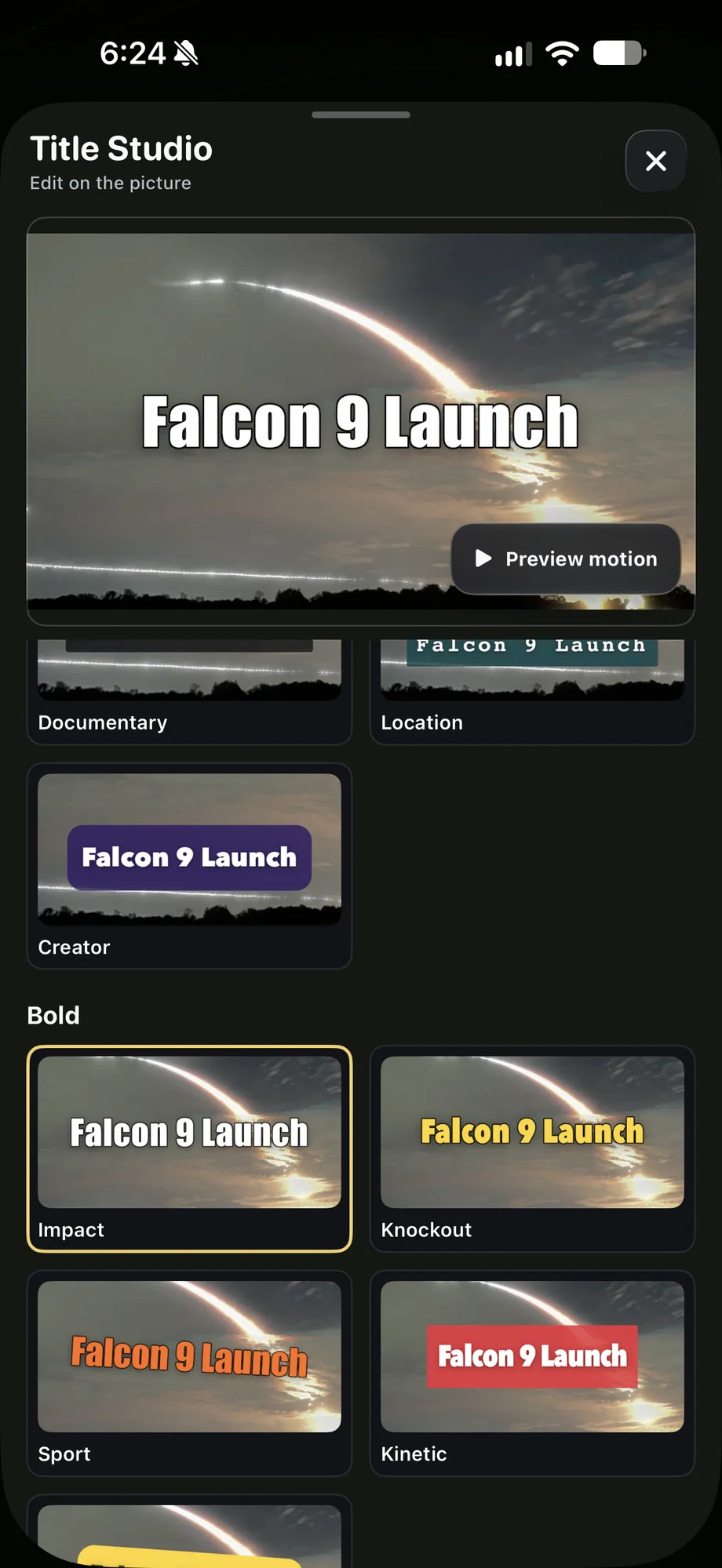
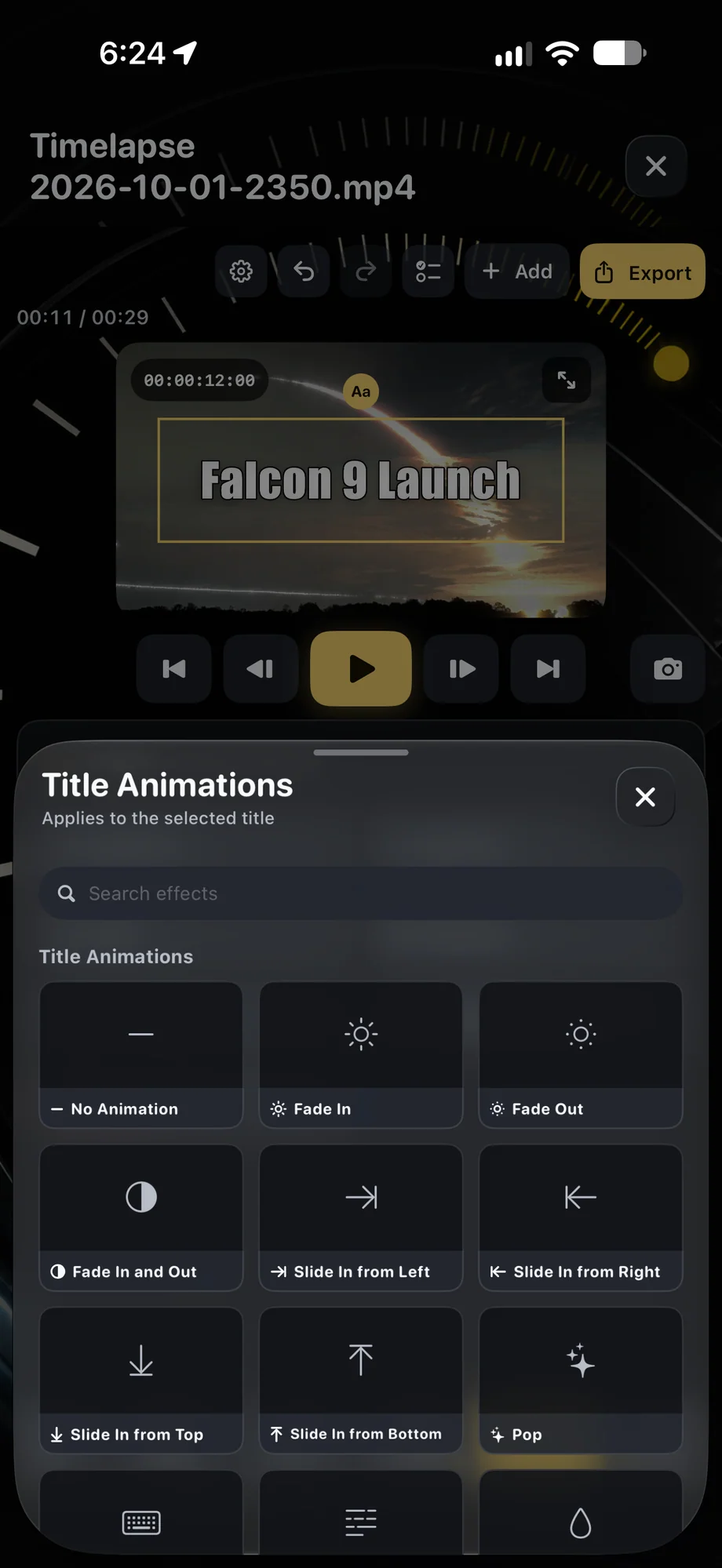
Treat color, transitions, typography, and sound as first-class layers.
Use built-in looks or import a .cube LUT, add title layers, and tune transition duration and easing. TimeLapsed also supports provider-backed voiceover workflows and ElevenLabs music generation when the user configures an eligible provider account.
- Fades, dissolves, wipes, motion, and stylized transitions
- Linear, eased, spring, hold, and custom-curve timing
- Bring-your-own-provider sound tools with on-device project integration
Treat color, transitions, typography, and sound as first-class layers.
03 · Video Editor
Control the canvas and the file before it leaves the app.
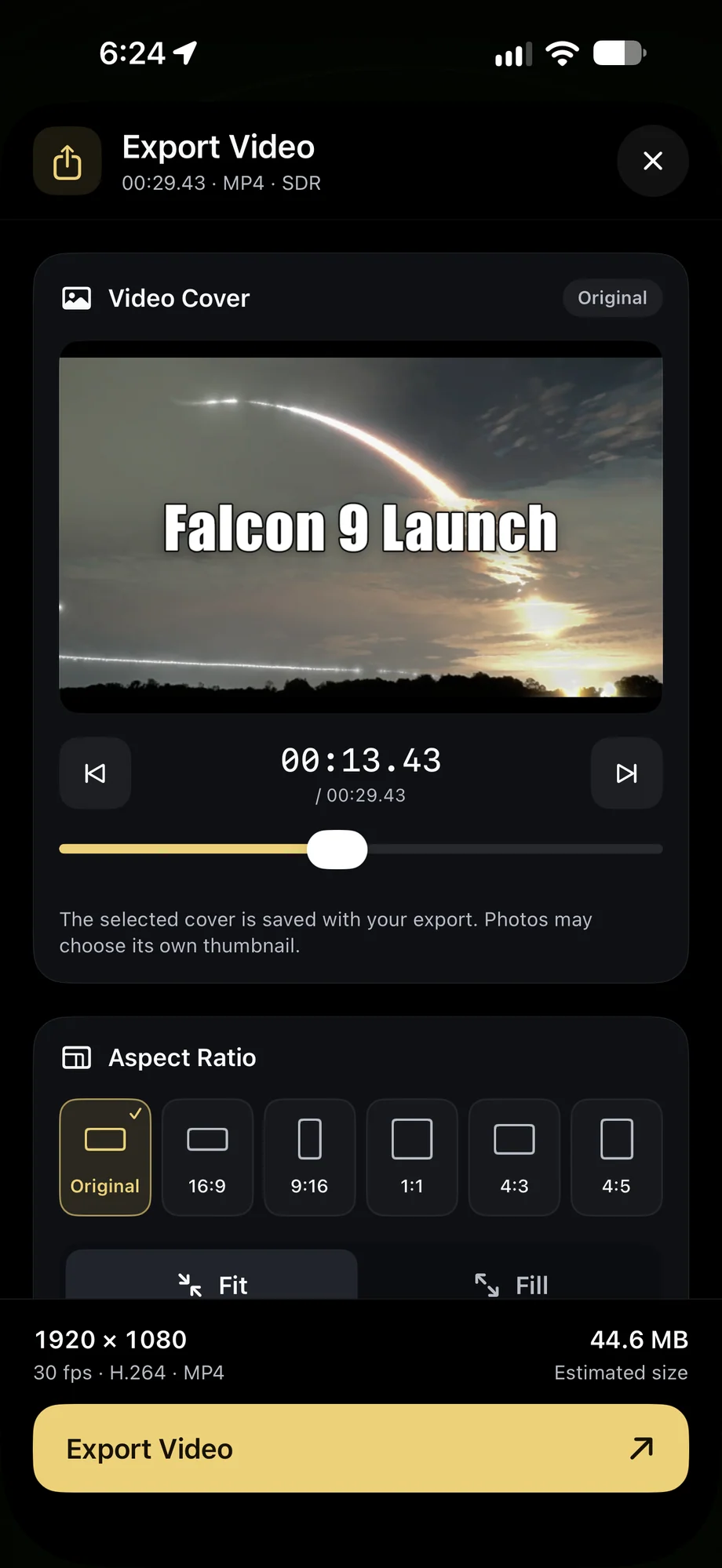
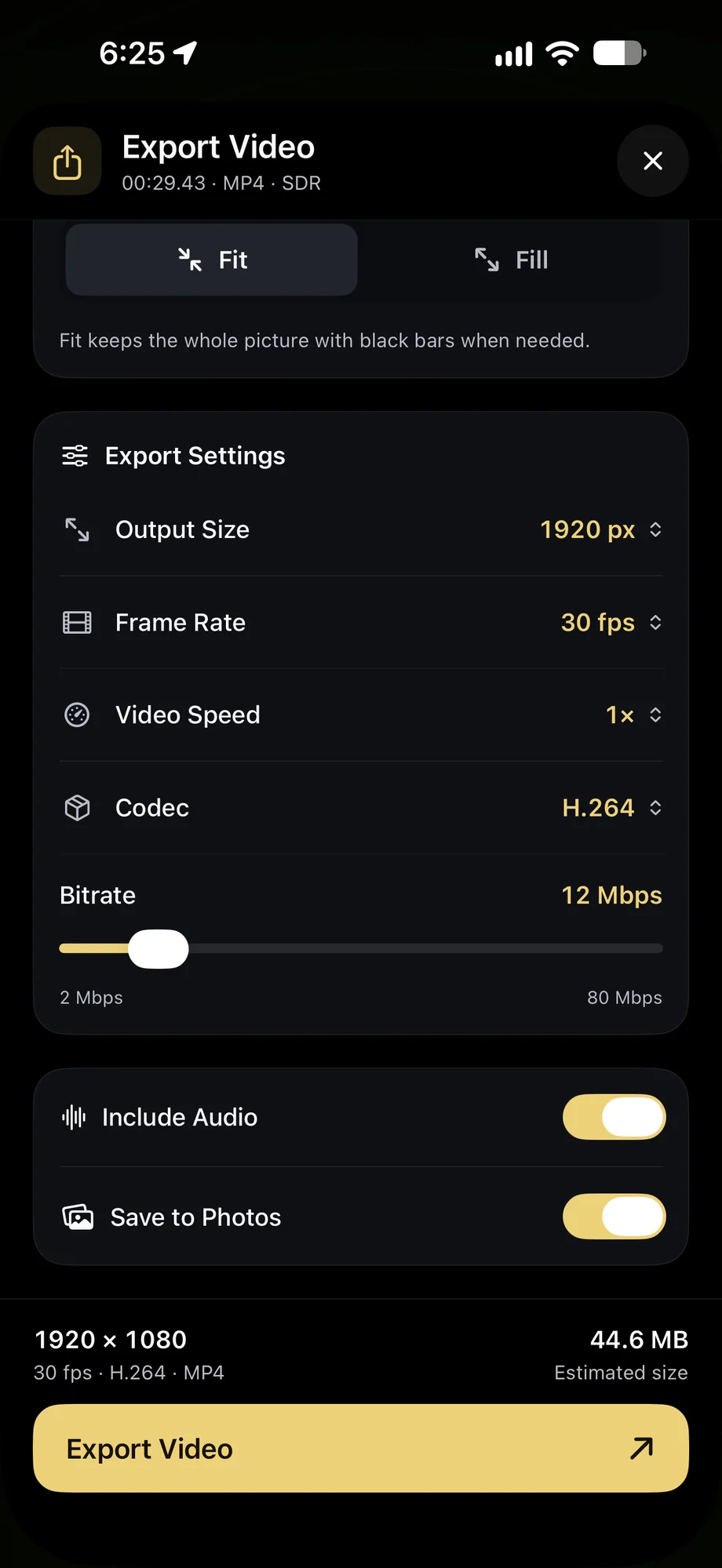
Choose a cover, change the aspect ratio, and decide between Fit and Fill. Then set output size up to 4K, frame rate, video speed, codec, bitrate, included audio, and Photos delivery while watching the estimated file size.
- Original, 16:9, 9:16, 1:1, 4:3, and 4:5 ratios
- H.264 MP4 export controls shown from 2 to 80 Mbps
- Save to Photos, share to social and friends, or AirPlay the completed export
Control the canvas and the file before it leaves the app.
A Practical Workflow
- 01
Choose the sessions
Start with organized captures and bring the strongest videos into a project.
- 02
Shape time
Trim, split, reorder, reverse, and retime each part against one playhead.
- 03
Build the finish
Add titles, transitions, color, LUTs, music, and configured-provider voice work.
- 04
Deliver the master
Set the social ratio and export quality, then save, share, or present it.
Inside the App
Tap a Screen for a Closer Look
Questions About Video Editor
Does TimeLapsed have a multitrack timeline?
Yes. Projects present video, audio, and title layers against a shared playhead with frame stepping, scrubbing, and timeline zoom.
Can TimeLapsed generate voiceovers or music?
TimeLapsed supports advanced sound workflows using configured provider accounts. Voiceover providers include several supported services, and ElevenLabs music generation is available when the user supplies an eligible account and key.
Can I import a color LUT?
Yes. Import a .cube LUT or use the built-in looks, then preview the result directly on the current project.
Can an export be made for both social media and a television?
Yes. Choose a vertical, horizontal, square, or editorial aspect ratio for the file, then share it directly or play the completed export through standard external playback such as AirPlay.