TimeLapsed 2.0 · From Take to Finished Film

Keep your drawing reference in view.

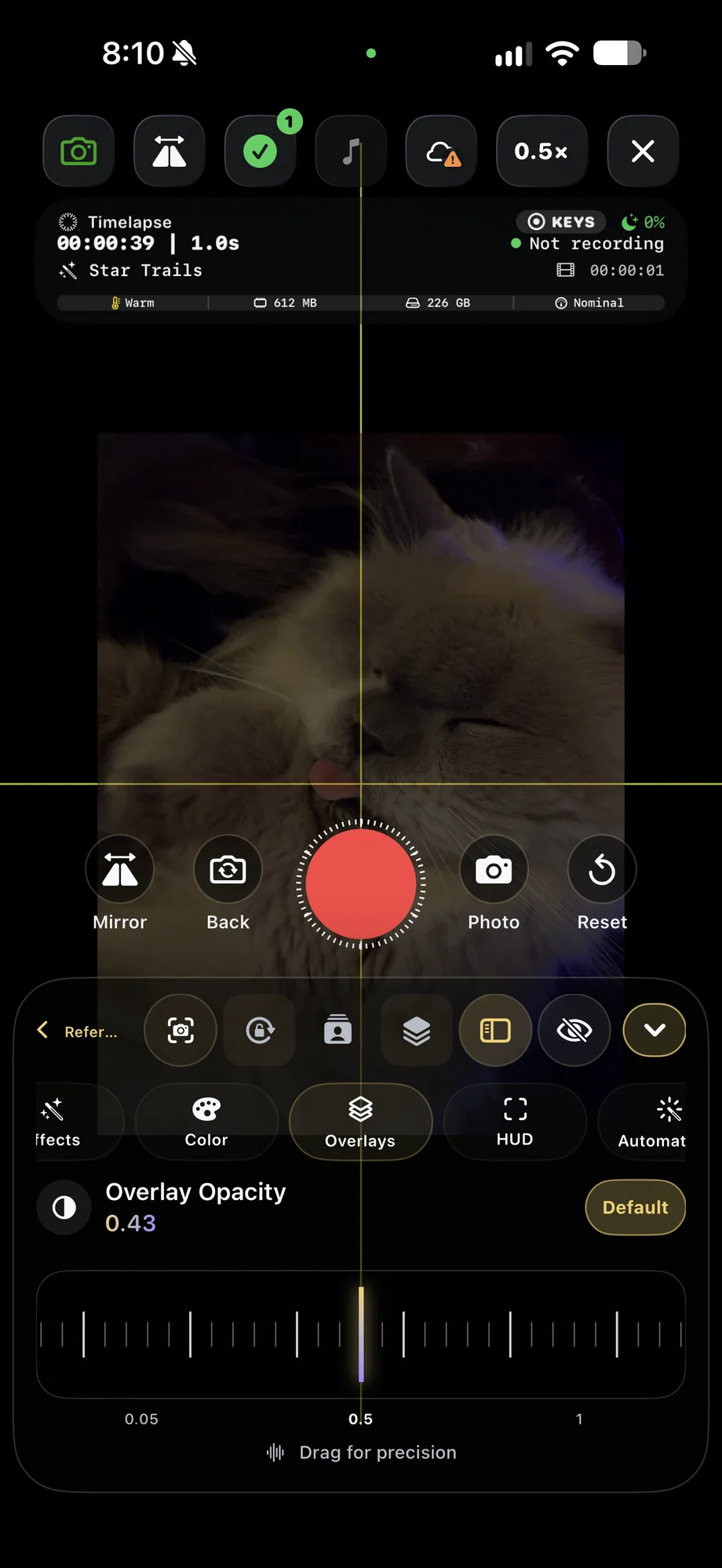
The drawing happens on paper. TimeLapsed can place a framed, translucent reference image over the live camera view to help you see the relationship between the reference and the work below. Set up the phone above the page, choose the reference and record the artwork taking shape over time.

iPhone · iPad · Apple Watch · English + 11 Languages

Drawing Reference Overlays

TimeLapsed A translucent reference image over the camera view
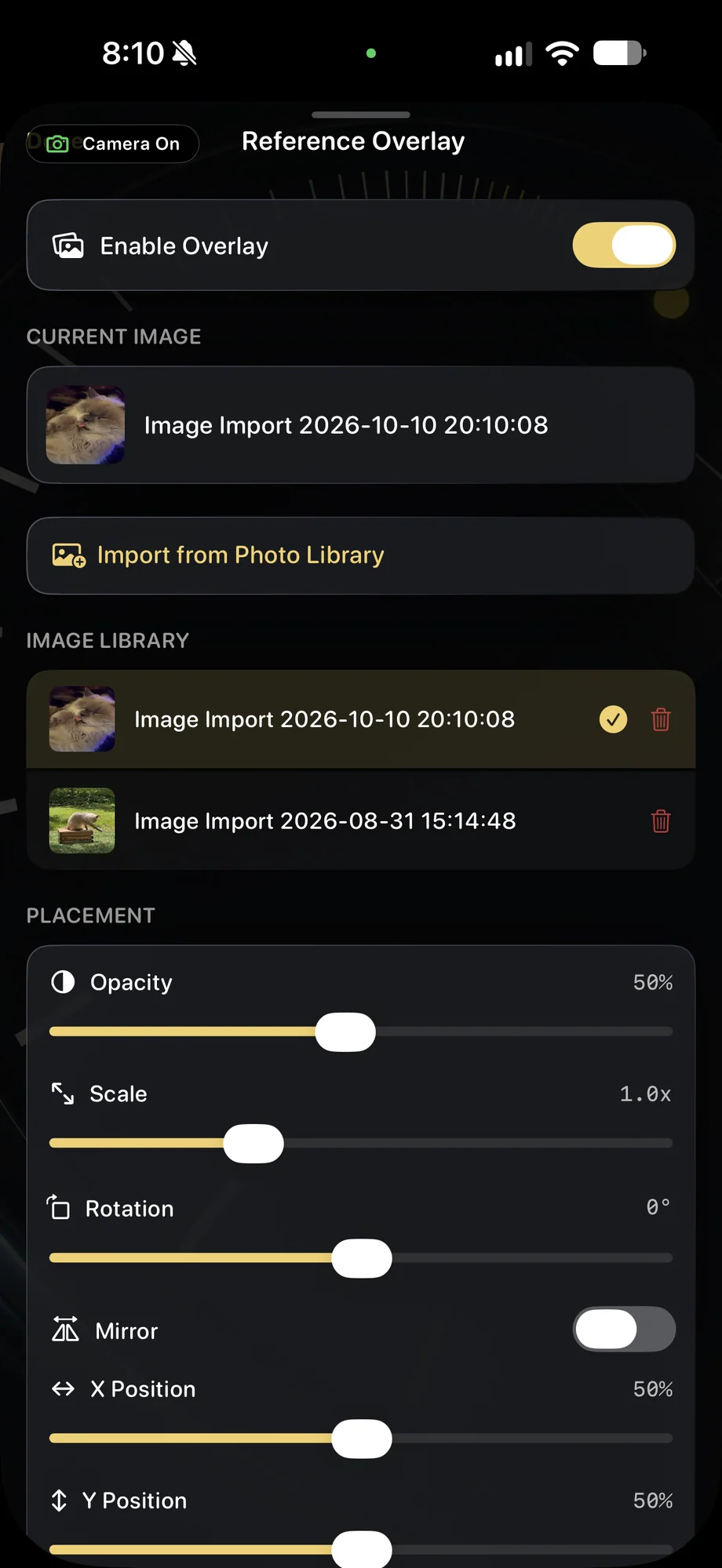
TimeLapsed Reference image placement, opacity and scale controls
TimeLapsed Choose the capture interval for a drawing session, with an illustrated scene beneath the captured camera controls
A translucent reference image over the camera viewReference image placement, opacity and scale controlsCaptured iOS Controls · Illustrated Camera Preview

01 · Drawing Reference Overlays

Prepare a view of the whole working area.

Mount the phone so the page stays visible and your drawing hand has room to move. Check the framing before adding the overlay. Keep the camera support clear of the paper and make sure the lighting remains usable throughout the session. A drawing timelapse is easier to watch when the paper holds the same position from start to finish.

Prepare a view of the whole working area.
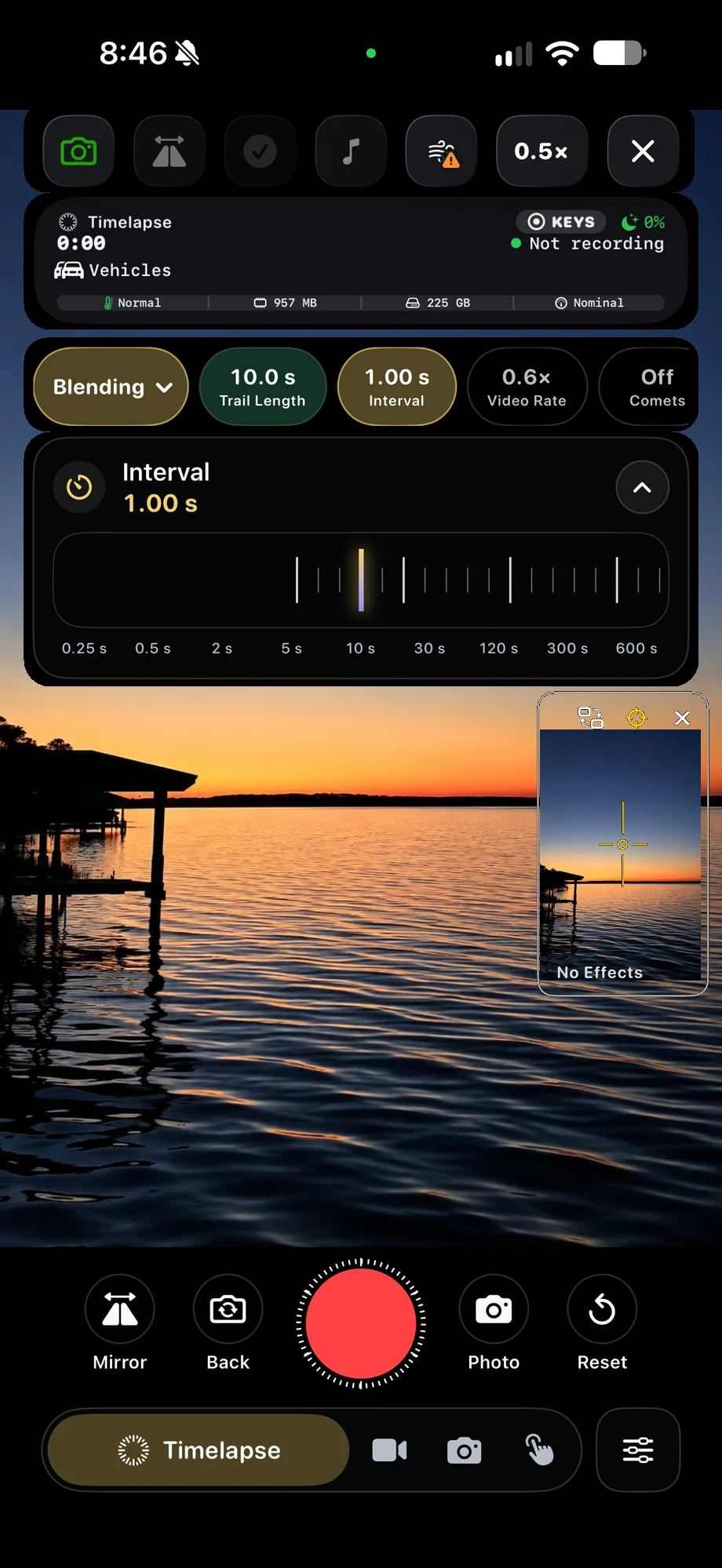
TimeLapsed Choose the capture interval for a drawing session, with an illustrated scene beneath the captured camera controls
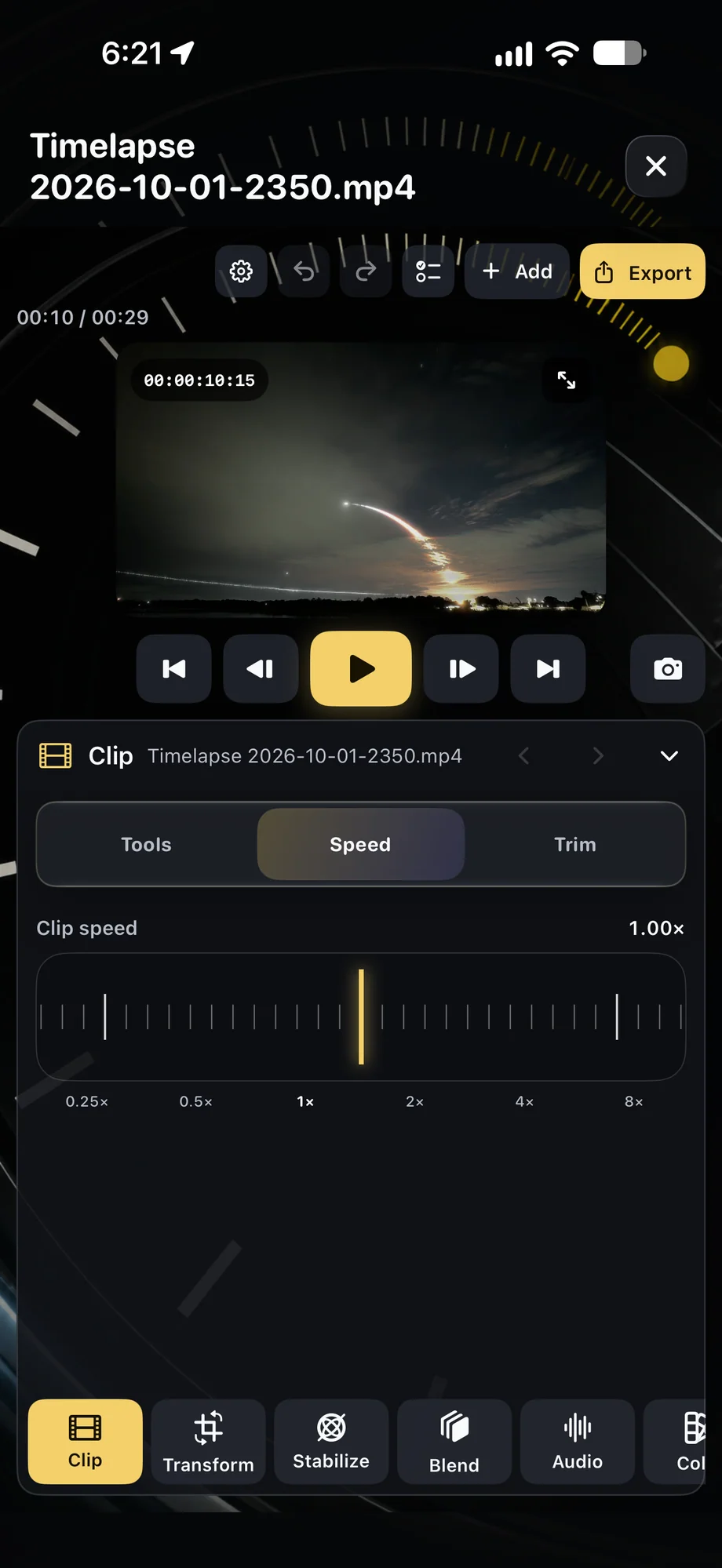
TimeLapsed Adjust the speed of the recorded process
Choose the capture interval for a drawing sessionAdjust the speed of the recorded processCaptured iOS Controls · Illustrated Camera Preview

02 · Drawing Reference Overlays

Make the reference readable without hiding the work.

Use the framed, translucent overlay to compare shapes and placement in the live view. Adjust the setup until both the reference and the actual page are useful to you. The overlay is a camera-view aid for making artwork in real life. It gives you a visual reference while your own hand creates the marks on the paper.

Make the reference readable without hiding the work.

TimeLapsed Choose the capture interval for a drawing session, with an illustrated scene beneath the captured camera controls
TimeLapsed Adjust the speed of the recorded process
Choose the capture interval for a drawing sessionAdjust the speed of the recorded processCaptured iOS Controls · Illustrated Camera Preview

03 · Drawing Reference Overlays

Record the process at a pace that suits the drawing.

Choose a capture interval that preserves the stages you want to show. Set exposure and white balance so the page does not change brightness or color unnecessarily as your hand moves through the view. After capture, use the editor to trim the session, adjust speed and add a title or music to the finished process film.

Record the process at a pace that suits the drawing.

TimeLapsed Choose the capture interval for a drawing session, with an illustrated scene beneath the captured camera controls
TimeLapsed Adjust the speed of the recorded process
Choose the capture interval for a drawing sessionAdjust the speed of the recorded processCaptured iOS Controls · Illustrated Camera Preview

A Practical Workflow

  1. 01

    Mount above the page

    Frame the working area and check the light before you begin.

  2. 02

    Place the reference

    Use a framed, translucent image over the live camera view.

  3. 03

    Record and edit

    Capture the drawing’s progress, then choose the pace for the finished film.

Inside the App

Tap a Screen for a Closer Look

A translucent reference image over the camera view
Reference image placement, opacity and scale controls
Choose the capture interval for a drawing sessionCaptured Controls · Illustrated Camera Preview
Adjust the speed of the recorded process

A translucent reference image over the camera view

TimeLapsed A translucent reference image over the camera view

Questions About Drawing Reference Overlays

Does the app draw the picture for me?

No. You draw on real paper. The reference overlay helps you compare the image with the work in the camera view.

Can I turn the drawing session into a timelapse?

Yes. Record the artwork developing, then use the editor to refine timing, framing and the finished presentation.

Browse All 33 TimeLapsed Features

English + 11 More Languages

TimeLapsed 2.0 supports 12 languages across the iPhone, iPad and Apple Watch experiences. Use the camera and tools in the language that works for you.

  • English
  • Spanish
  • French
  • German
  • Italian
  • Brazilian Portuguese
  • Japanese
  • Korean
  • Simplified Chinese
  • Hindi
  • Russian
  • Turkish

Take the app with you

Download TimeLapsed.

Capture on iPhone, iPad or a compatible Android phone. Apple Watch controls are available with the iOS app.

Download on the App Store

TimeLapsed for Android

Awaiting Google’s review

We’re awaiting Google’s review. Check back soon, or apply for the beta test by sending us the email address you use on Google Play. We’ll be adding testers every few days.

Apply for the beta test

Android review is in progress. Beta requests are open.

QR code to download TimeLapsed on the App Store

Scan With an iPhone or iPad to Open the App Store.