TimeLapsed 2.0 · Light Trails & Frame Blending

Make light trails from footage you already have.

The camera is no longer the only way into a TimeLapsed blend. Open an existing movie, preview the frames through the blending engine and choose the trail treatment before rendering. Use an effects-free companion recording or bring in footage from another camera when the movement and light are already there.

iPhone · iPad · Apple Watch · English + 11 Languages

Video Frame Blender

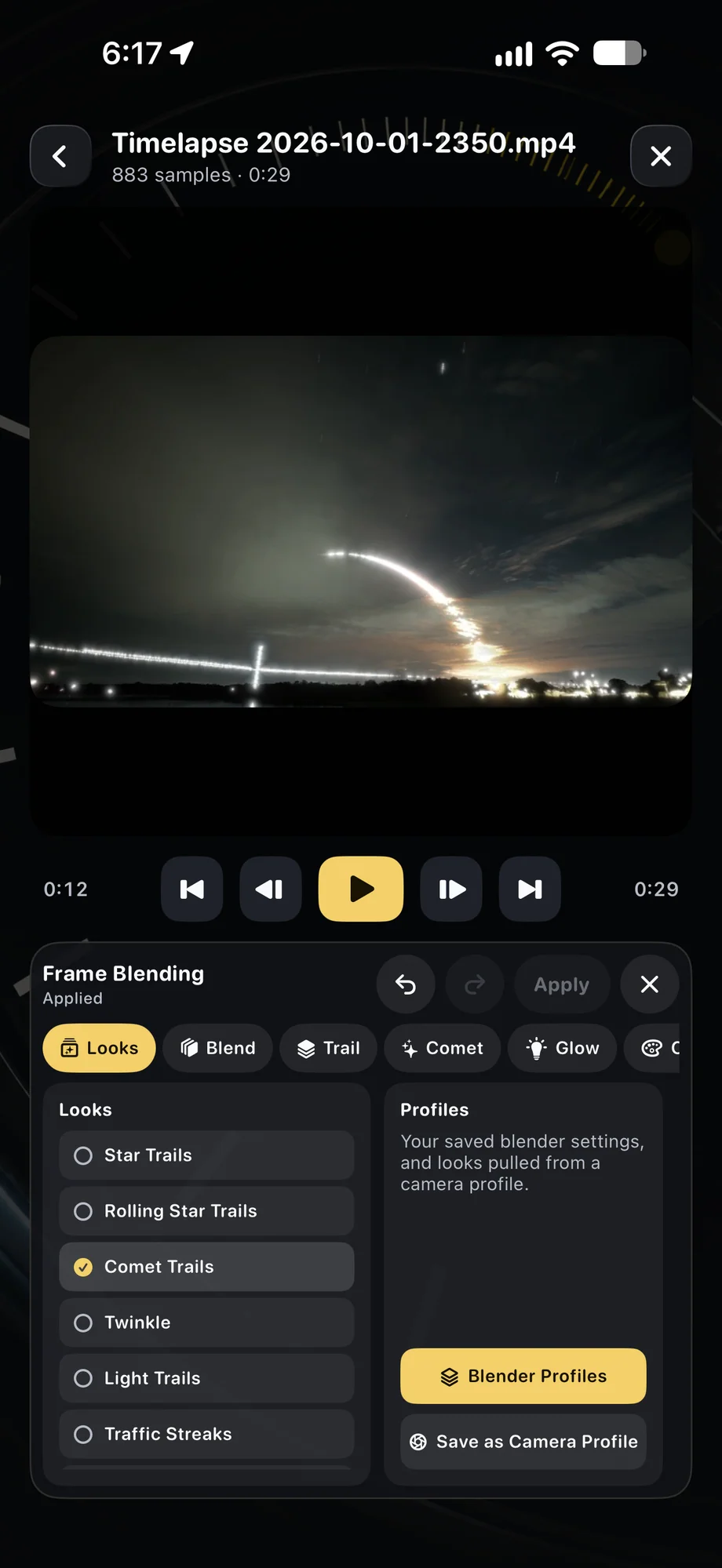
TimeLapsed Choose a trail look for imported footage
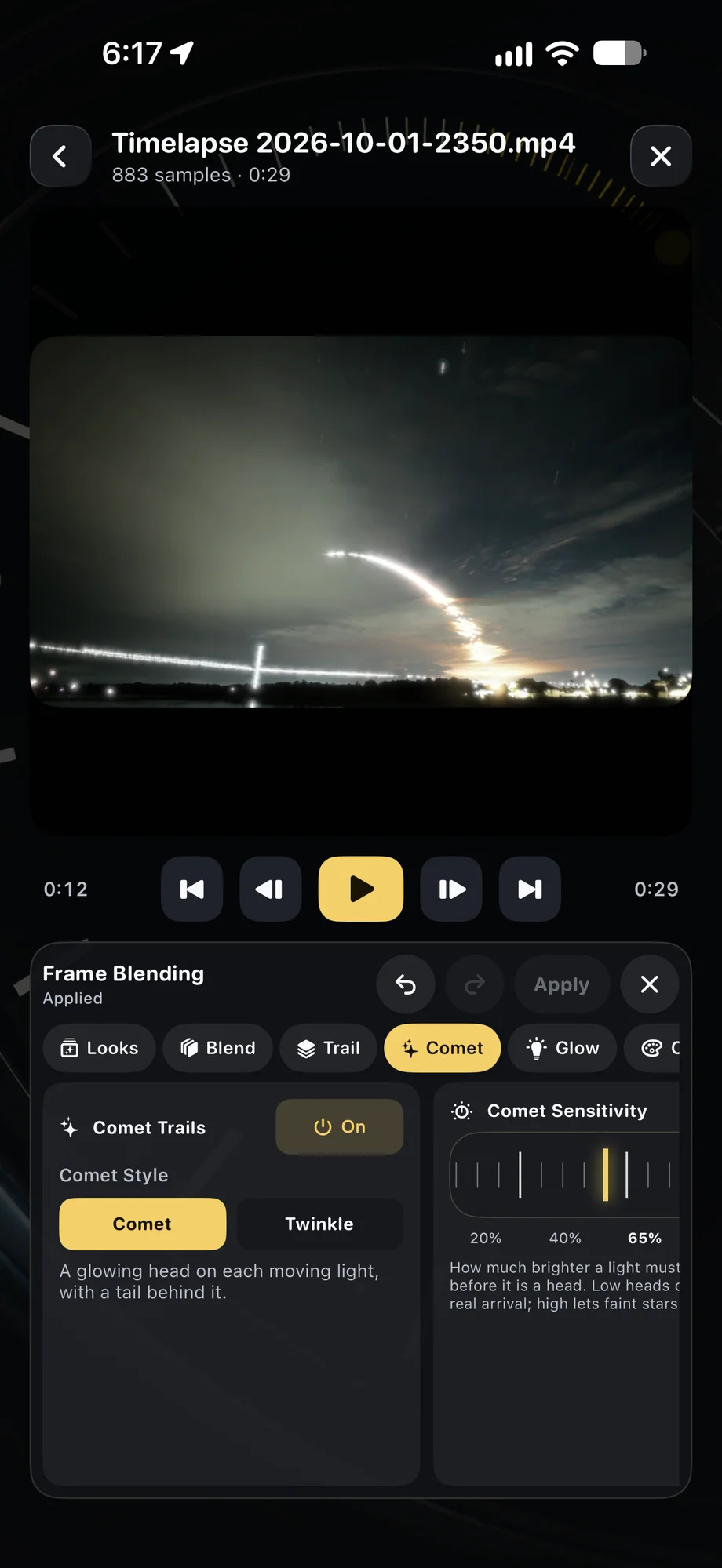
TimeLapsed Tune comet sensitivity and sparkle
TimeLapsed The source clip and Create Video controls
Choose a trail look for imported footageTune comet sensitivity and sparkle

01 · Video Frame Blender

Start with footage that has something to trace.

Stars, aircraft lights, headlights and a light-painting performance all leave visible paths across successive frames. Choose a clip with useful detail and a stable composition when you want a clear trail result. The blender works with the footage you supply, so bright lights lost to clipping or camera motion in the original will affect the processed picture.

Start with footage that has something to trace.
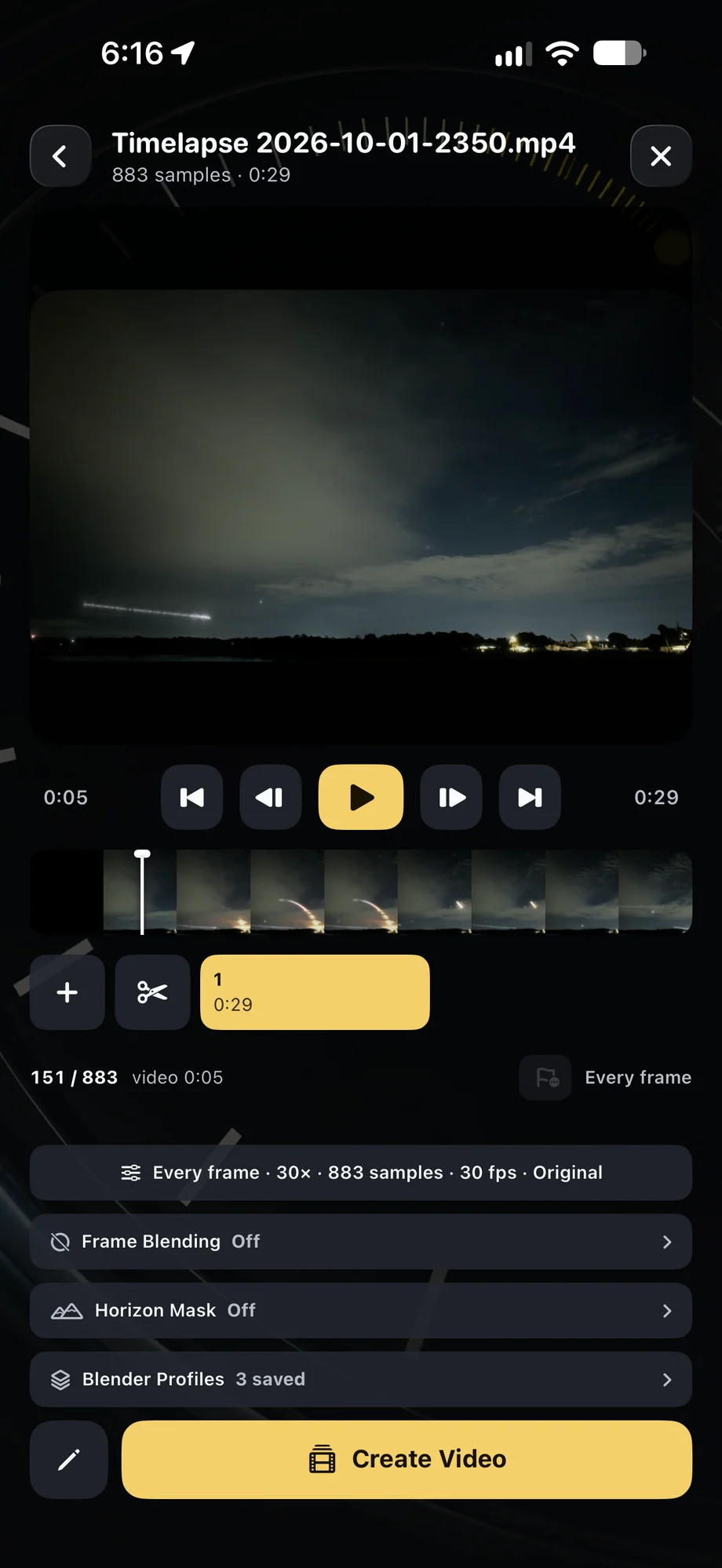
TimeLapsed The source clip and Create Video controls
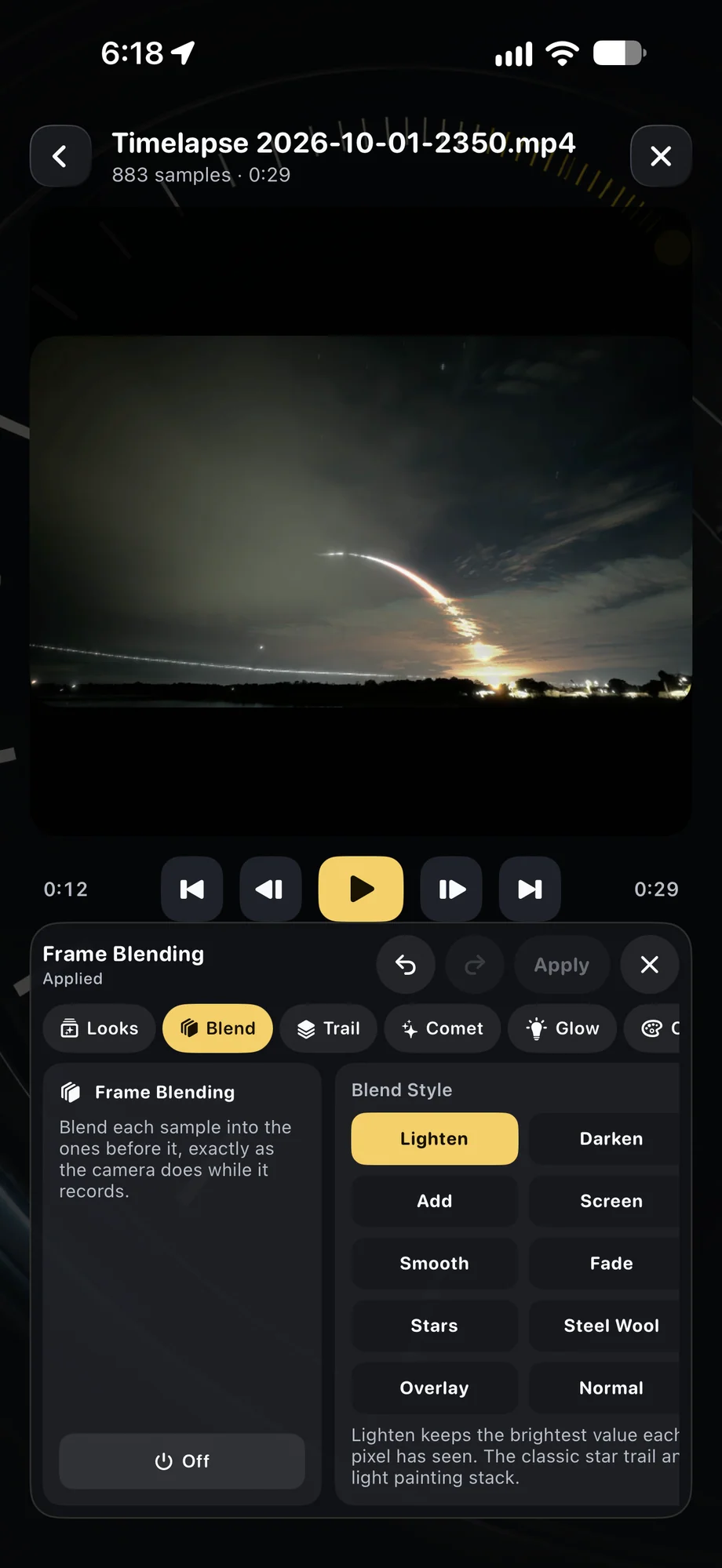
TimeLapsed Blend-style choices
The source clip and Create Video controlsBlend-style choices

02 · Video Frame Blender

Preview the treatment before making the finished file.

Tune blending and trail settings while reviewing the source. Compare a long history with a shorter rolling trail, try comet behavior and adjust glow or color for the scene. The same engine supports the live camera and the post-capture workflow, which makes a familiar camera look easier to revisit with different decisions after the shoot.

Preview the treatment before making the finished file.
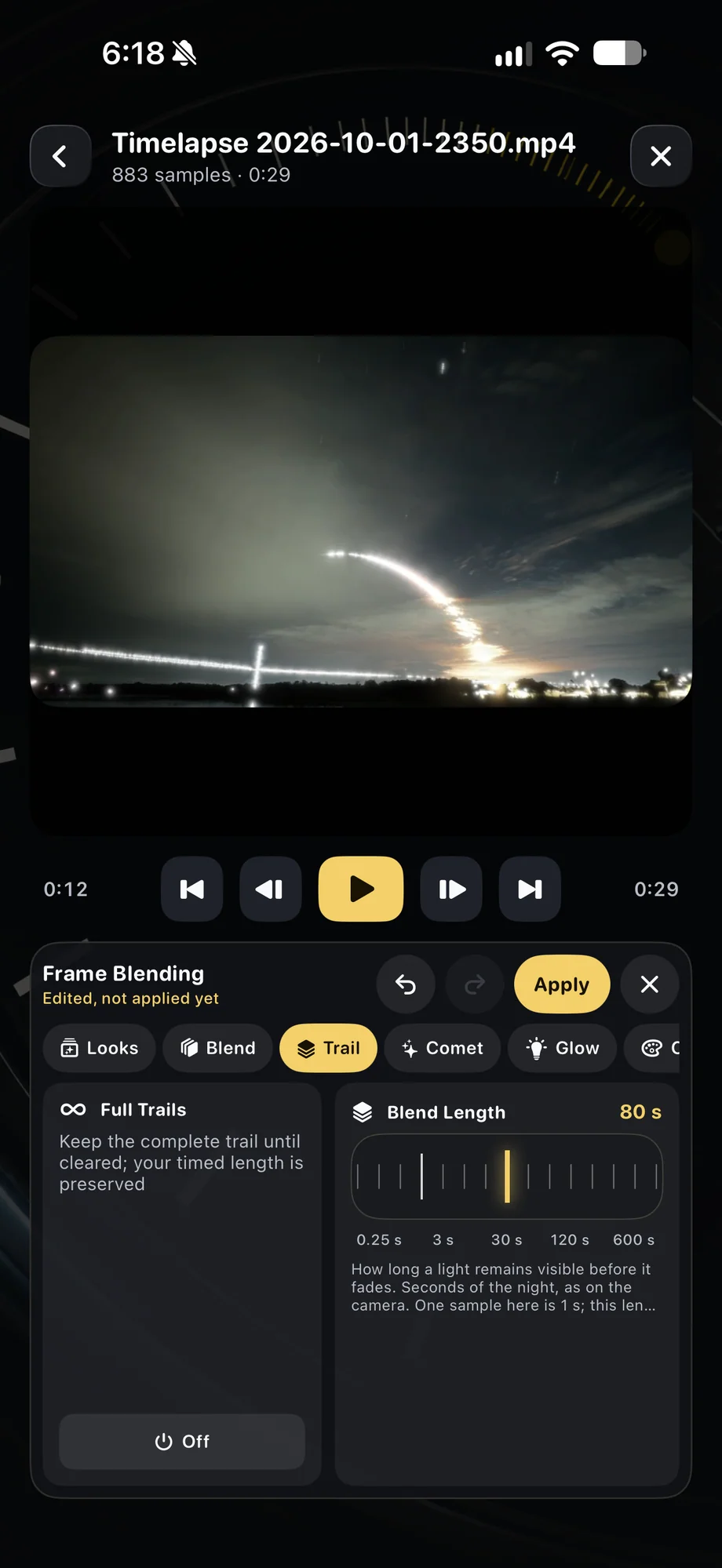
TimeLapsed Timed trail history and length
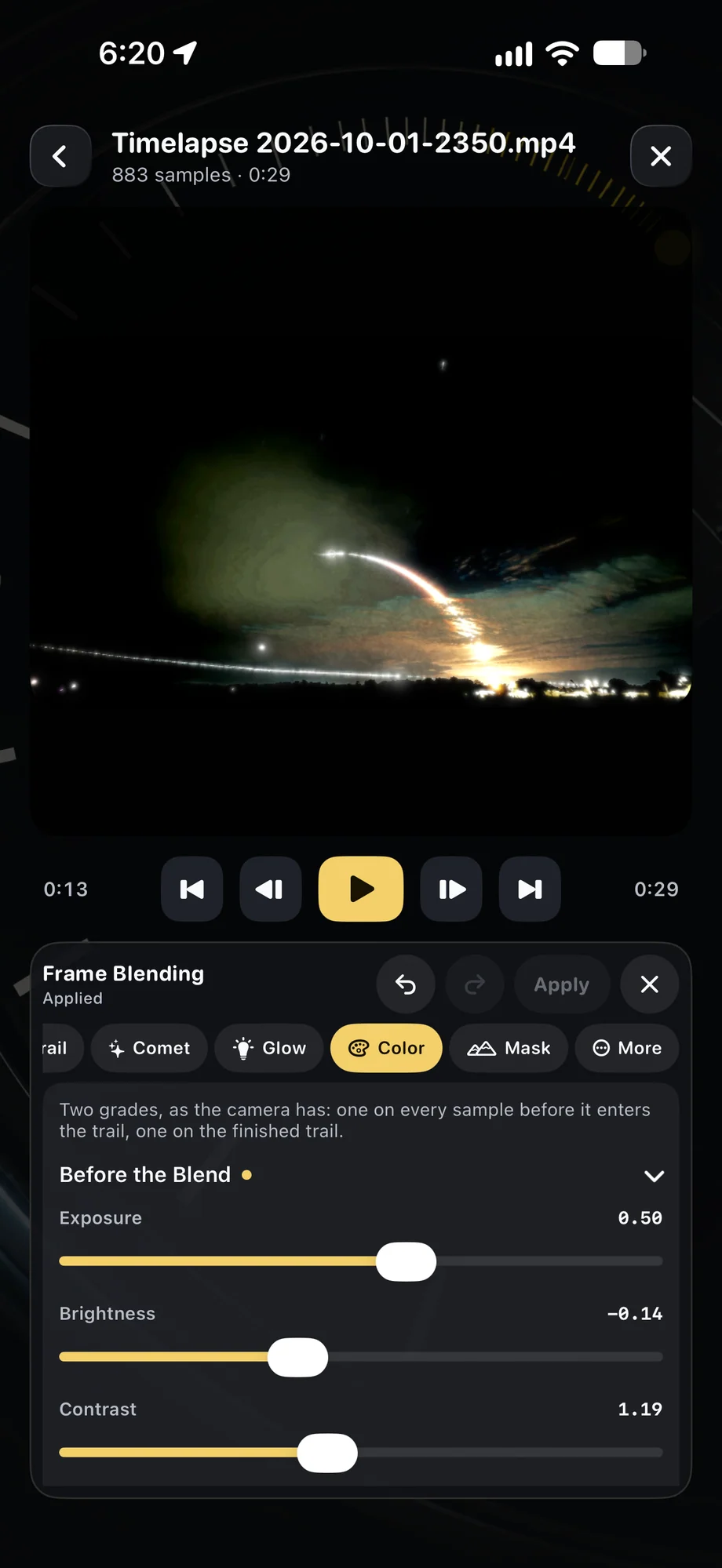
TimeLapsed Color and exposure before the blend
Timed trail history and lengthColor and exposure before the blend

03 · Video Frame Blender

Bring the result into a larger edit.

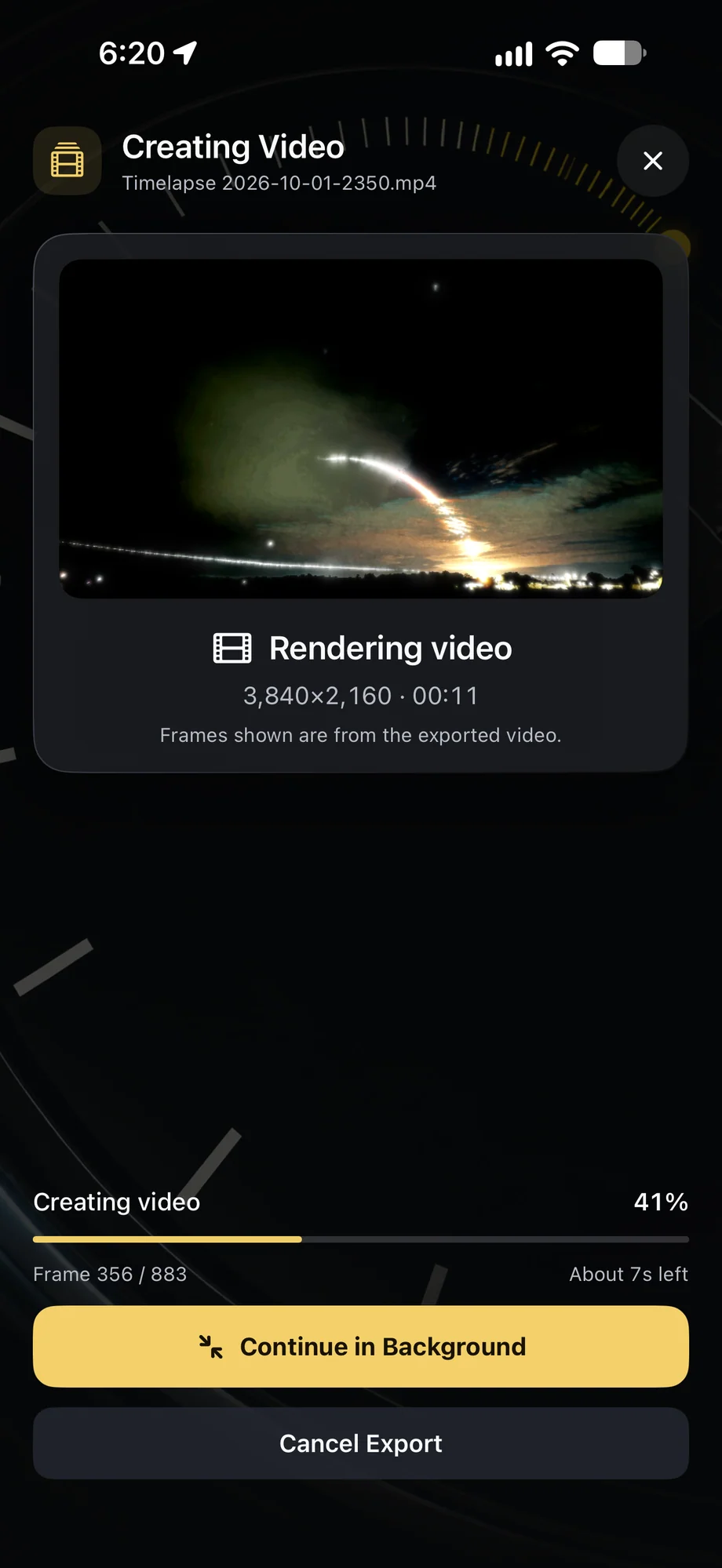
Once the preview has the look you want, render the processed clip and use it in a video project. Combine it with the source footage, a normal-speed take or a still frame to show how the scene changes. Portrait and widescreen projects are supported, and the editor can add titles, framing changes and music to the finished sequence.

Bring the result into a larger edit.
TimeLapsed Color and exposure before the blend
TimeLapsed Render progress for a processed movie
Color and exposure before the blendRender progress for a processed movie

A Practical Workflow

  1. 01

    Open a source video

    Choose existing footage or the effects-free companion from a TimeLapsed capture.

  2. 02

    Preview and tune

    Compare histories and trail effects before committing to a render.

  3. 03

    Render and edit

    Keep the result as a clip or add it to a complete film.

Inside the App

Tap a Screen for a Closer Look

Choose a trail look for imported footage
Tune comet sensitivity and sparkle
The source clip and Create Video controls
Blend-style choices
Timed trail history and length
Color and exposure before the blend
Render progress for a processed movie

Choose a trail look for imported footage

TimeLapsed Choose a trail look for imported footage

Questions About Video Frame Blender

Can I use footage from another camera?

Yes. Import a supported video into the TimeLapsed media workflow, then preview and render it with Video Frame Blender.

Is the original footage replaced?

Keep your source movie for future edits. The workflow renders a processed result from that footage rather than requiring another camera capture.

Browse All 33 TimeLapsed Features

English + 11 More Languages

TimeLapsed 2.0 supports 12 languages across the iPhone, iPad and Apple Watch experiences. Use the camera and tools in the language that works for you.

  • English
  • Spanish
  • French
  • German
  • Italian
  • Brazilian Portuguese
  • Japanese
  • Korean
  • Simplified Chinese
  • Hindi
  • Russian
  • Turkish

Take the app with you

Download TimeLapsed.

Capture on iPhone, iPad or a compatible Android phone. Apple Watch controls are available with the iOS app.

Download on the App Store

TimeLapsed for Android

Awaiting Google’s review

We’re awaiting Google’s review. Check back soon, or apply for the beta test by sending us the email address you use on Google Play. We’ll be adding testers every few days.

Apply for the beta test

Android review is in progress. Beta requests are open.

QR code to download TimeLapsed on the App Store

Scan With an iPhone or iPad to Open the App Store.