TimeLapsed 2.0 · Your Progress & Community

Get a suggestion. Choose your settings.

Sometimes a scene is unfamiliar enough that a starting suggestion helps. Analyze Scene offers optional AI camera recommendations for you to review and apply. You remain the person choosing the exposure, framing and treatment. Use the recommendation as a starting point, then check the live picture before committing to a recording.

iPhone · iPad · Apple Watch · English + 11 Languages

Analyze Scene

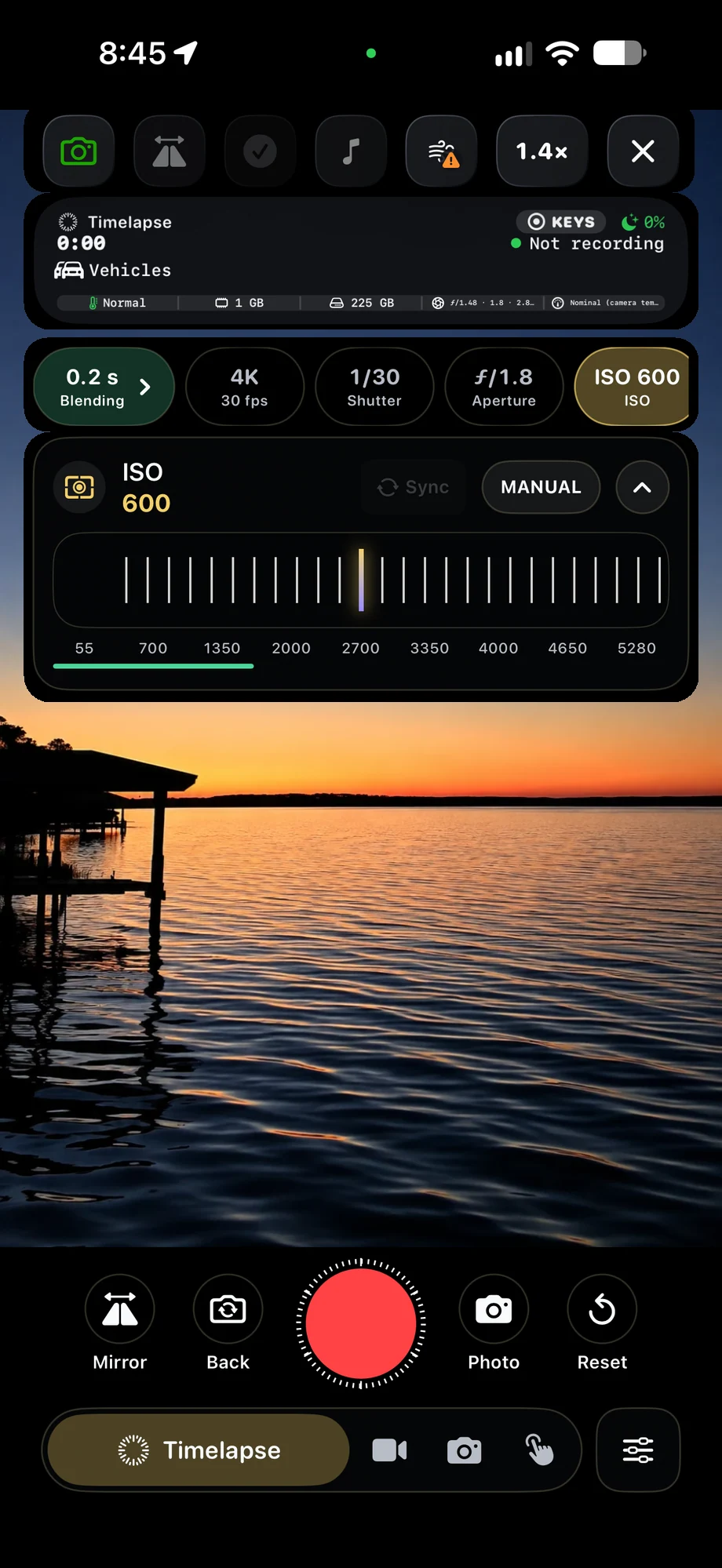
TimeLapsed Manual exposure controls for reviewing a camera setup, with an illustrated scene beneath the captured camera controls
TimeLapsed The camera view used to inspect the resulting settings, with an illustrated scene beneath the captured camera controls
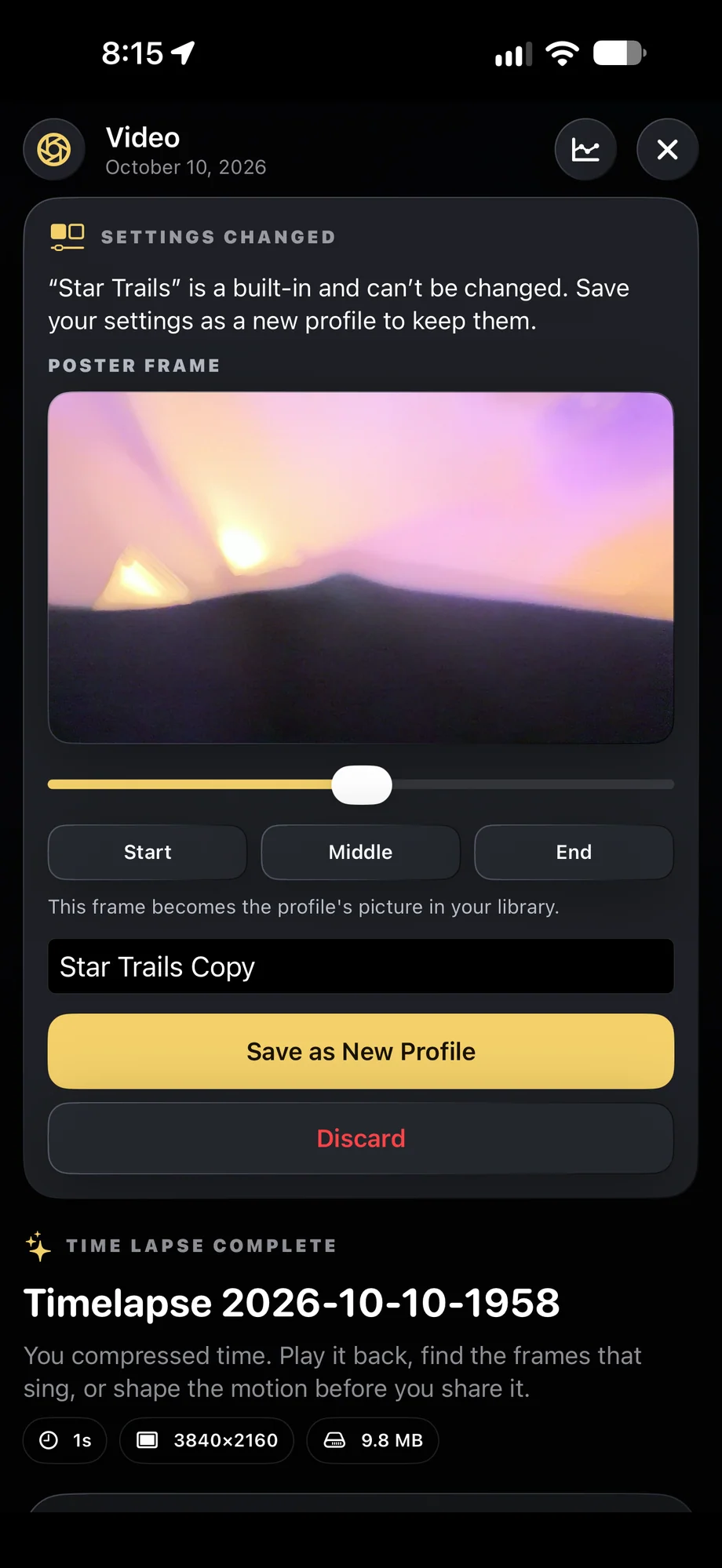
TimeLapsed Save a useful setup as a new profile
Manual exposure controls for reviewing a camera setupThe camera view used to inspect the resulting settingsCaptured iOS Controls · Illustrated Camera Preview

01 · Analyze Scene

Ask for help with the scene you are looking at.

Use Analyze Scene when you want camera-setting guidance for the current subject. A night landscape, moving headlights and a lit drawing surface ask for different choices. The feature offers recommendations; it does not know every condition around the rig or what you intend the finished movie to feel like. Keep that intent part of your review.

Ask for help with the scene you are looking at.
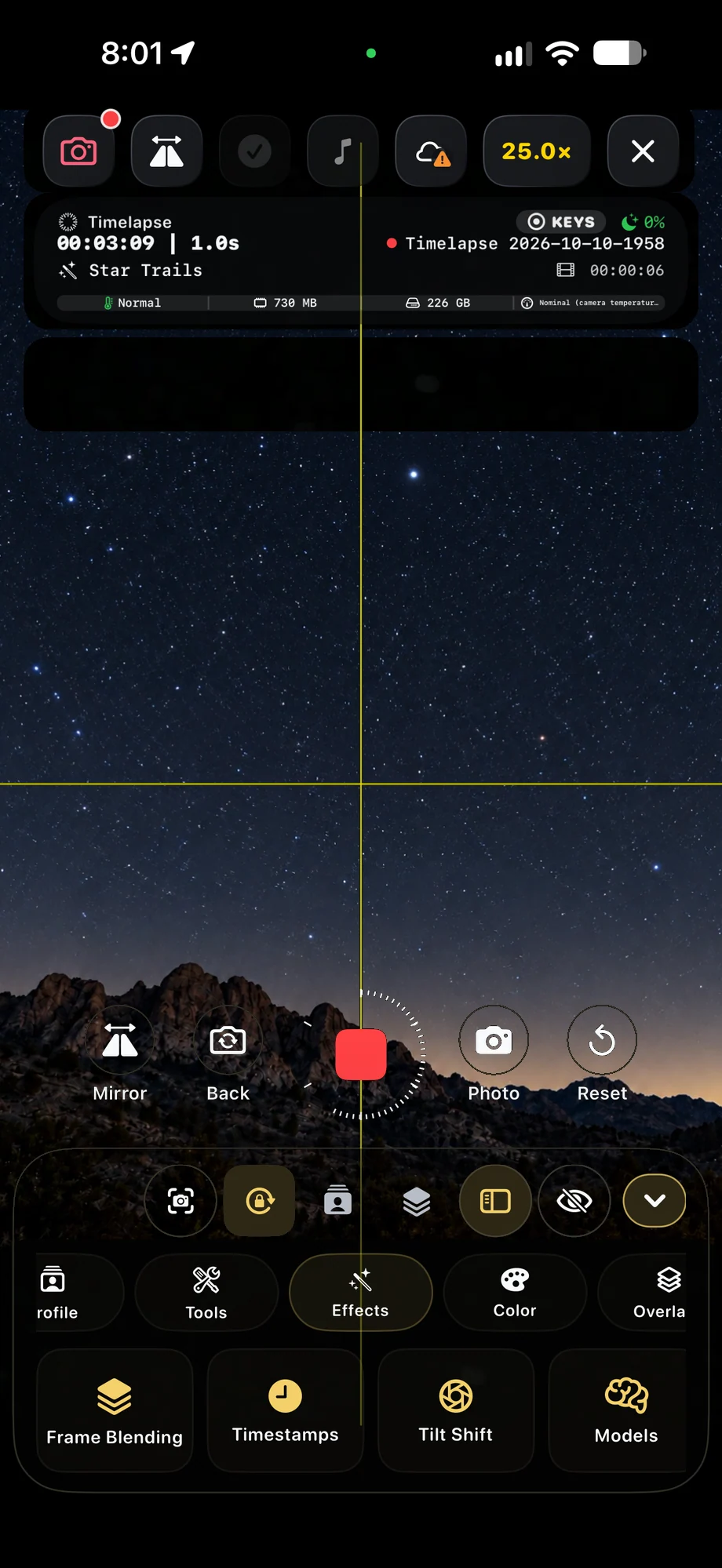
TimeLapsed The camera view used to inspect the resulting settings, with an illustrated scene beneath the captured camera controls
TimeLapsed Save a useful setup as a new profile
The camera view used to inspect the resulting settingsSave a useful setup as a new profileCaptured iOS Controls · Illustrated Camera Preview

02 · Analyze Scene

Review the settings instead of accepting them blindly.

Read the suggestions and choose which supported settings to apply. Check the preview after making a change, especially for clipped lights, focus and the brightness of the foreground. A useful recommendation should help you reach a workable camera state faster. Adjust it further when the scene or your creative goal calls for a different result.

Review the settings instead of accepting them blindly.

TimeLapsed The camera view used to inspect the resulting settings, with an illustrated scene beneath the captured camera controls
TimeLapsed Save a useful setup as a new profile
The camera view used to inspect the resulting settingsSave a useful setup as a new profileCaptured iOS Controls · Illustrated Camera Preview

03 · Analyze Scene

Turn a useful suggestion into your own setup.

Once the camera looks right, save a profile for a similar subject. If the light will change, add Camera Actions from that starting point and review the timeline. Analyze Scene is optional, and the manual camera remains available when you prefer to set everything yourself. Review the app’s AI Usage Policy for the terms of the feature.

Turn a useful suggestion into your own setup.

TimeLapsed The camera view used to inspect the resulting settings, with an illustrated scene beneath the captured camera controls
TimeLapsed Save a useful setup as a new profile
The camera view used to inspect the resulting settingsSave a useful setup as a new profileCaptured iOS Controls · Illustrated Camera Preview

A Practical Workflow

  1. 01

    Request a recommendation

    Use Analyze Scene when guidance would help with the current subject.

  2. 02

    Review and apply

    Choose the suggested settings you want and inspect the live preview.

  3. 03

    Refine and save

    Make your own adjustments and keep a profile when the setup works.

Inside the App

Tap a Screen for a Closer Look

Manual exposure controls for reviewing a camera setupCaptured Controls · Illustrated Camera Preview
The camera view used to inspect the resulting settingsCaptured Controls · Illustrated Camera Preview
Save a useful setup as a new profile

Manual exposure controls for reviewing a camera setup

TimeLapsed Manual exposure controls for reviewing a camera setup, with an illustrated scene beneath the captured camera controls

Questions About Analyze Scene

Does Analyze Scene make changes without my review?

The feature provides recommendations for you to review and apply. Check the live camera result before recording.

Do I have to use AI to use TimeLapsed?

No. Analyze Scene is optional. The core camera and manual controls do not require you to use it.

Browse All 33 TimeLapsed Features

English + 11 More Languages

TimeLapsed 2.0 supports 12 languages across the iPhone, iPad and Apple Watch experiences. Use the camera and tools in the language that works for you.

  • English
  • Spanish
  • French
  • German
  • Italian
  • Brazilian Portuguese
  • Japanese
  • Korean
  • Simplified Chinese
  • Hindi
  • Russian
  • Turkish

Take the app with you

Download TimeLapsed.

Capture on iPhone, iPad or a compatible Android phone. Apple Watch controls are available with the iOS app.

Download on the App Store

TimeLapsed for Android

Awaiting Google’s review

We’re awaiting Google’s review. Check back soon, or apply for the beta test by sending us the email address you use on Google Play. We’ll be adding testers every few days.

Apply for the beta test

Android review is in progress. Beta requests are open.

QR code to download TimeLapsed on the App Store

Scan With an iPhone or iPad to Open the App Store.