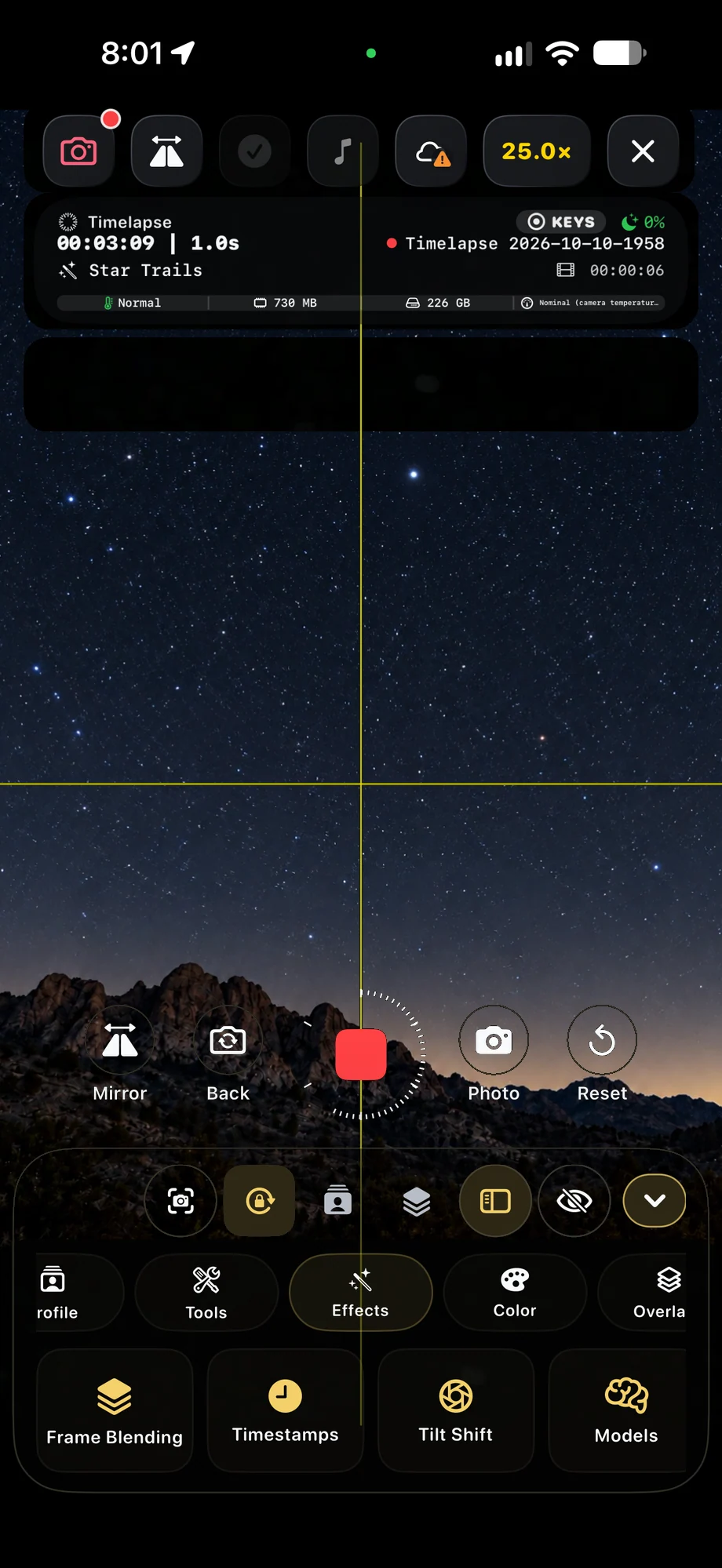
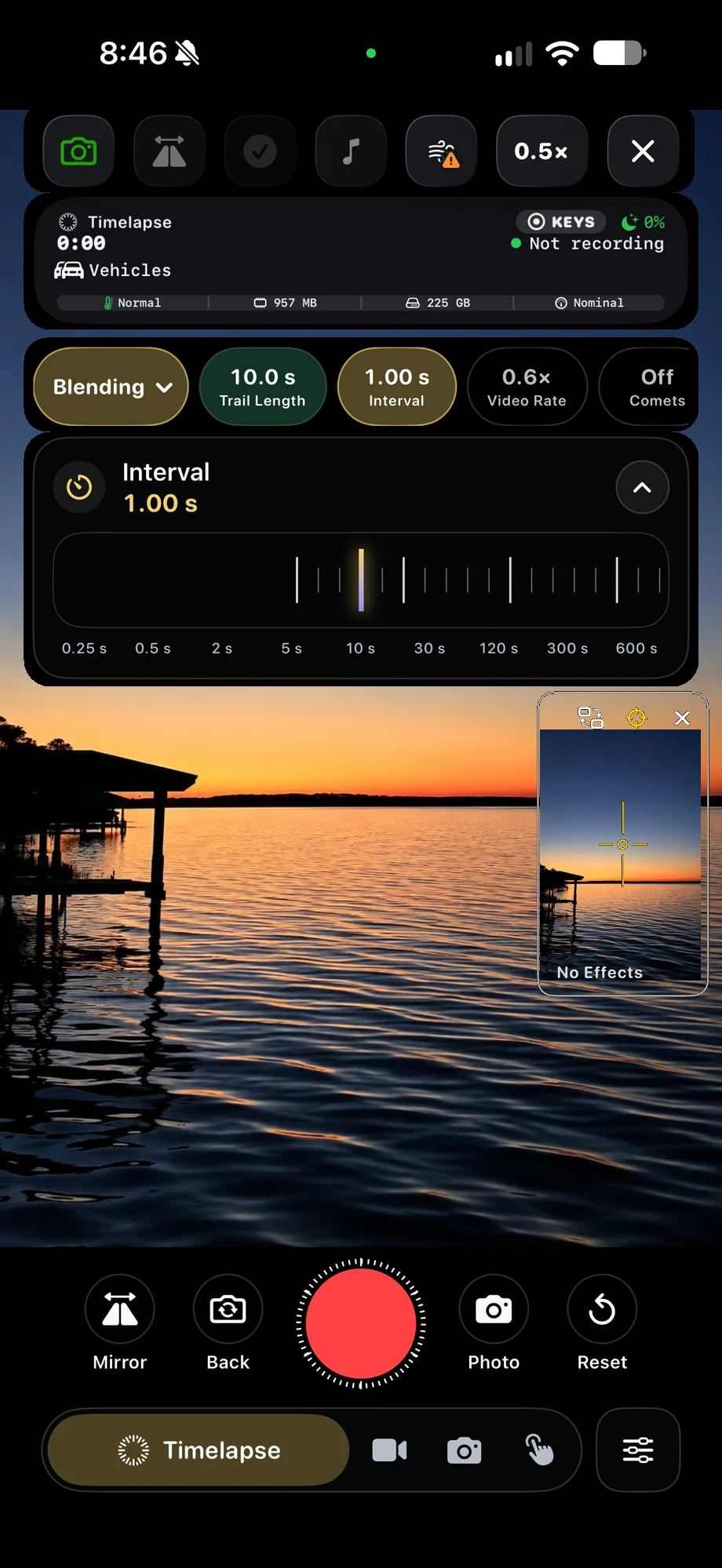
01 · Timelapse & Video Capture
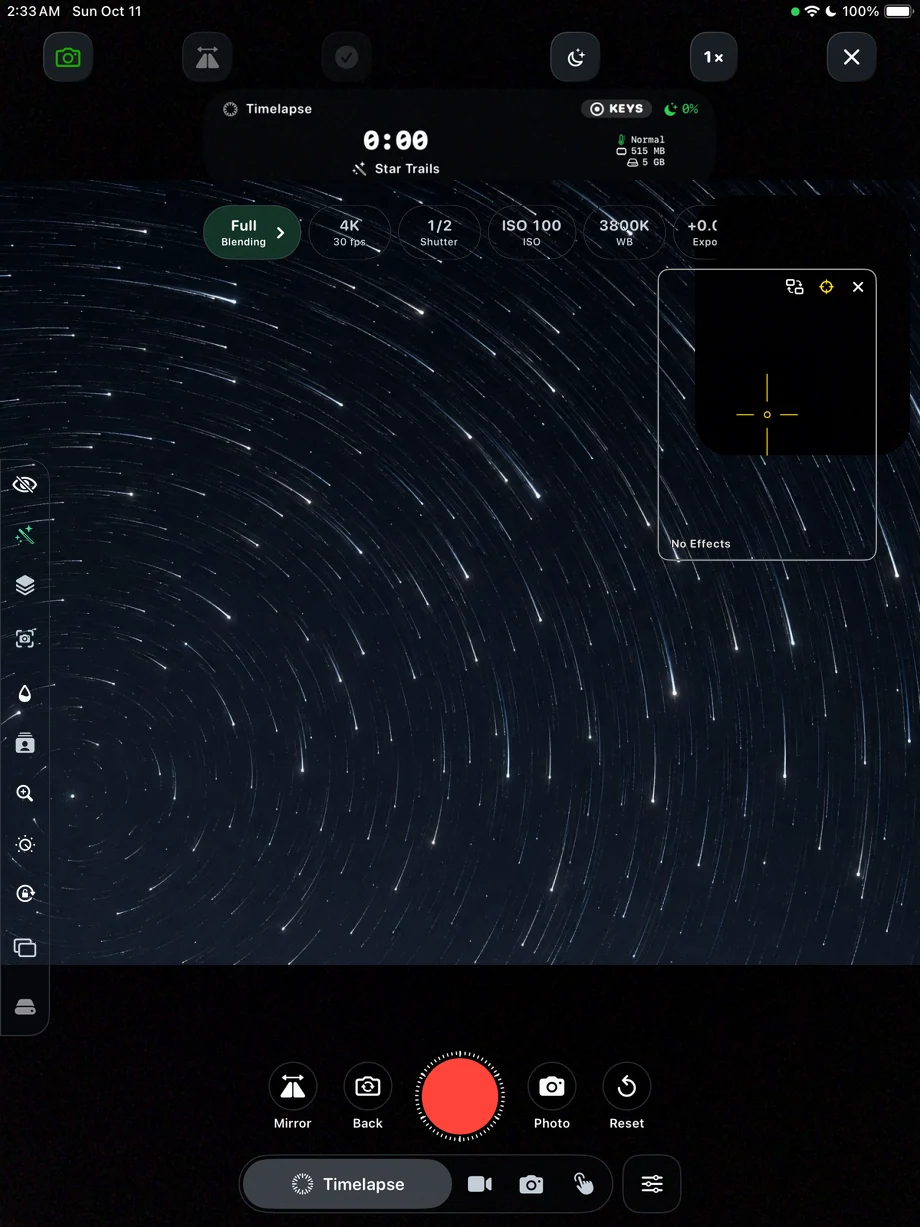
Decide what the interval should preserve.
Short intervals retain more of a fast-moving subject. Longer intervals compress a slow change into fewer frames. Set the cadence around the movement you want to show, then consider how long the camera will need to run. Keep the running frame count and recording time visible so you can judge the take without leaving the camera.
Decide what the interval should preserve.
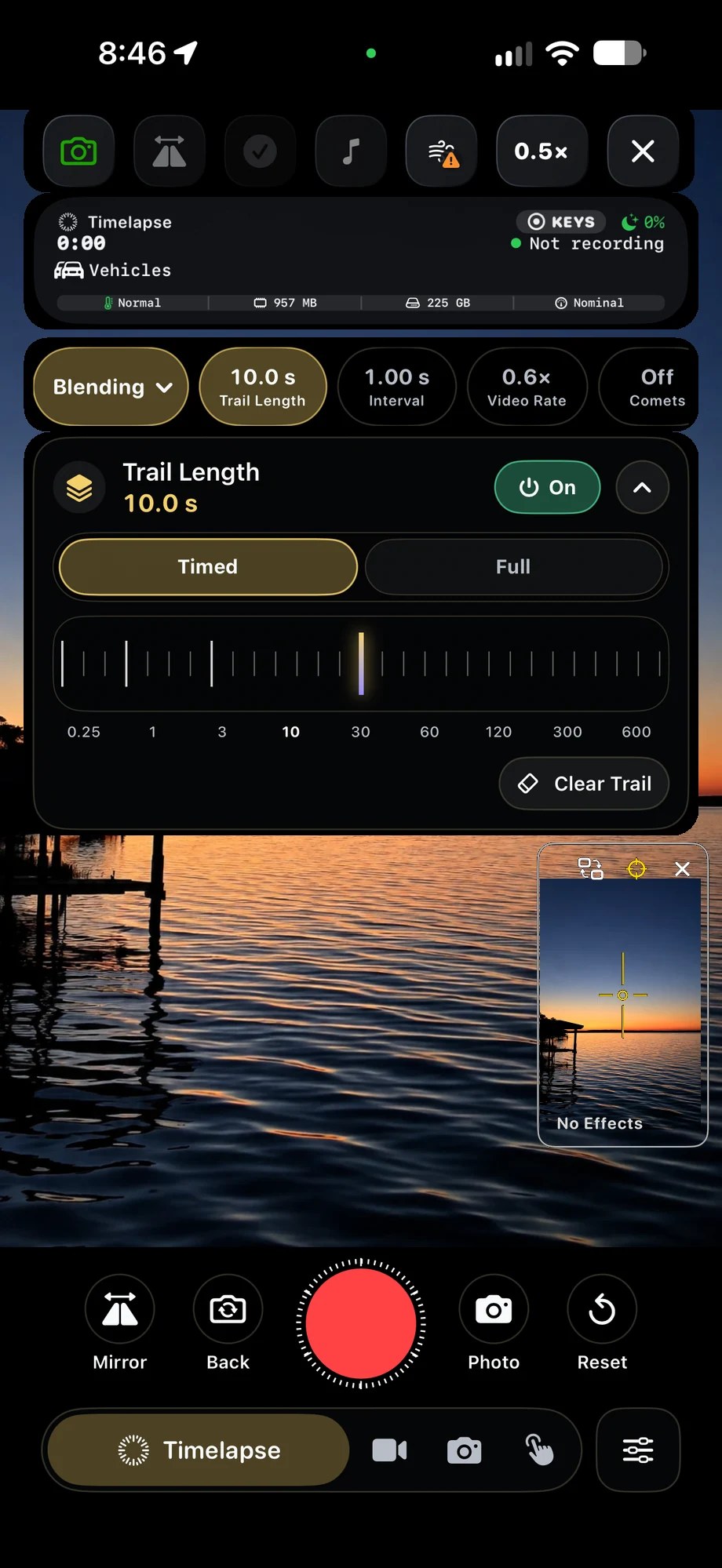
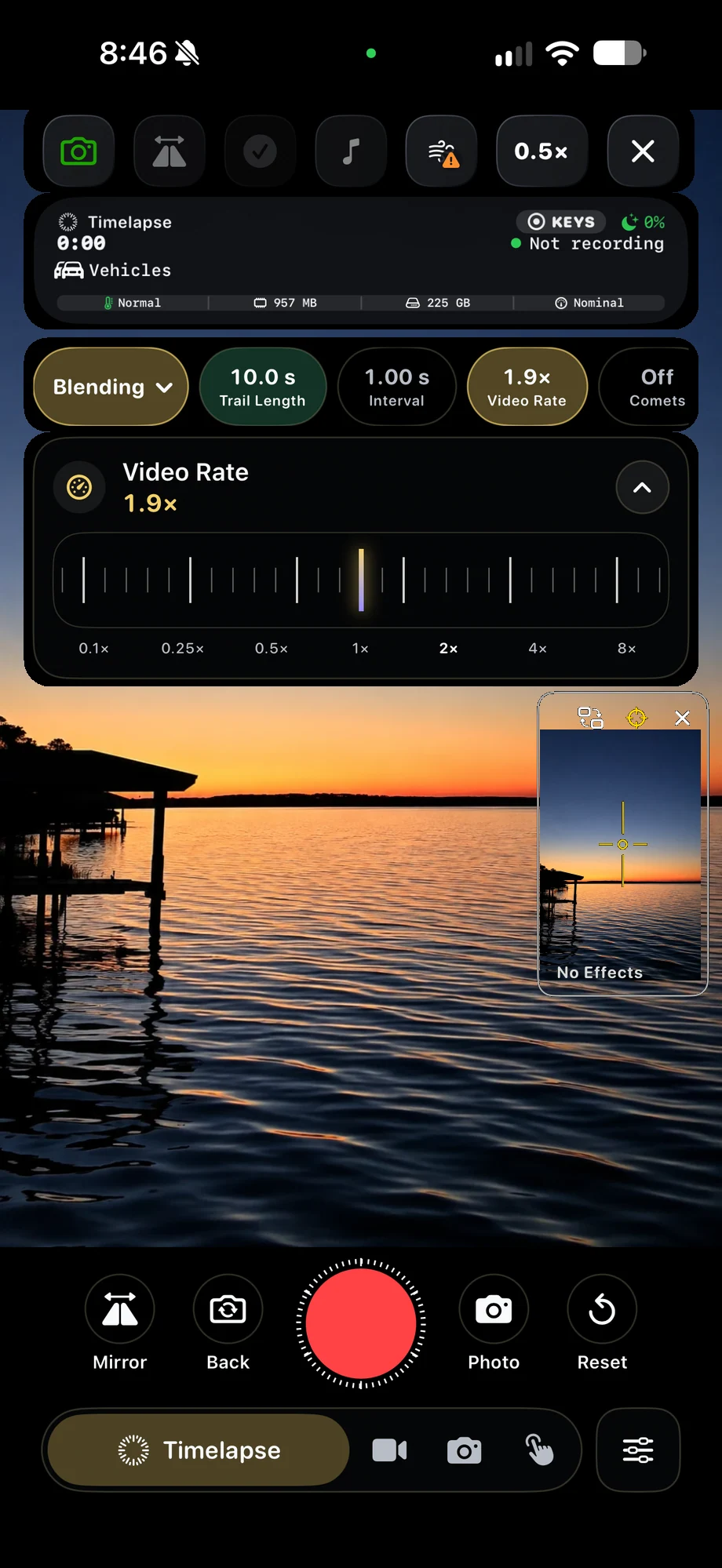
02 · Timelapse & Video Capture
Frame for the screen where the film will be watched.
Record portrait video for a vertical story or use widescreen 16:9 for a landscape, a longer film or a television. The rebuilt editor supports both formats. Leave room around moving subjects when composing, especially if you plan to change framing in the edit. Camera profiles keep the capture choices ready for another session.
Frame for the screen where the film will be watched.
03 · Timelapse & Video Capture
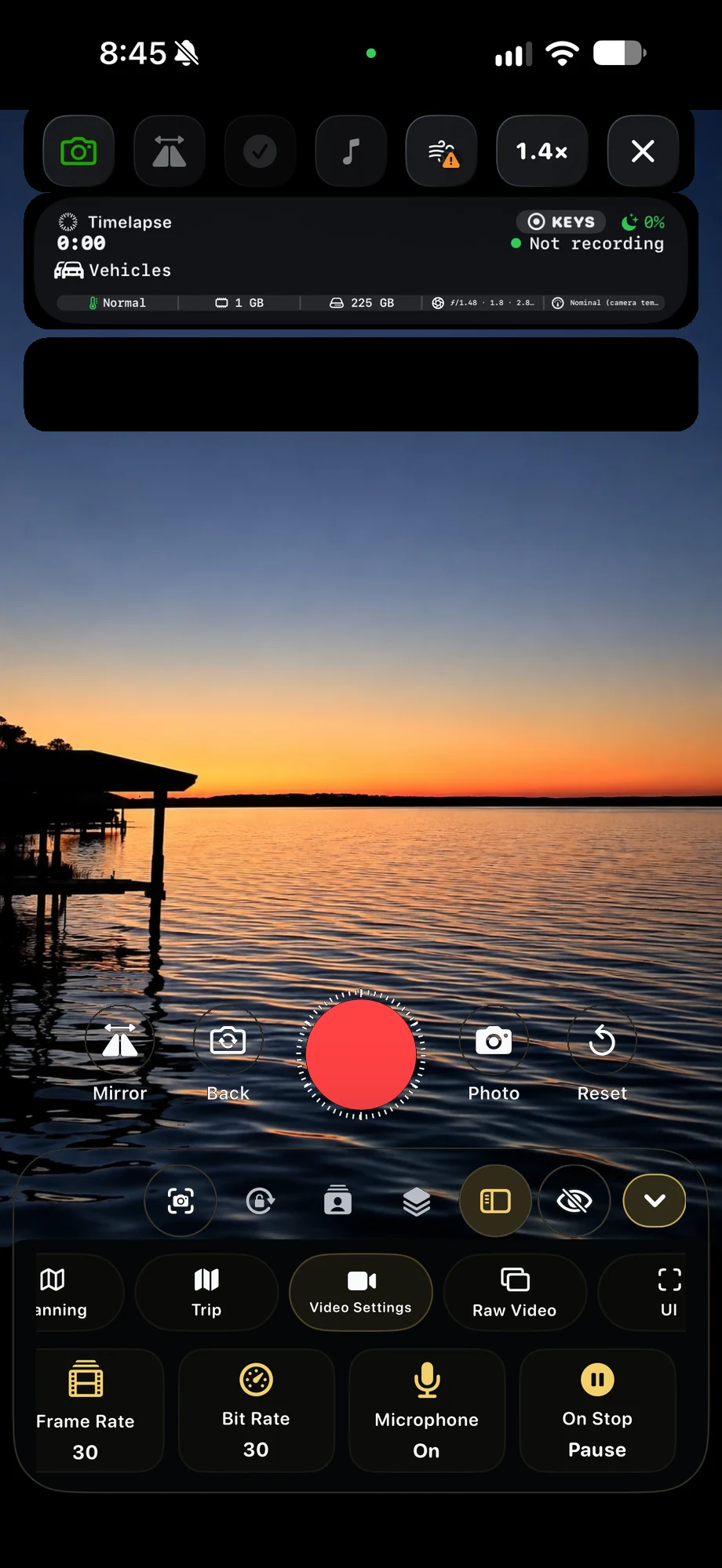
Pause a video when the action pauses.
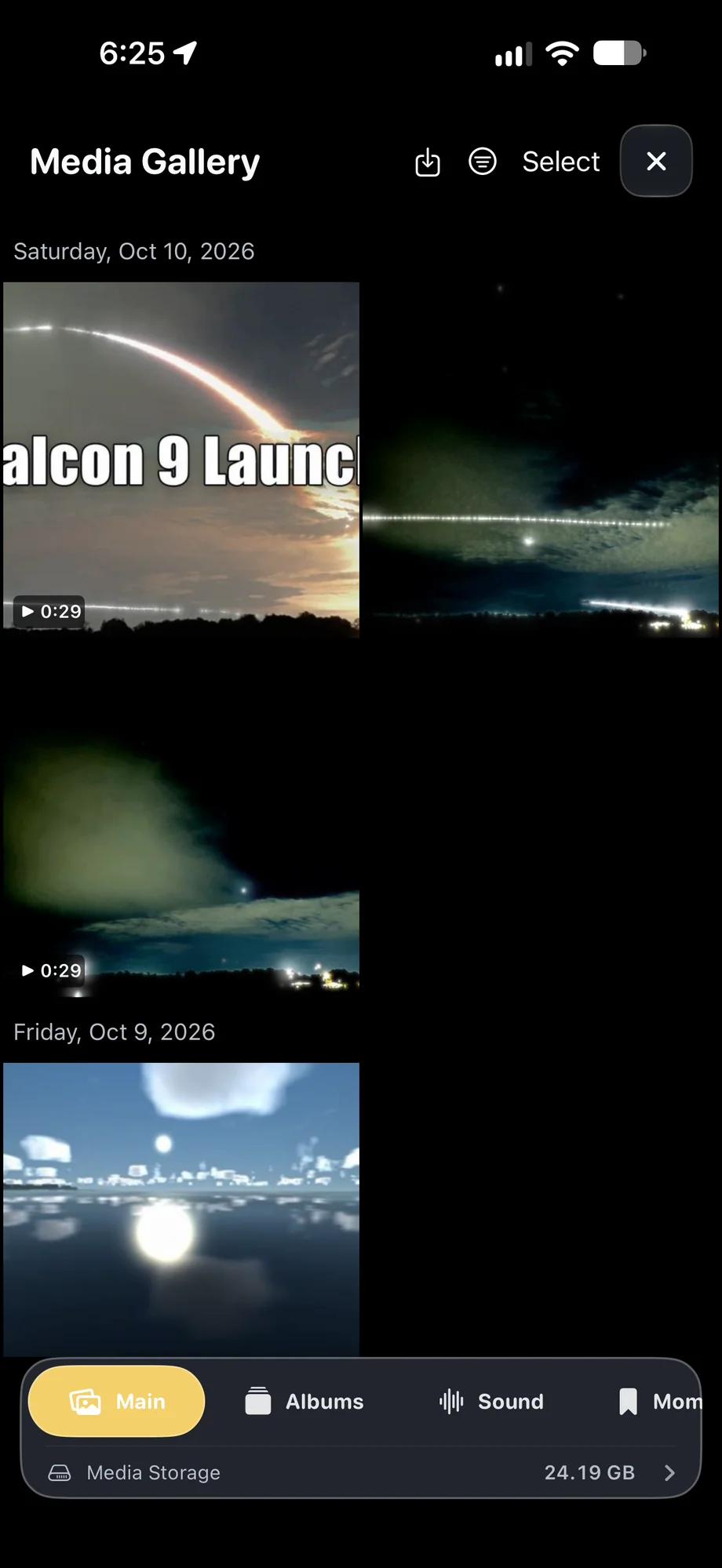
Real-time video recording can be paused and resumed. Flip and mirror controls give you more choices for the camera view, and Moments help keep the useful parts of a recording. After the take, open the media gallery to inspect the result, save a still frame or put the clip into a trip film.
Pause a video when the action pauses.
A Practical Workflow
- 01
Choose a capture mode
Use timelapse for compressed time or real-time video for continuous motion.
- 02
Set the cadence and frame
Match interval, playback speed and orientation to the subject.
- 03
Review the take
Open the recording in the gallery and keep the frames or clips you need.
Inside the App
Tap a Screen for a Closer Look
Questions About Timelapse & Video Capture
Can I shoot widescreen video?
Yes. TimeLapsed 2.0 supports widescreen 16:9 capture and editing as well as portrait projects.
Can I pause a recording?
Pause and resume are available for video recording. Plan a timelapse around the interval and duration that suit the scene.